
Lesson requests
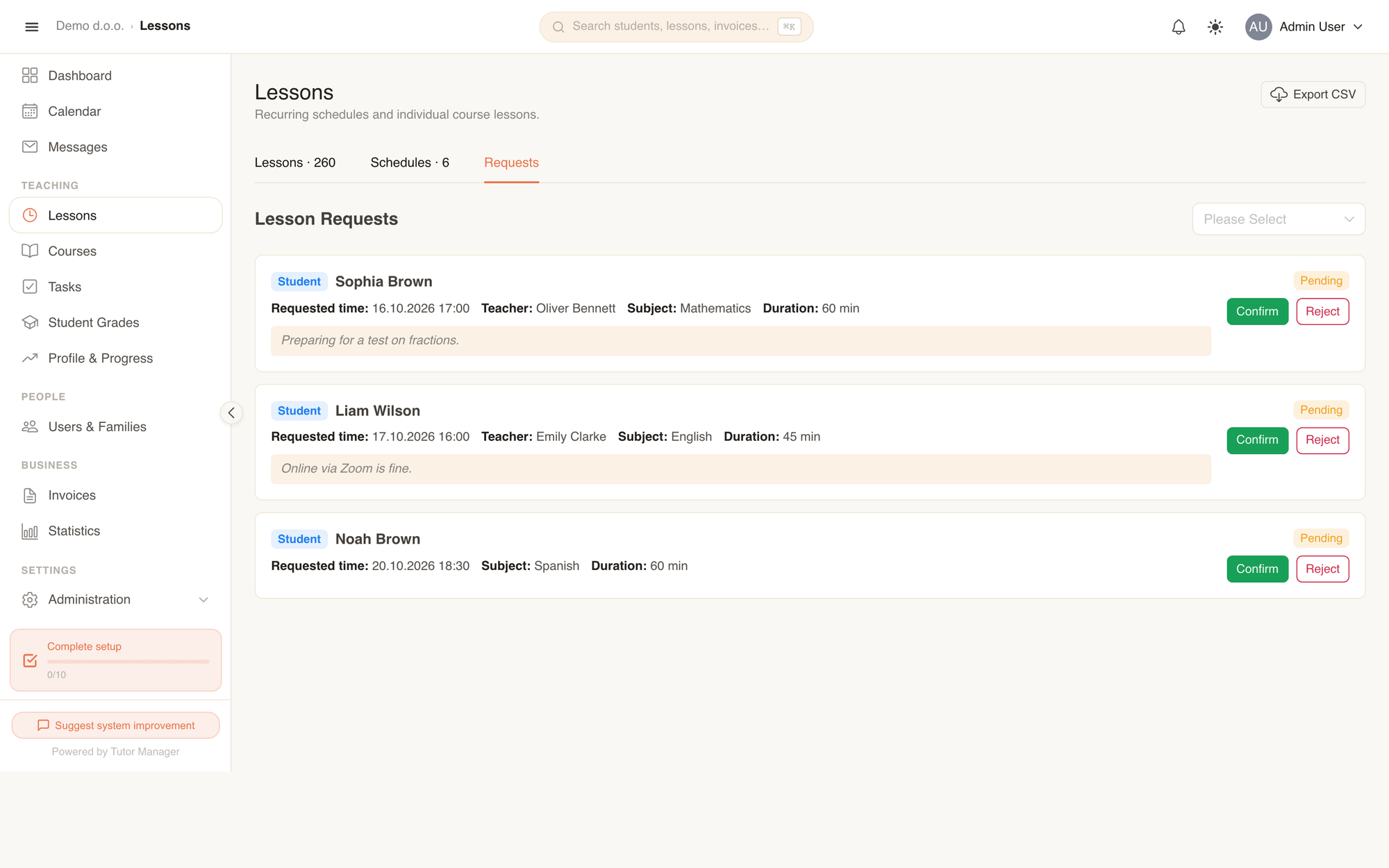
Lesson requests give students and parents an easy way to propose new tutoring sessions directly from their portal. School staff (admins, receptionists, and teachers) can review incoming requests on the Requests tab and confirm them—which automatically creates a scheduled lesson—or decline them with an explanatory note.
How students and parents request a lesson
Students and parents can request a one-off lesson at any time without having to call or email the school office.
- Open Lessons in the sidebar and switch to the Requests tab.
- Click Request a Lesson.
- If you are logged in as a parent, choose which child the lesson is for in Select child.
- Pick the desired date and start time in Requested time.
- Optionally select a preferred Teacher (or leave it as Any teacher to let the school assign an available tutor).
- Optionally pick the Subject and Duration.
- Enter any extra details in Notes (for example, upcoming exam dates or specific chapters to cover).
- Click Submit Request.
The request appears under My Lesson Requests with the status Pending. If your plans change before the school responds, you can cancel your request at any time by clicking Cancel.
Request form fields
| Field | Description |
|---|---|
| Select child | (Parents only) Identifies which child in the family requires the lesson. |
| Requested time | The exact date and start time requested for the session. |
| Teacher | Optional. Select a specific tutor or choose Any teacher. |
| Subject | Optional. Select a specific subject or choose Any subject. |
| Duration | Optional. Choose the desired lesson length or leave as Any duration. |
| Notes | Free-form notes regarding learning goals, topics, or schedule flexibility. |
How staff review and process requests
School administrators, receptionists, and teachers manage incoming requests from the Requests tab on the Lessons page.
Use the status filter in the top right to filter between All statuses, Pending, Confirmed, Rejected, and Cancelled.
Confirm a request
- Locate a request with the Pending badge and review the requested date, student, and notes.
- Click Confirm.
- TutorManager immediately creates a new individual lesson scheduled for that exact time:
- If a teacher was specified in the request, they are assigned to the lesson.
- If the request had no teacher specified and a teacher clicks Confirm, that teacher is assigned.
- The request status updates to Confirmed, linked directly to the new lesson.
- The student and parents automatically receive a notification confirming the lesson date and time.
The confirmed session appears immediately in the Calendar and on the Lessons list.
Reject a request
If no teacher or room is available at the requested time, staff can decline the request with feedback:
- Click Reject on the pending request card.
- In the Reject Request modal, type a helpful explanation in Reject reason (optional) (for example, "The teacher is booked until 17:00 on Tuesdays; please submit a request for Wednesday or Thursday").
- Click Reject.
The status changes to Rejected. The student and parent receive a notification containing your explanation so they can submit a new request for an alternative time.
Request statuses
| Status | Meaning |
|---|---|
| Pending | Submitted by the student or parent; awaiting staff review. |
| Confirmed | Accepted by staff; a scheduled lesson has been created automatically. |
| Rejected | Declined by staff with an optional reason provided. |
| Cancelled | Withdrawn by the student or parent before staff confirmed it. |