
Locations & rooms
Manage your school's physical branches and classrooms. Assigning locations and rooms to lessons and courses guarantees that teachers and students meet in the right space and prevents scheduling overlaps.
In TutorManager, teaching takes place in two primary environments:
- At school: Held at one of your registered physical branches, optionally booked into a specific classroom.
- At client home: The teacher travels to the student's address, with travel distance recorded for travel cost (mileage) calculation.
Add a school location
A location represents a physical building, branch, or educational center.
- Open Locations from the sidebar (or via Administration -> Locations).
- Click New Location.
- Under Name, enter the title of your branch (for example "Main Campus" or "Downtown Center").
- Enter the physical street Address, City, Postal Code, Country, and a contact Phone number.
- Ensure the Active switch is turned on and click Create.
Open in Google Maps
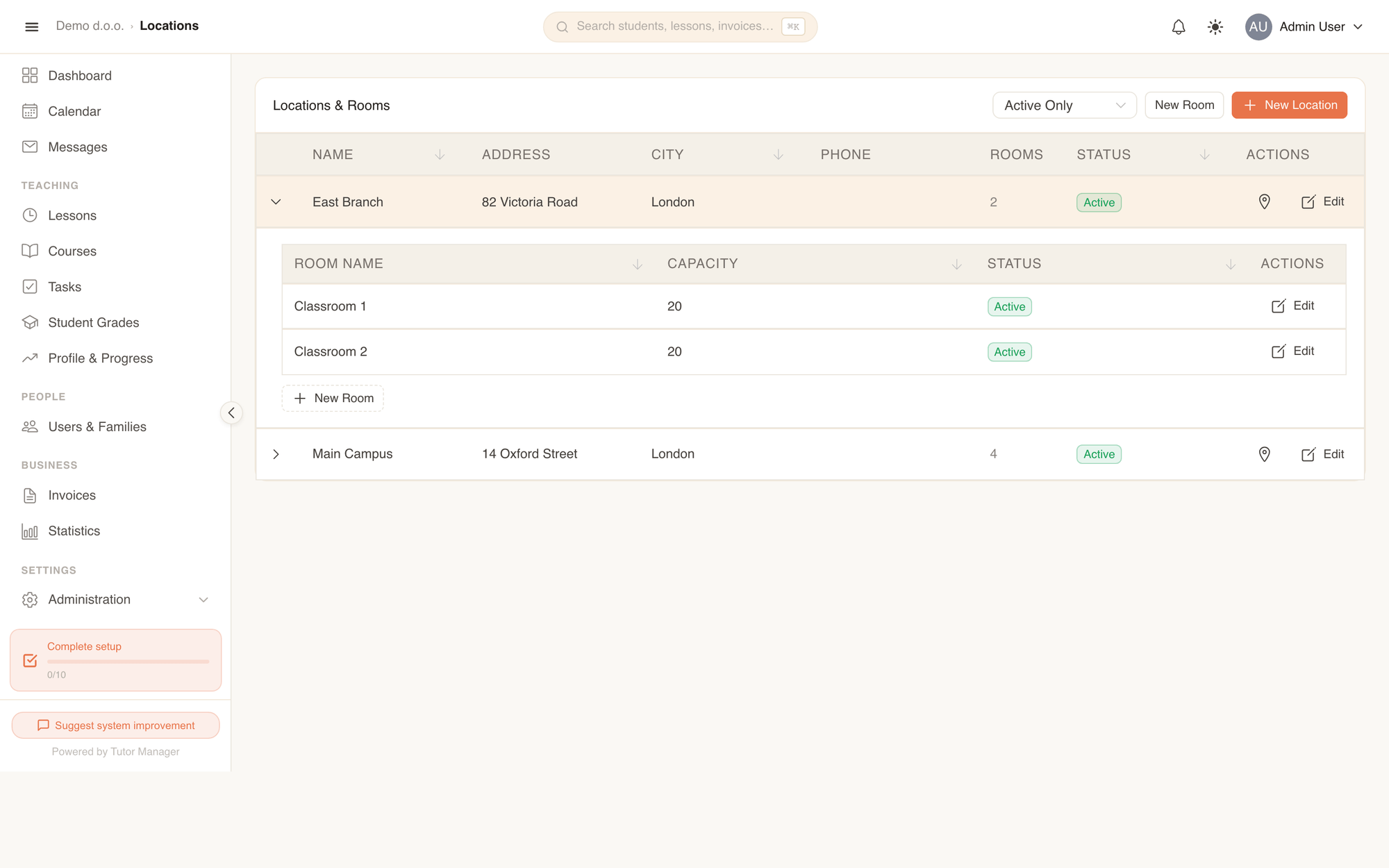
In the locations list, any branch with a valid address displays a map pin button. Click it to immediately open the exact location in Google Maps.
Add and manage rooms
Rooms belong to a specific location and represent individual classrooms, music studios, or laboratories.
- On the Locations list, click on any location row to expand it, or click the expand chevron on the left.
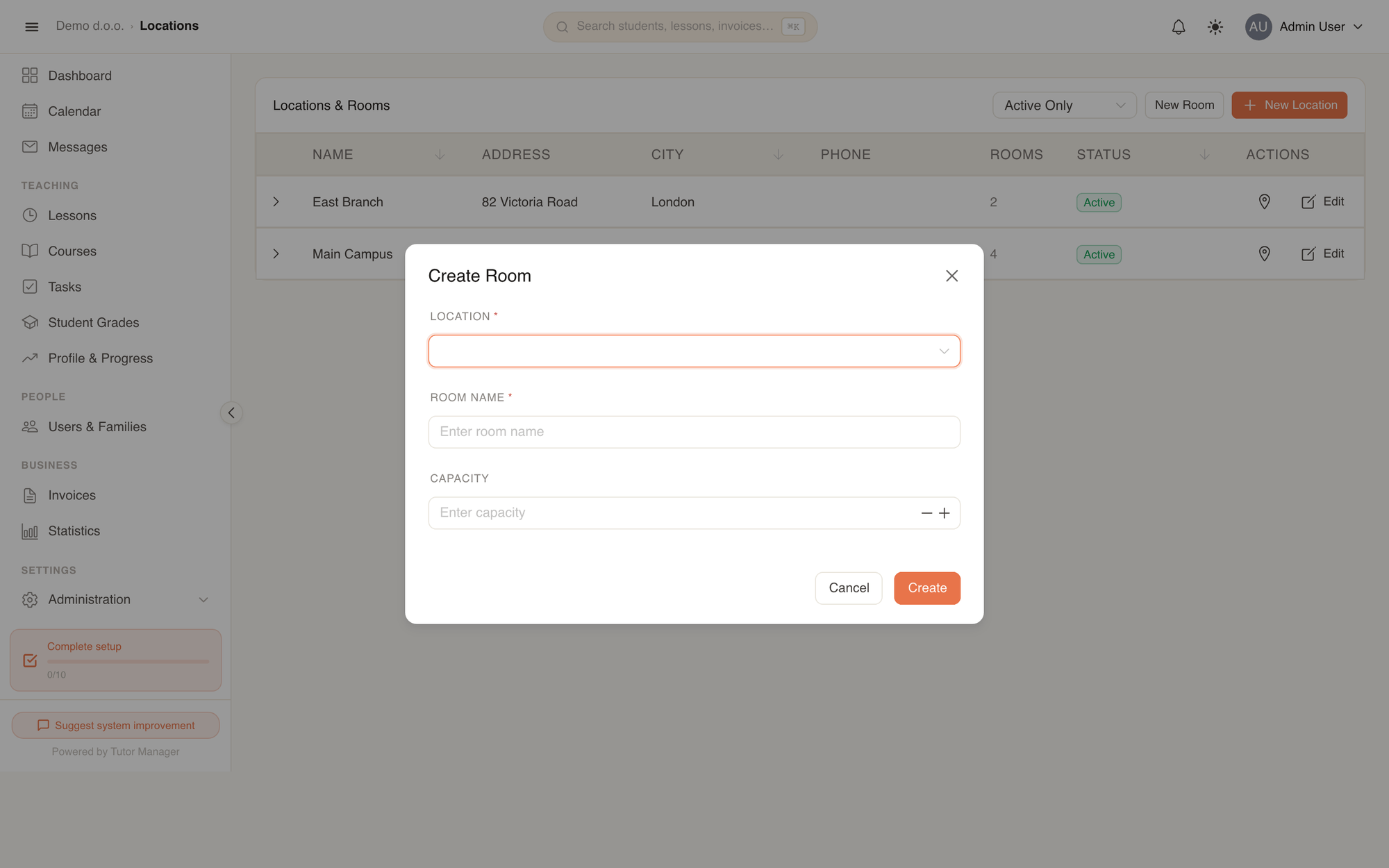
- Click the dashed New Room button directly beneath the expanded location (or click New Room in the top toolbar).
- Select the parent Location (pre-selected if opened from inside an expanded branch).
- Enter the Room Name (for example "Room 101", "Lab A", or "Conference Room").
- Specify the maximum student Capacity (for example
1for private tutoring booths, or12for group course classrooms). - Click Create.
How locations and rooms are used
In individual lessons
When scheduling an individual lesson, choose the Location Type:
- Choose At school, then select the branch from the Location dropdown. Once selected, you can optionally assign a specific Room.
- Choose At client home to use the student's address instead. Enter the address and distance in kilometers to compute mileage.
In courses
Group courses are hosted at a fixed school location and room:
- During course creation, select the Location and Room.
- Every generated lesson for that course schedule automatically reserves the selected room for that time slot.
Availability & conflict checks
TutorManager protects against double-bookings in real time. Whenever you schedule an individual lesson, edit a session, or set up a recurring schedule:
- Room conflict check: If another individual lesson or group course is already booked in the same room at an overlapping time, TutorManager displays an Availability Conflict alert detailing the existing booking.
- Teacher & student availability: The conflict engine simultaneously checks whether the teacher or student has another conflicting lesson, even across different rooms or locations.
- Room capacity check: When enrolling students into group courses, TutorManager checks total enrollments against the room's defined Capacity to prevent overcrowded classrooms.
Resolving conflicts
If you encounter an availability conflict, choose a different classroom or time slot. Administrators and receptionists can override scheduling warnings if they know a conflicting session was cancelled.
Edit or deactivate locations and rooms
To maintain billing and attendance integrity, existing locations and rooms that have hosted lessons cannot be hard-deleted. Instead, edit the location or room and switch off the Active toggle:
- Inactive locations and rooms are hidden from the new-lesson and course selection dropdowns.
- Past completed lessons and invoices keep their location names and history intact.
- Use the status filter on the Locations page (Active Only vs All) to inspect or reactivate archived spaces.
Fields explained
| Field | Meaning |
|---|---|
| Location Name | The name of the school branch or building (e.g. "City Center"). |
| Address / City / Postal Code | Physical address used for mapping and directions. |
| Room Name | Distinct name or number of the classroom (e.g. "Room 3"). |
| Capacity | Maximum number of students that can comfortably fit in the room. |
| Active | Determines whether the location or room appears as an option when creating lessons and courses. |