
Users
Manage all user accounts across your tutoring school in one central directory. TutorManager supports five user roles — administrators, receptionists, teachers, students, and parents — each with granular permissions tailored to their daily workflow.
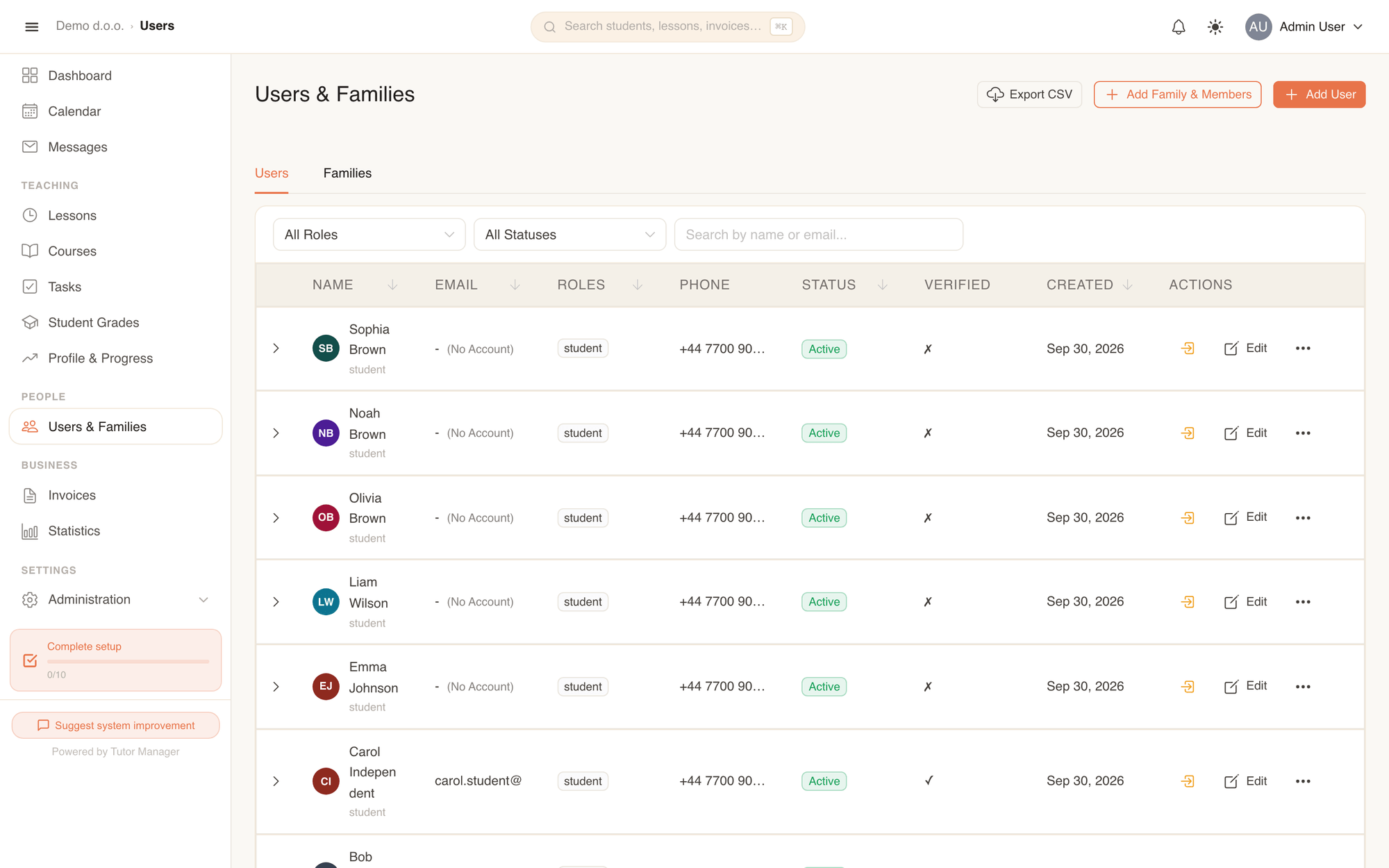
The Users directory provides a master overview of every person registered in your school. From here, staff can create accounts, edit profile details, toggle login capabilities, and view student history.
Find and filter users
The user list includes tools to locate any record quickly:
- Filter by Role: Select Admin, Receptionist, Teacher, Student, or Parent, or leave on All roles.
- Filter by Status: View Active users or inspect Inactive (deactivated) accounts.
- Search box: Search instantly across first names, last names, email addresses, and phone numbers.
- Row expansion: Click the arrow on any row to reveal a quick card showing their phone, timezone, country, home address, and registration date.
- Export CSV (Admin only): Download the complete user directory as a
.csvspreadsheet for external reporting.
Create a new user
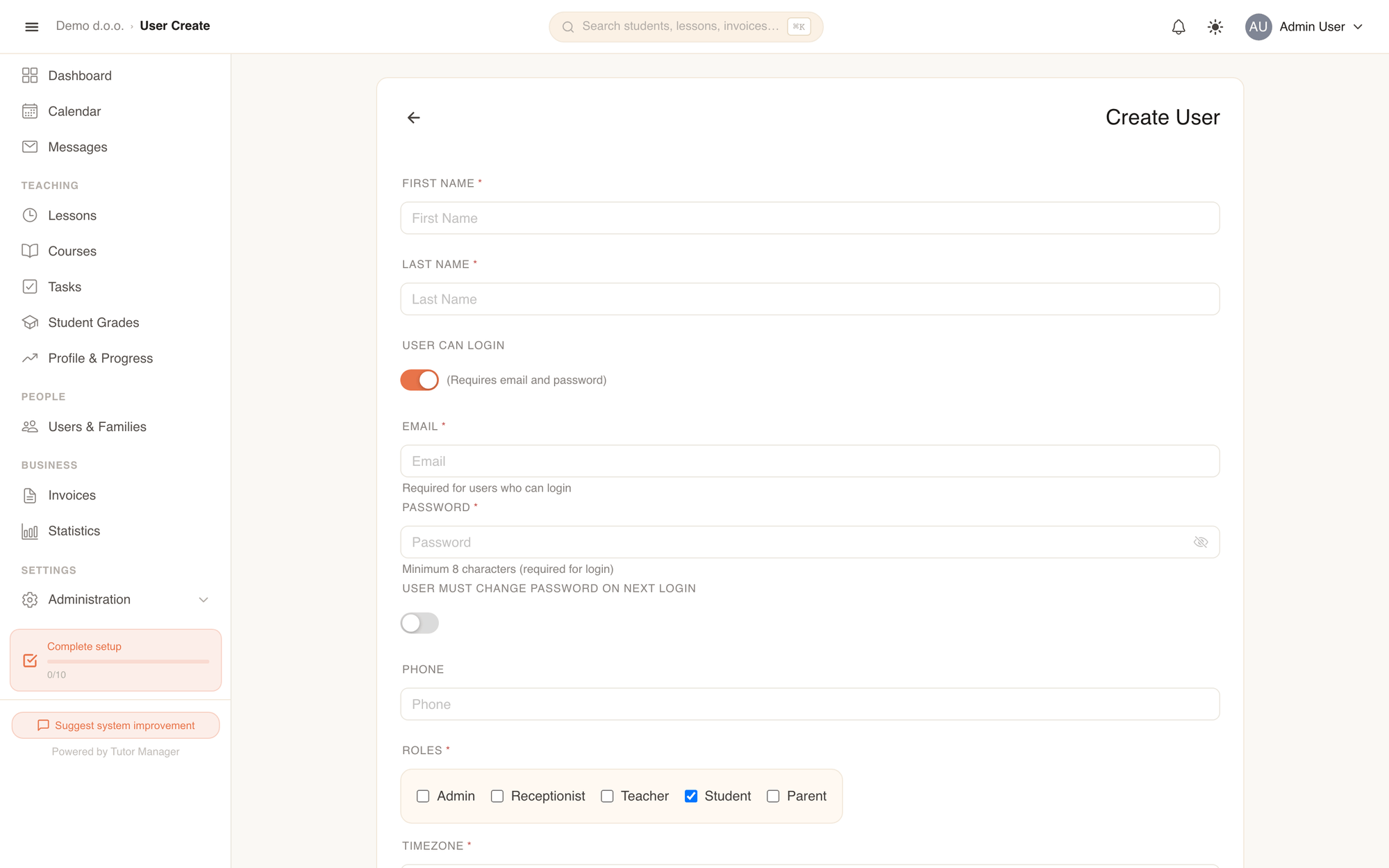
- Open Users in the sidebar and click Add User.
- Enter the user's First name and Last name.
- Configure login access with the User can login toggle:
- Enabled: Enter an Email and a temporary Password (minimum 8 characters). Optionally turn on User must change password on next login.
- Disabled: Creates a profile without login capabilities. This is ideal for young children or students whose parents manage everything on their behalf.
- Enter a contact Phone number.
- Under Roles, check one or more roles for the user (a user can hold multiple roles, such as both Teacher and Parent).
- Select the user's Timezone, Language, and Country.
- Configure role-specific settings:
- For Students: Set an optional Mileage Discount (%) (e.g.
100%for free travel). - For Teachers, Receptionists, and Admins: Pick a Color (for calendar display) (used to color-code the teacher's lessons on the calendar).
- For Students: Set an optional Mileage Discount (%) (e.g.
- Enter optional Home Address (Optional) details and a VAT Number (Customer VAT ID) if applicable.
- Click Create.
Activating login for students later
If you initially created a student without login access (User can login: Off), you can grant them an account at any time. Simply open their profile, click Edit, switch on User can login, and assign an email and temporary password.
User detail page
Click any user in the table to open their comprehensive detail page.
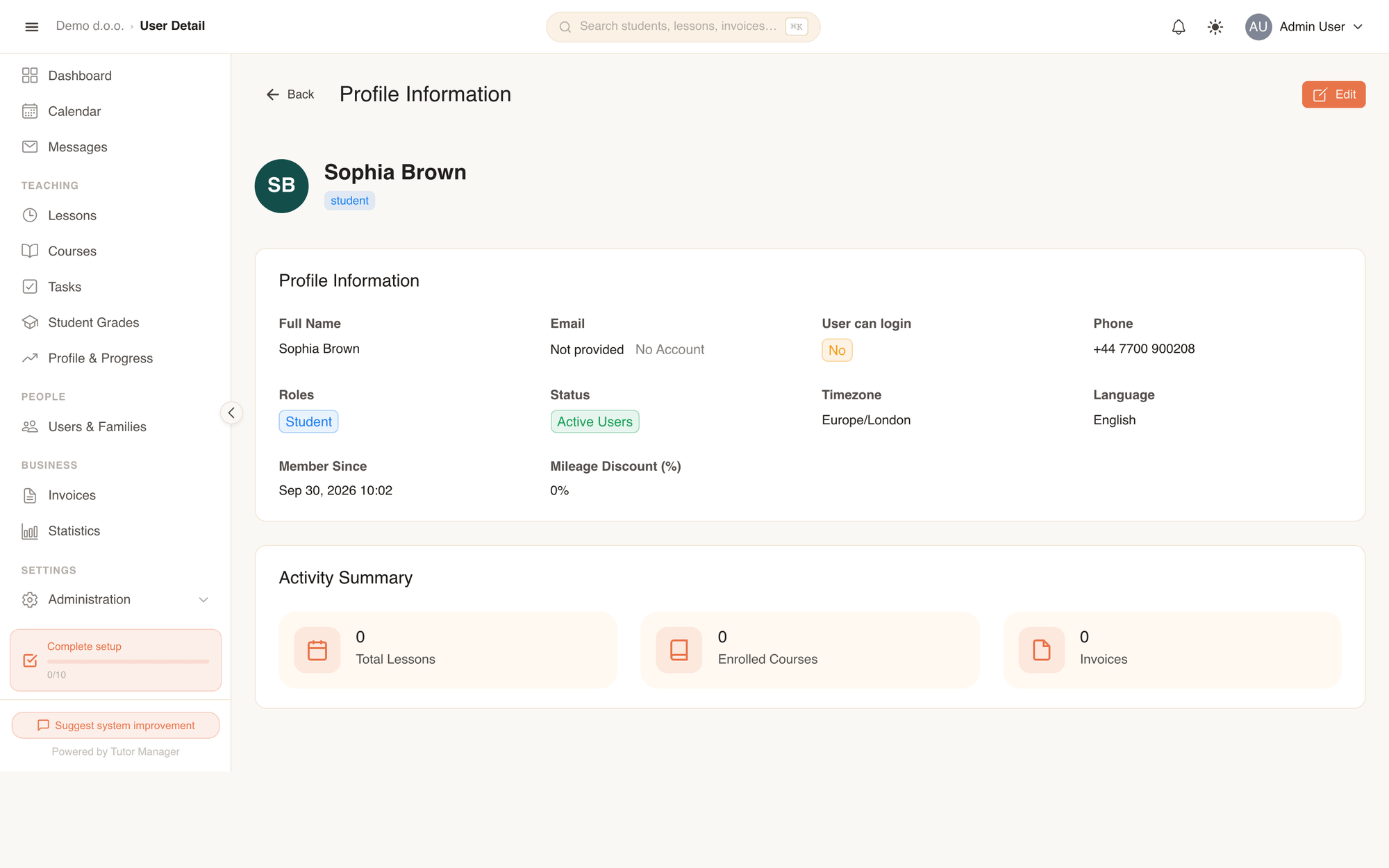
The detail page brings together everything connected to that person:
- Hero banner: Avatar, full name, assigned role badges, email address, and a direct button to Edit.
- Profile information: Contact details, login status, email verification badge, timezone, preferred language, and creation date.
- Home address: Physical address used for home tutoring visits and travel distance calculation.
- Family members: If the user is a parent or primary contact, this card lists all children and family members belonging to their household — see Families & parents.
- Activity summary: Real-time counters showing total lessons attended, enrolled courses, and issued invoices.
Teachers & subjects
In TutorManager, teachers are not artificially restricted to static subject categories in their profile. Instead, any teacher can be assigned to teach any subject defined in your school's catalog when scheduling individual lessons or group courses.
Teachers can also create homework and generate questions using the AI task generator for any subject they teach.
Edit, deactivate, or delete a user
In the users list or from the detail page, click the actions menu on any user row:
- Edit: Update contact information, address, roles, calendar color, or mileage discounts.
- Deactivate: Removes the user from active scheduling and prevents them from logging in. Deactivation preserves all historical lessons, attendance records, homework submissions, and invoices.
- Delete permanently (Admin only): Permanently purges the user from the database.
Hard delete restrictions
TutorManager will block hard-deleting a user if they are linked to financial invoices or proformas. To preserve legal accounting records, users with billing history can only be deactivated.
- Log in as (Admin only): Administrators can temporarily assume the identity of any staff member, teacher, student, or parent to verify their exact permissions, view their schedule, or troubleshoot an issue.
Fields explained
| Field | Meaning |
|---|---|
| User can log in | Toggles whether the person receives portal login credentials. |
| Login username and destination for lesson reminders and invoice notifications. | |
| Must change password | Forces the user to establish a new secret password upon their first login. |
| Roles | System capabilities granted to the account (Admin, Receptionist, Teacher, Student, Parent). |
| Color | Calendar visual tint used to distinguish the teacher's scheduled slots. |
| Mileage Discount (%) | Default travel discount applied whenever this student books a home lesson. |
| Active | Determines whether the user appears in active scheduling pickers and can access the app. |