
For teachers
As a teacher in TutorManager, your day-to-day workspace is focused entirely on teaching and student progress. You have instant access to your schedule, student details, homework tools, and attendance records without any administrative distractions.
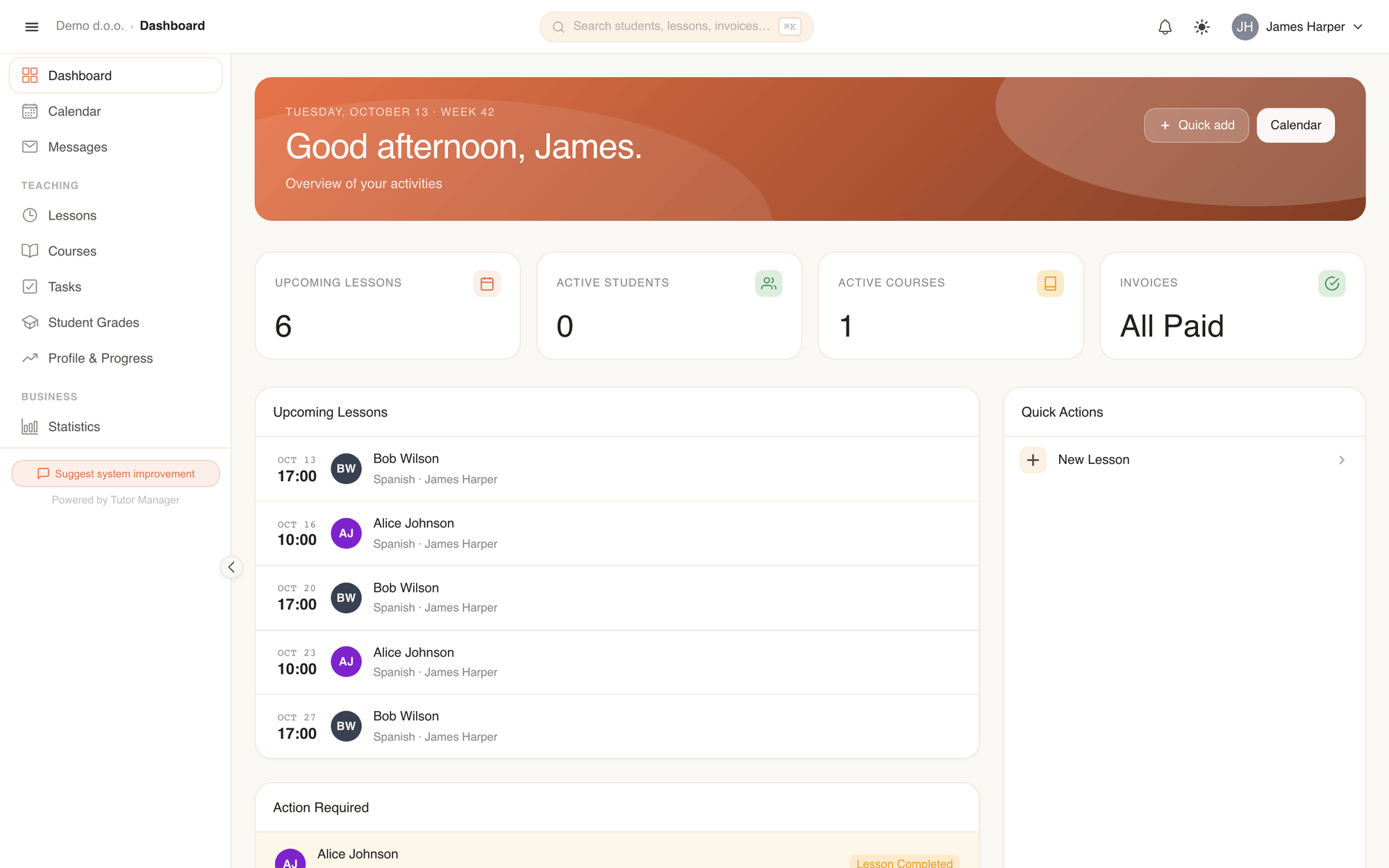
What you see after login
When you log in, your dashboard immediately highlights your current priorities:
- Upcoming lessons: Your scheduled sessions for today and the coming days, with student names, subjects, and start times.
- Action Required: An alert section displaying past lessons that have not yet had attendance recorded. Clicking any item opens the lesson details page where you can mark it as completed.
- Quick actions: Fast shortcuts to create a lesson, check your calendar, or send a message.
1. Checking your schedule
You can review your daily and weekly commitments using either the Calendar or the Lessons list.
- Open Calendar in the sidebar.
- Switch between Day, Week, or Month views in the top right.
- Click any lesson to view student contact info, classroom location, or homework status.
Sync with your personal phone calendar
You can sync your teaching schedule directly with Apple Calendar, Google Calendar, or Outlook:
- Click your avatar in the top right and select Calendar subscriptions.
- Copy your private iCal link and subscribe to it in your calendar app.
2. Conducting lessons & online classes
TutorManager supports all lesson formats:
- At school: The lesson card indicates the assigned branch and classroom name.
- At client home: The lesson details display the student's home address and travel distance.
- Online (Zoom): If Zoom is enabled for the lesson, a direct Zoom meeting link appears in the lesson details. Click it to launch the meeting — you do not need to generate or share meeting links manually.
3. Completing a lesson & recording attendance
Recording what happened during a lesson is essential for school billing and parent reporting. Once a lesson finishes, mark it as completed:
- Open the lesson from your dashboard or calendar.
- Click Mark as Completed in the top action bar.
- In the Complete Lesson modal, enter public Notes summarizing what material was covered and what the student should practice (visible to the student and parents).
- If AI is enabled, click the AI icon (AI Summarize Notes) to automatically polish your bullet points into clear lesson feedback.
- Enter Private Notes for confidential staff observations (visible only to teachers, receptionists, and administrators).
- Click Complete.
Action Required list
Any past lesson that has not been marked as completed will remain in your Action Required section on your dashboard until attendance is recorded.
4. Assigning homework & using the AI generator
TutorManager allows you to build engaging homework assignments or generate customized practice exercises in seconds:
- Open Tasks in the sidebar and click New Task.
- Build manually: Use the Task Builder to add multiple-choice questions, text prompts, or fill-in-the-blank exercises.
- Generate with AI: Click the AI generator button, specify the subject, language level (e.g. B1, 9th grade), and topic, and let the AI assistant draft the assignment for you.
- Review and adjust any questions.
- Click Assign, select the student or entire course, set a due date, and confirm.
When students submit their answers, open Tasks and select Grade to review their work, award points, and provide personalized feedback.
5. Entering student grades
Track formal exam results and ongoing coursework in Student Grades:
- Open Student Grades in the sidebar.
- Click Add Grade.
- Select the student, subject, date, and grade value, and add an optional comment.
- Save the entry. The grade appears on the student's progress timeline and in the parent portal immediately.
6. Tracking your teaching statistics
To check your total teaching workload:
- Open Statistics in the sidebar.
- View your total completed lessons, teaching hours, and student count filtered by week, month, or custom date range.