
Progress reports
TutorManager combines all lessons, attendance records, homework assignments, and school grades into a unified student progress timeline. Administrators and receptionists can generate personalized periodic progress reports, refine them in a rich text editor, approve them, and send them directly to parents via email.
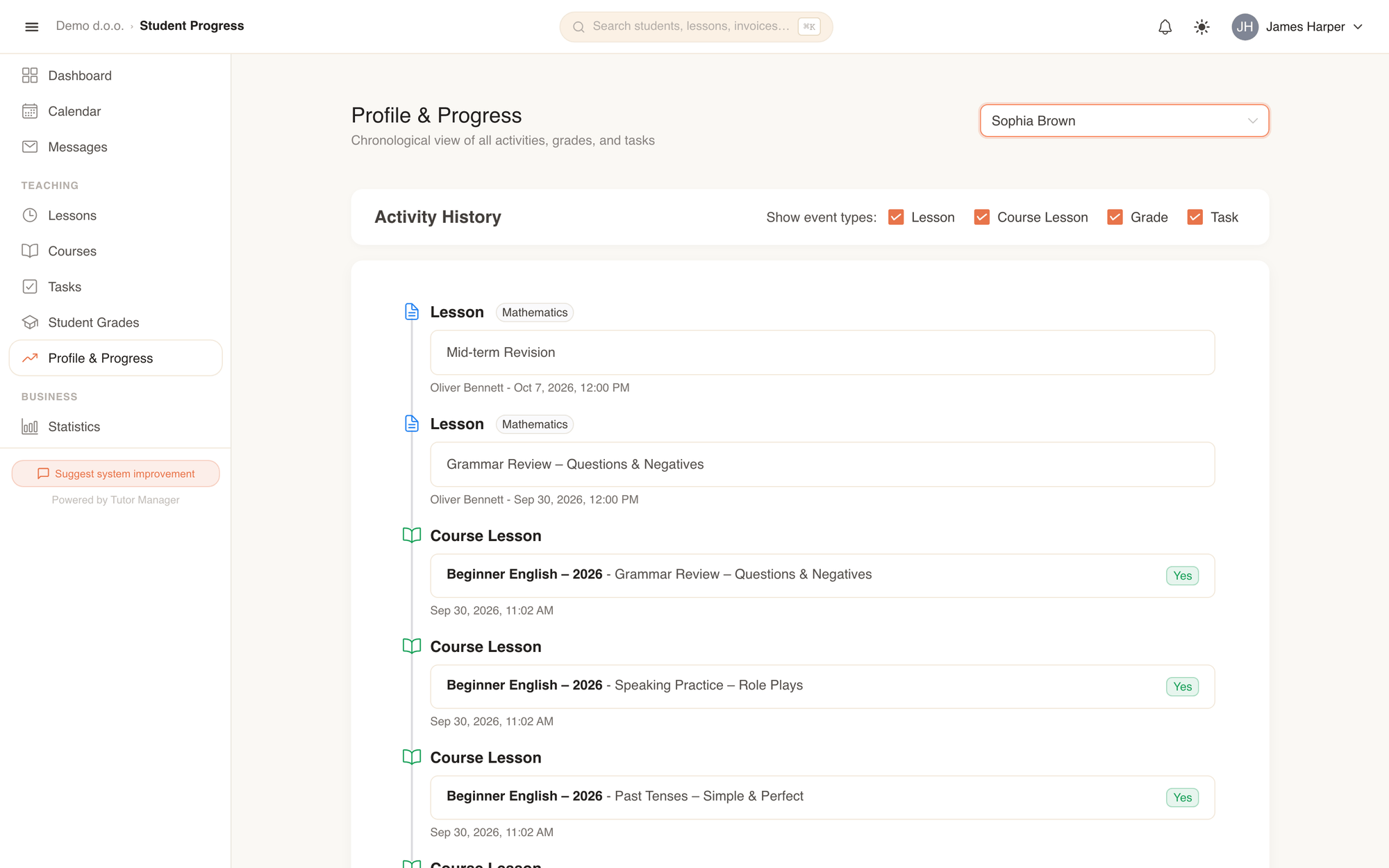
Student progress and learning timeline
The Profile & Progress page provides a complete view of a student's learning journey:
- Student overview: Displays contact information, total subjects studied, active teachers, and current course enrollments.
- Parent switcher: Parents can quickly toggle between their children using the avatar switcher at the top (My Children).
- Chronological timeline: Combines four key event types:
- Lesson: Individual lesson summaries and teacher notes.
- Course Lesson: Group course attendance and topics covered.
- Grade: School exam grades with clickable links to grade details and test scans.
- Task: Homework assignments, completion statuses, and quiz scores.
- Event filters: Checkboxes let you filter the timeline to show only specific event types (Show event types).
Staff navigation
Administrators and receptionists see two tabs at the top of the page: Profile & Progress (individual student timeline) and Progress Reports (bulk report generation and delivery).
Generating progress reports
To create periodic summaries for multiple students at once, switch to the Progress Reports tab.
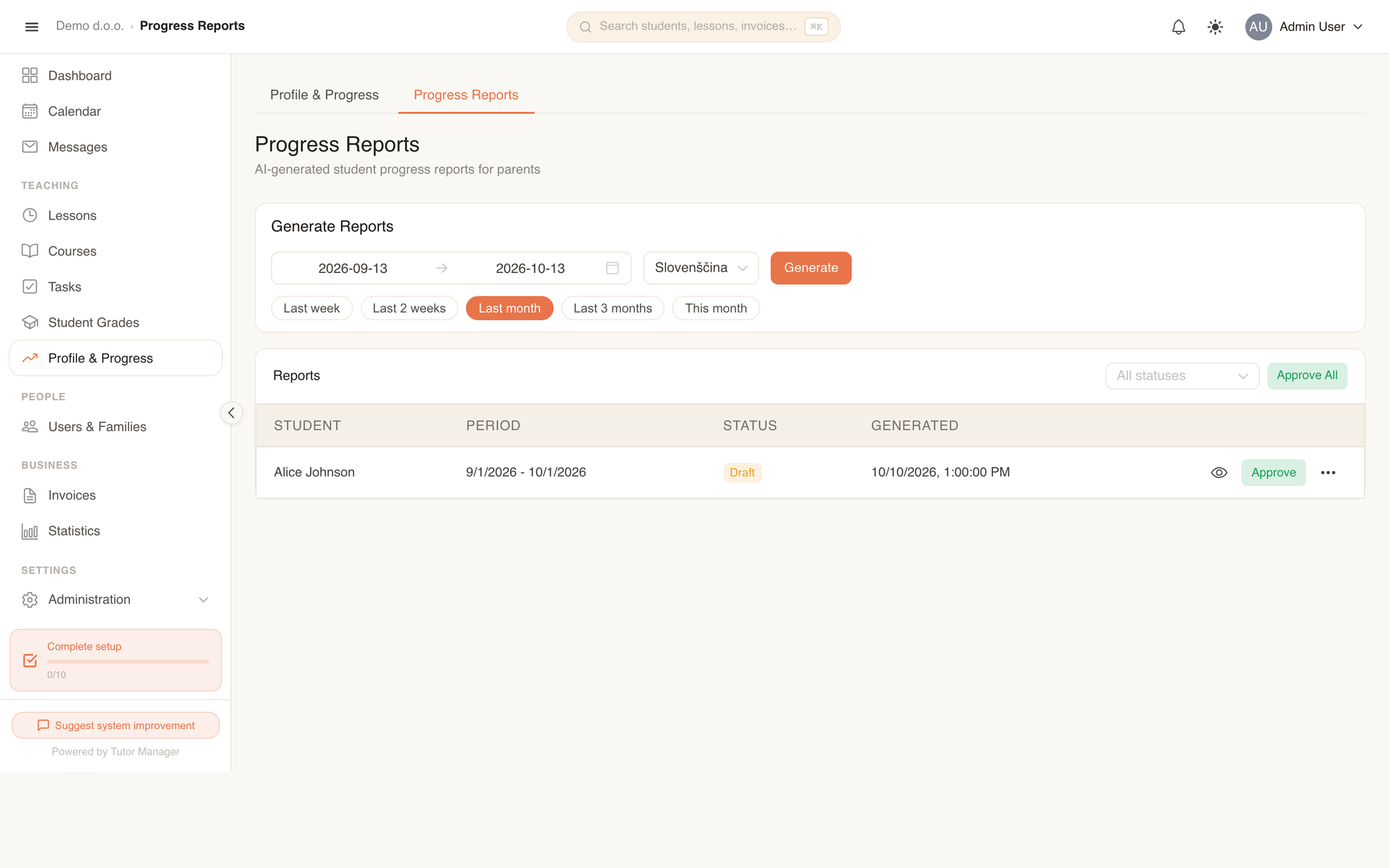
- Choose the reporting period using the date picker or click one of the quick presets:
- Last week
- Last 2 weeks
- Last month
- Last 3 months
- This month
- Select the report language (Slovenščina or English).
- Click Generate.
- TutorManager aggregates all lessons, topics, grades, and homework completed by each student during the selected period and creates a new report in Draft status.
Reviewing, editing, and approval workflow
Progress reports follow a clear three-stage review workflow to ensure quality and privacy:
[ Draft ] ──( Edit & Approve )──> [ Approved ] ──( Send by Email )──> [ Sent ]| Status | Meaning | Available actions |
|---|---|---|
| Draft | Newly generated report containing synthesized learning data. | Preview, Edit, Approve, Delete |
| Approved | Reviewed and signed off by school staff, ready for delivery. | Preview, Send, Delete |
| Sent | Dispatched to parents' registered email addresses. | Preview, Delete |
Editing reports with the Markdown editor
Click the more actions menu on any draft report and select Edit to open the rich text editor modal:
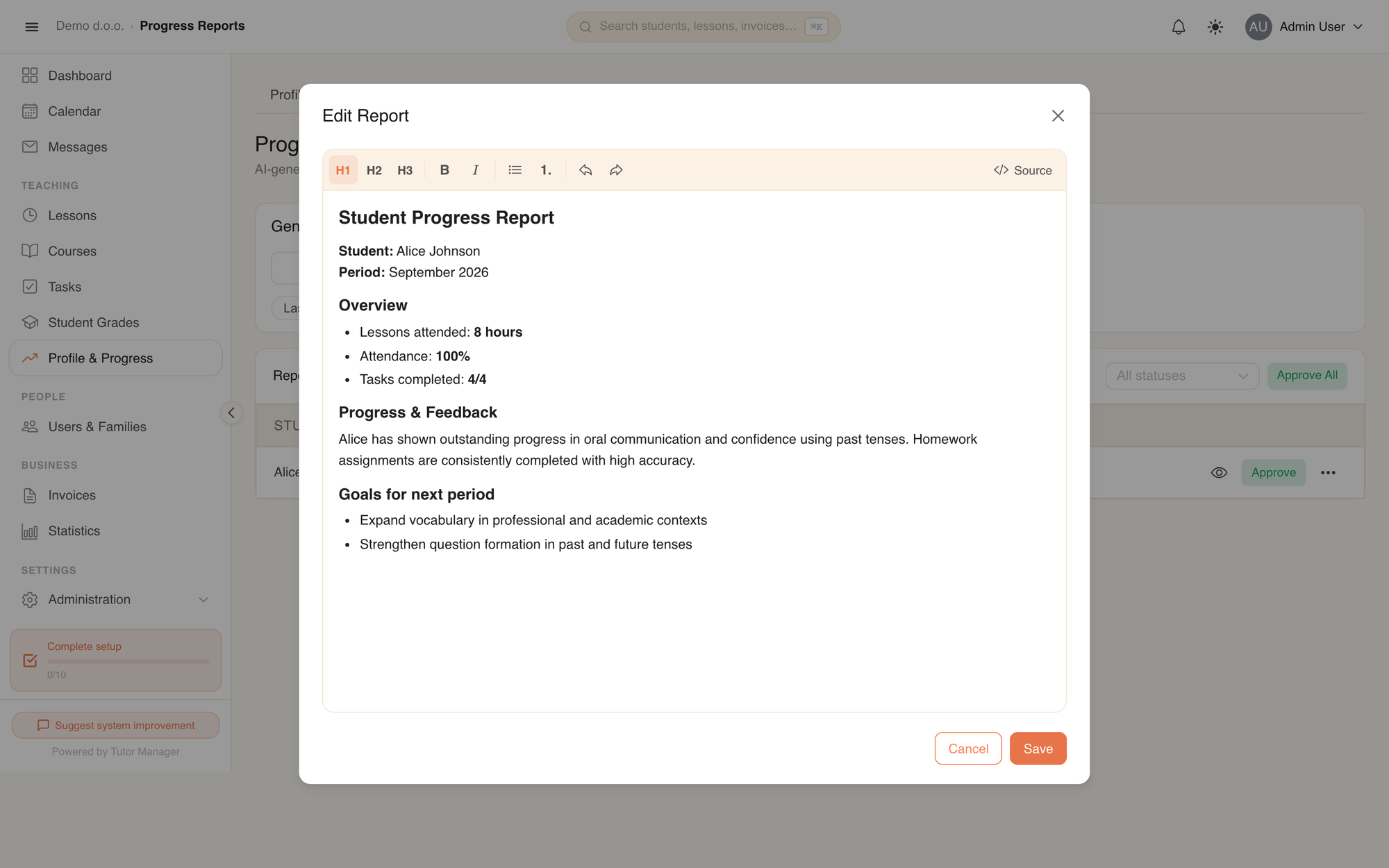
- Refine automated summaries, add personal words of encouragement, or highlight specific areas for improvement.
- Use bold text, bullet points, headers, or quotes to organize the evaluation.
- Click Save to update the report content.
Approving and sending to parents
- Single report: Click Approve on a draft report. Once approved, click Send to email the report directly to the student's parents.
- Bulk actions:
- Click Approve All to approve all generated drafts in one click.
- Click Send All Approved to dispatch all approved reports to parents simultaneously.
Parents receive a cleanly formatted email containing the complete progress report and teacher evaluations.