
Messages & notifications
TutorManager includes a built-in messaging platform and an automated notification system. Staff, teachers, students, and parents can communicate directly without sharing private phone numbers, while automated notifications ensure nobody misses lesson updates, homework deadlines, or invoice reminders.
Internal messaging
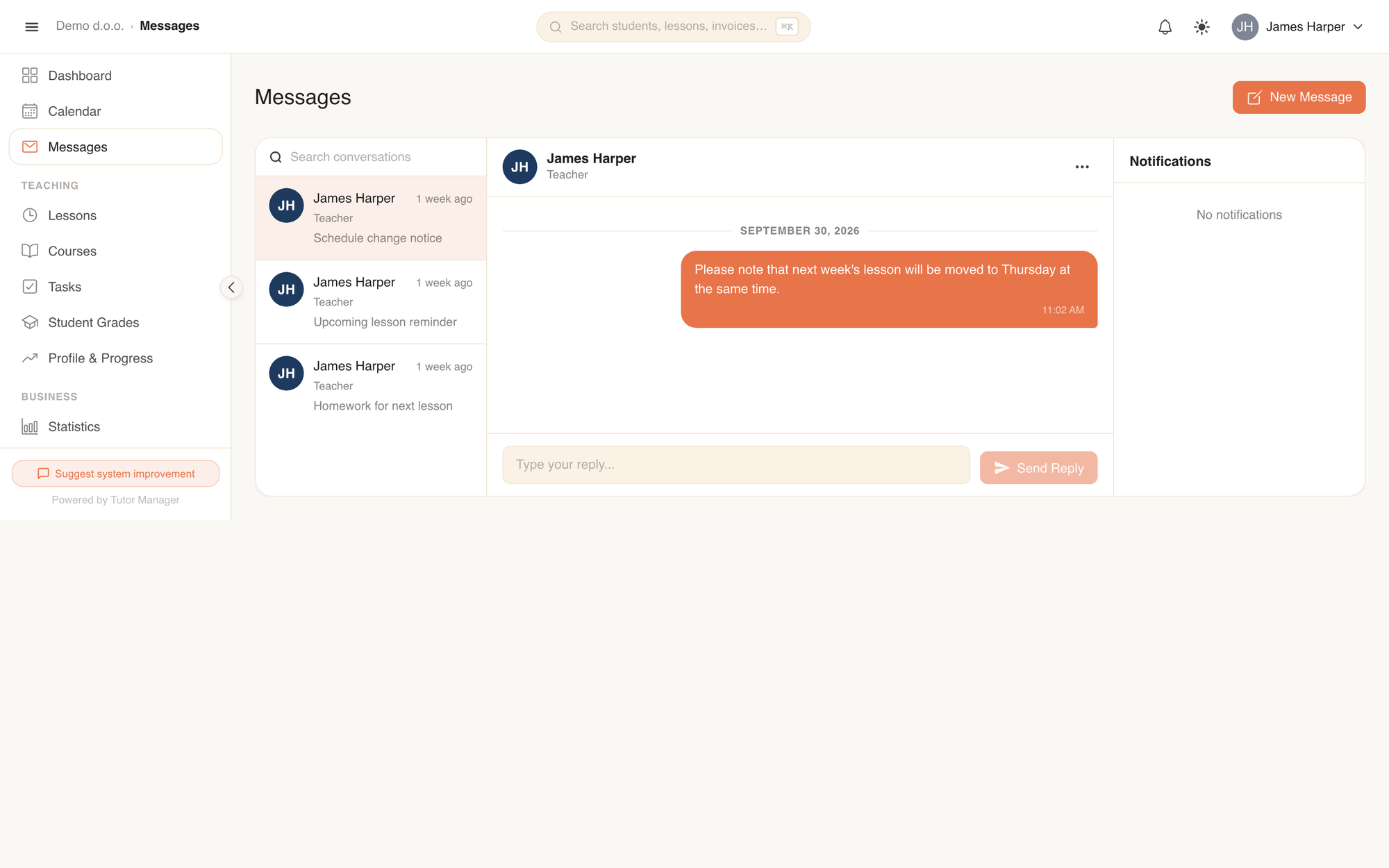
The Messages module provides a structured inbox designed specifically for school communication:
- Conversation list: Shows active conversations, preview snippets, unread message badges, and relative timestamps.
- Search bar: Quickly filters threads by sender name, subject, or message content.
- Thread view: Displays the entire chronological conversation history with clear sender roles and avatars.
- Reply box: Reply to an ongoing discussion with formatted text.
Who can message whom
To maintain student privacy and avoid unsolicited contacts, TutorManager enforces strict role-based messaging permissions:
| Role | Who they can send messages to |
|---|---|
| Admin & Receptionist | Can message anyone across the entire school (teachers, students, parents, and staff). |
| Teacher | Can message anyone (assigned students, parents, administrators, receptionists, and fellow teachers). |
| Student | Can message school staff only (teachers, administrators, and receptionists). Students cannot message other students. |
| Parent | Can message school staff only (teachers, administrators, and receptionists). Parents cannot message other families. |
Sending a new message
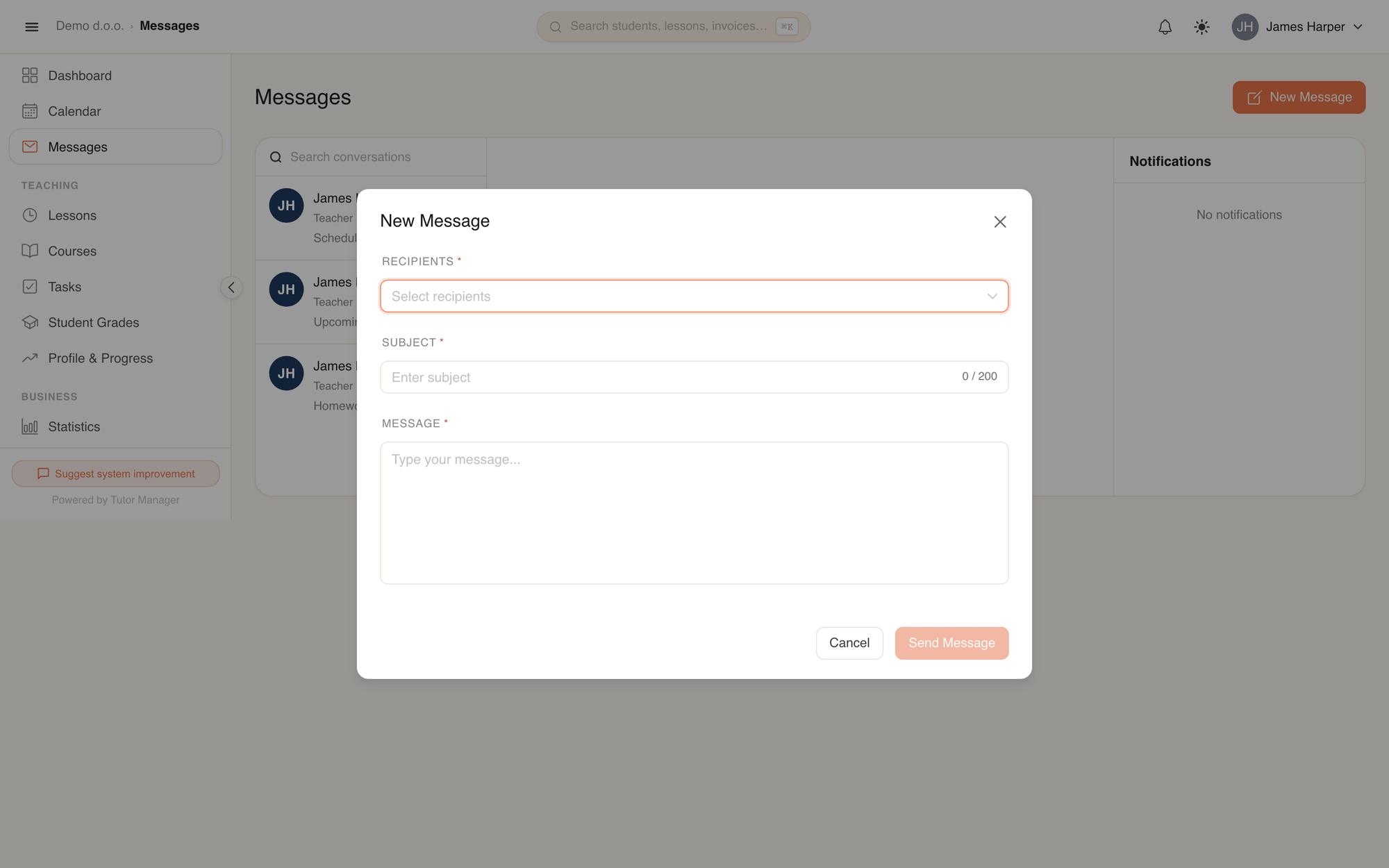
- Open Messages in the sidebar.
- Click New Message.
- Under Recipients, select one or more recipients from your authorized contacts list.
- Enter the Subject and write your Message.
- Click Send Message.
Notifications
TutorManager keeps everyone informed through two complementary channels:
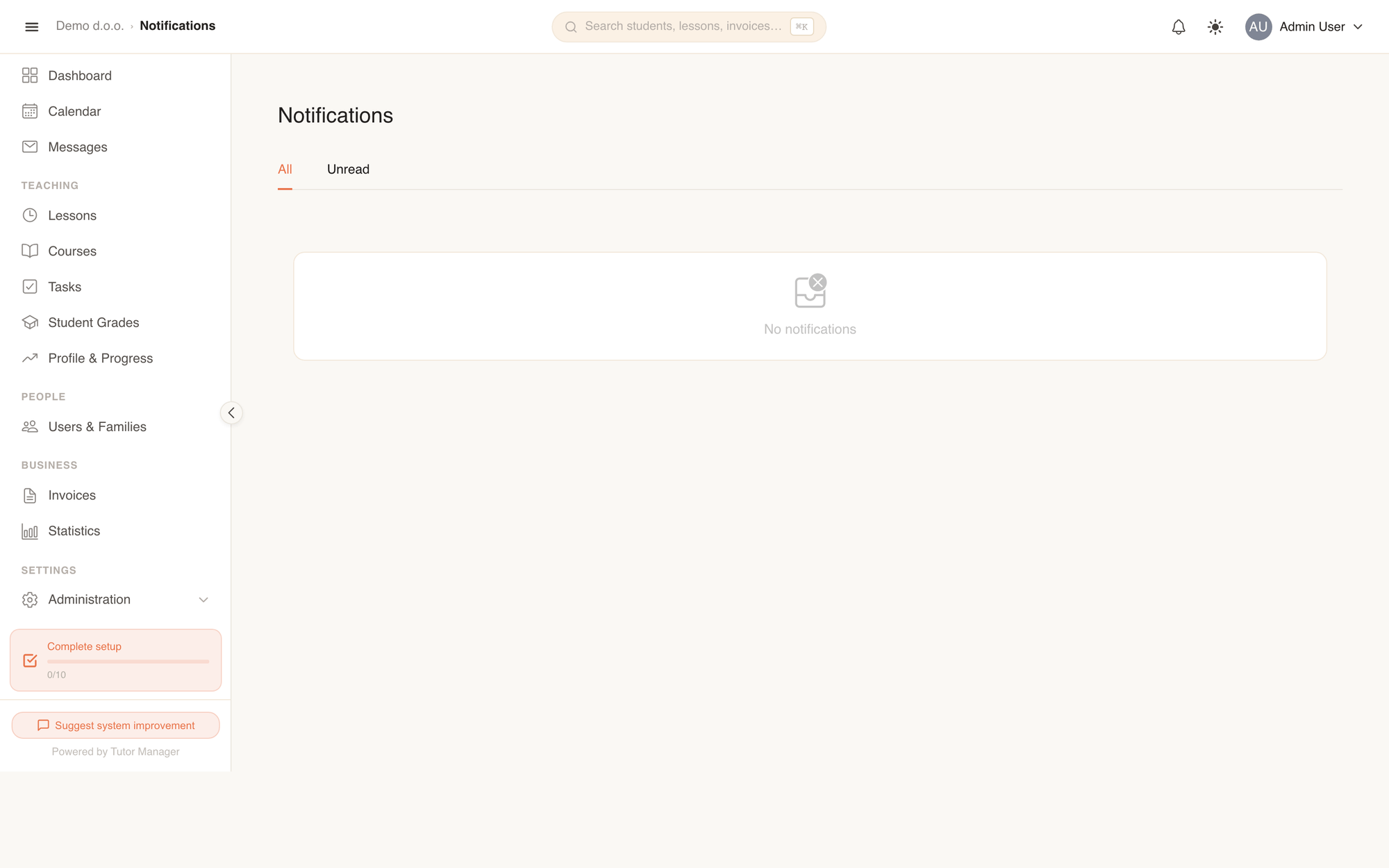
- In-app notifications: The bell icon in the top navigation bar displays unread badges and opens the notification drawer. The full list is accessible via the notifications page.
- Email notifications: Critical events trigger automated email notifications sent to the user's registered email address.
What events trigger notifications
| Event | Who is notified | Notification details |
|---|---|---|
| Lesson scheduled | Student & Parent | New lesson added to the calendar with date, time, teacher, and location. |
| Lesson updated / rescheduled | Student, Parent, Teacher | Time, location, or teacher changes, including any custom change reason. |
| Lesson cancelled | Student, Parent, Teacher | Notice of cancellation with the stated cancellation reason. |
| New homework assigned | Student & Parent | Homework title, subject, instructions, and due date. |
| Homework graded | Student & Parent | Notification that the teacher graded the task, with score and feedback link. |
| New invoice issued | Student & Parent | Invoice number, due date, total amount, and link to payment details. |
| Overdue invoice reminder | Student & Parent | Urgent alert for outstanding balances past their payment deadline. |
| Progress report sent | Parent | Periodic progress summary approved by the school and delivered to parents. |
| New message received | Recipient | Notification of a new direct message or thread reply from a teacher or staff member. |
Automatic family notifications
Whenever a notification concerns a student (such as a rescheduled lesson or new invoice), TutorManager automatically routes a copy of the notification to the student's linked parents as well.
Notification actions
- Direct navigation: Clicking any notification opens the relevant lesson, homework runner, invoice detail, or message thread directly.
- Mark as Read / Mark as Unread: Toggle individual notifications.
- Mark All as Read: Clears all unread badges in one click.