
Assigning & grading
Once a homework task template is created, teachers and administrators can assign it directly to individual students or link it to a specific lesson. TutorManager tracks student completion in real time, measures time spent and tab switches, and provides grading workflows for both interactive quizzes and uploaded files.
How to assign a task
Tasks can be assigned in two ways:
1. Assigning from the Tasks library
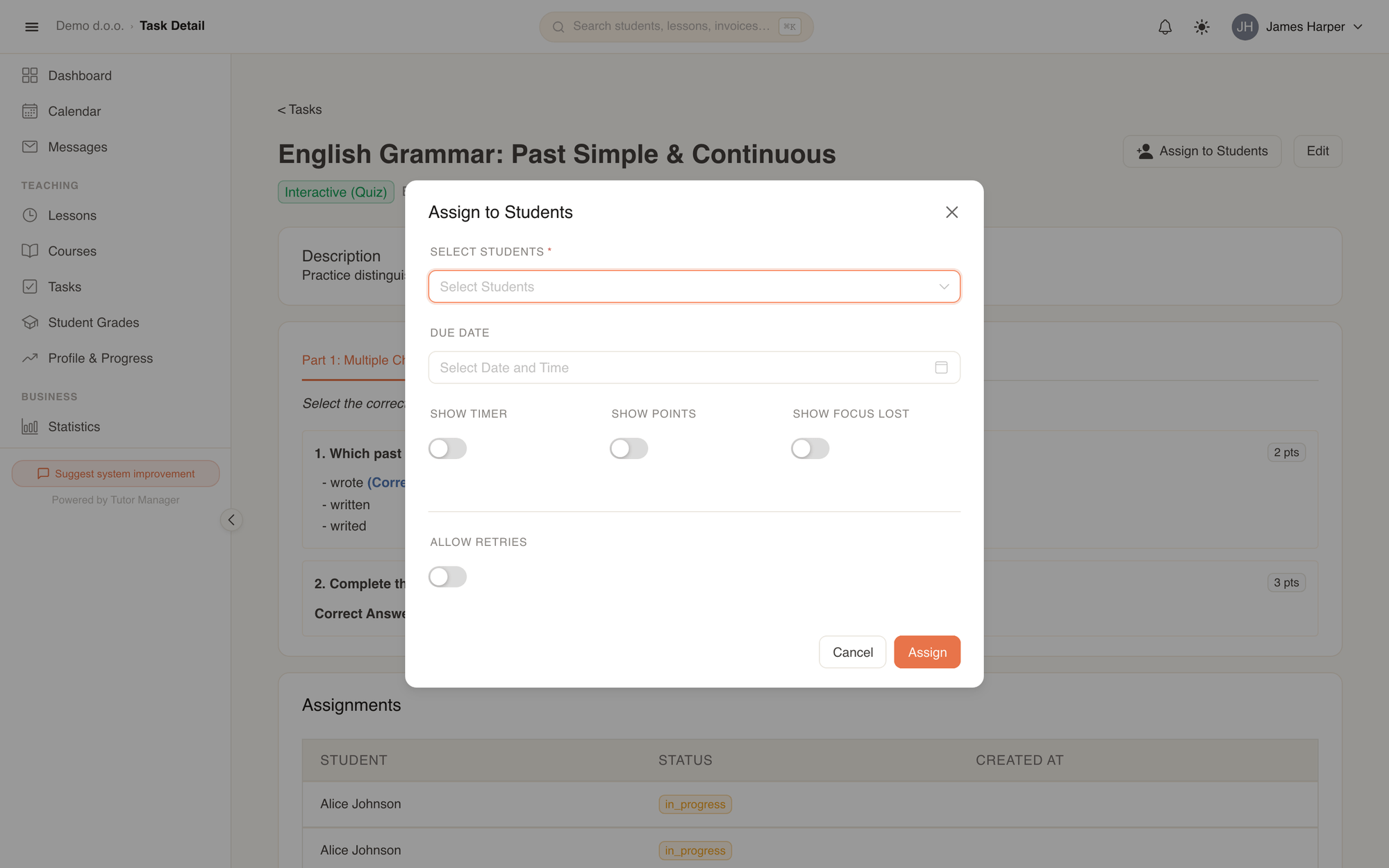
From the Tasks page or a task's detail view, click Assign to Students to open the assignment modal:
- Under Select Students, choose one or more students who should receive the assignment.
- Set the Due Date and time.
- Configure assignment visibility and tracking settings:
- Show Timer: Displays an active stopwatch while the student completes the task.
- Show Points: Displays point values next to each question during the quiz.
- Show Focus Lost: Records when a student switches browser tabs or leaves the window.
- Optionally enable Allow Retries and specify the Max Attempts (e.g.
2or3). - Click Assign.
2. Assigning directly to a lesson
When opening an individual lesson or course lesson detail page, open the Tasks tab and click Assign Task. The modal automatically links the task to all enrolled students for that session, ensuring homework appears directly on the lesson summary.
How students solve tasks
Students access their homework by opening Homework in their sidebar or by clicking the task link on their dashboard.
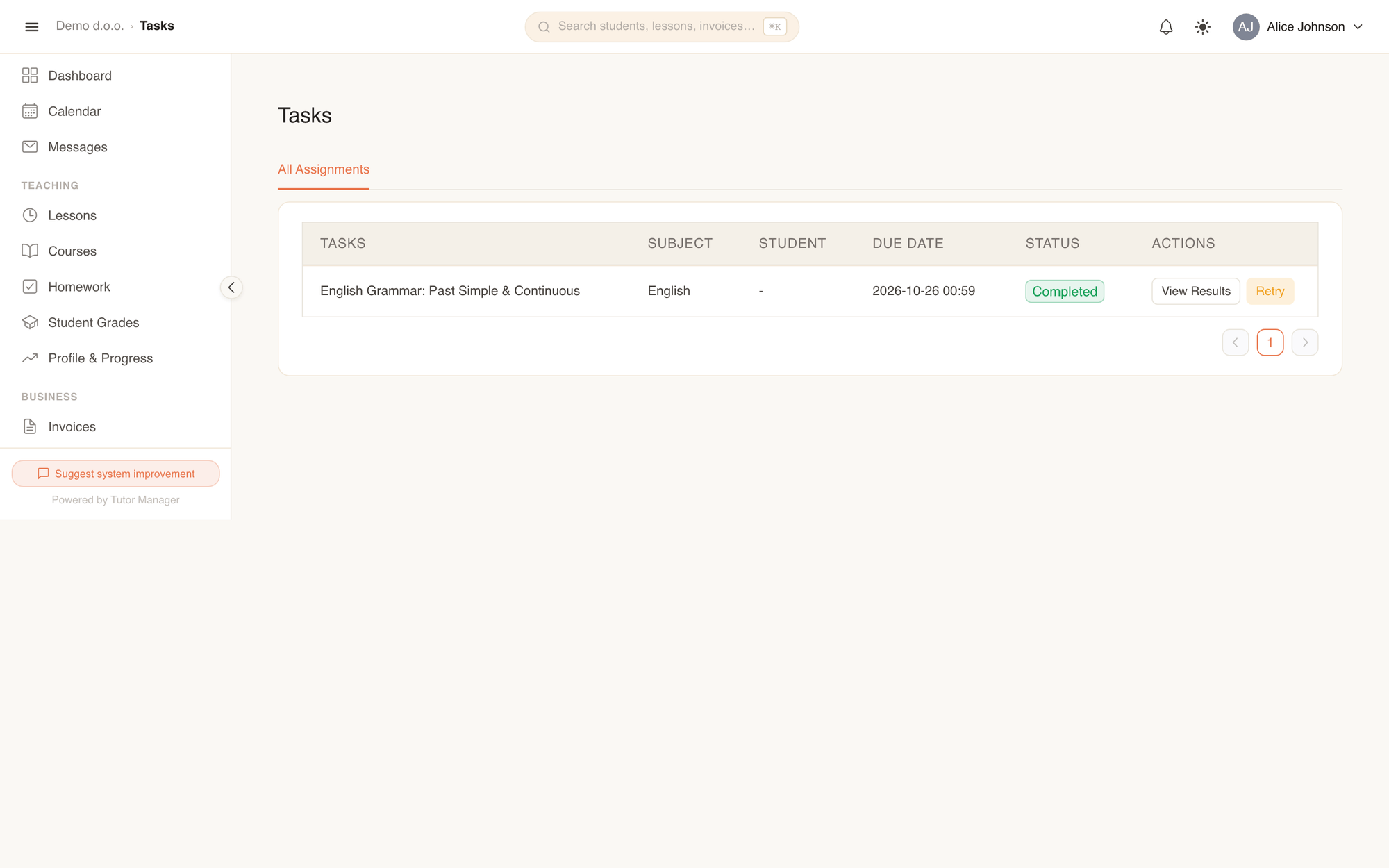
When a student clicks Start Assignment, the task runner opens:
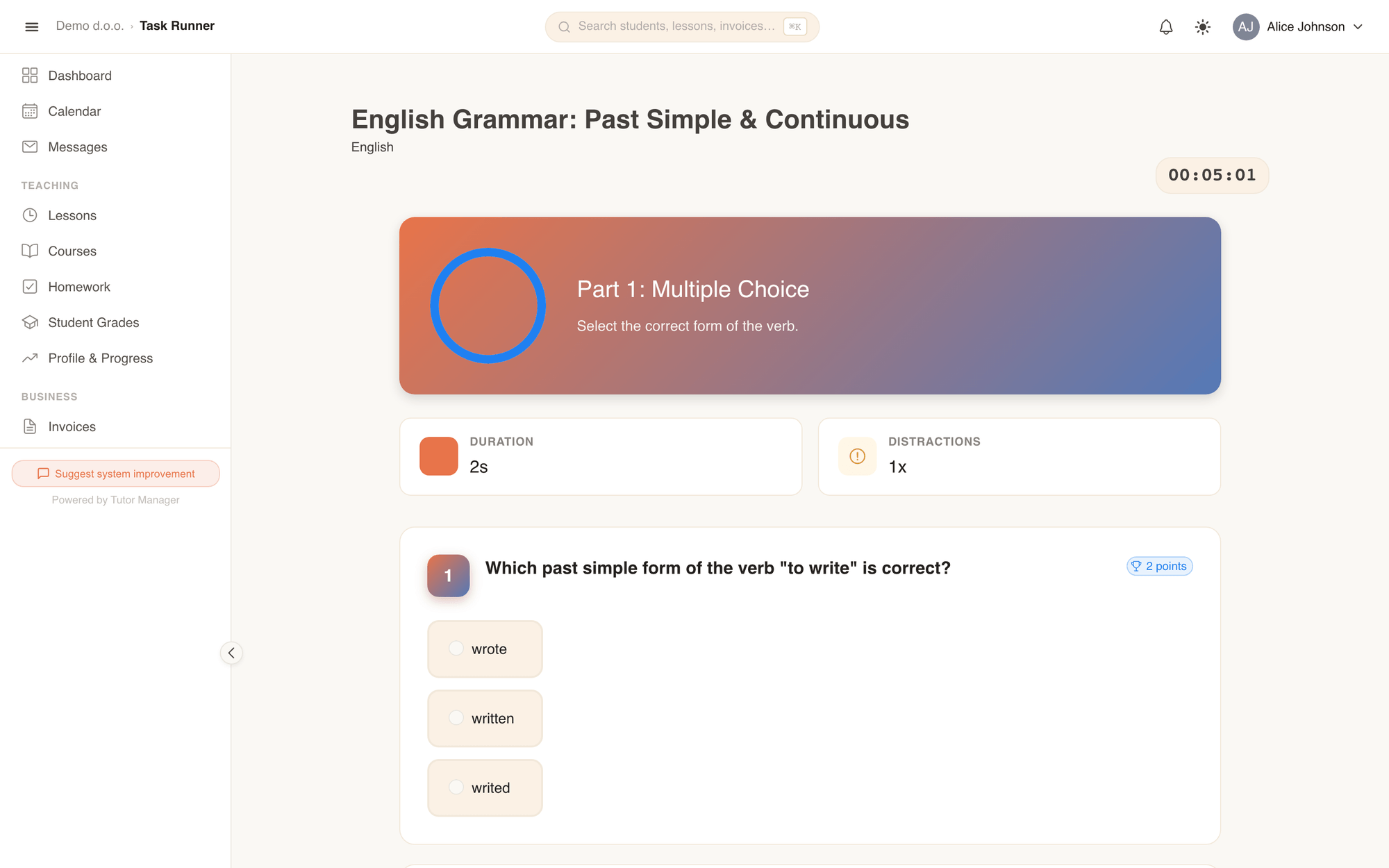
Interactive quiz runner
- Step-by-step progression: Students review instructions and complete questions step by step.
- Timer and metrics: If enabled by the teacher, students see the elapsed time in the upper corner.
- Distraction tracking: If Show Focus Lost was enabled, leaving the active tab increments the distraction counter and logs the duration spent outside the test environment.
- Immediate results: Upon clicking Submit Assignment, the system immediately calculates scores for objective choice questions. If retries are allowed, students can review their results and attempt the quiz again.
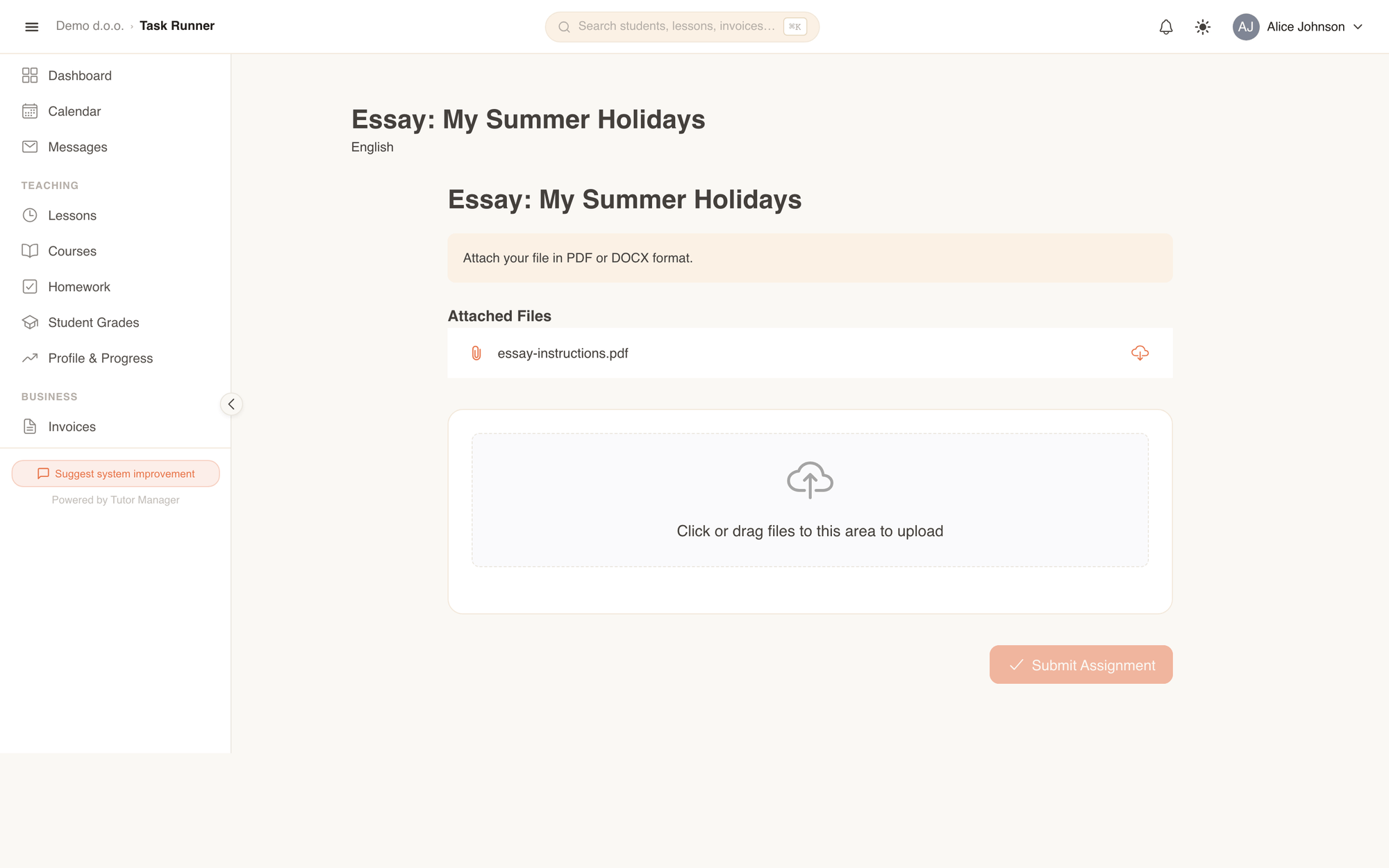
File upload runner
- Students view the assignment instructions and click to download any worksheets or files attached by the teacher.
- After completing their work, students upload their response files (documents, scans, or photos) and click Submit Assignment.
Grading assignments
Teachers review submitted homework on the Tasks page under the All Assignments tab, or from the task detail page. Click Grade (or Review if already graded) on any submitted assignment to open the grading interface.
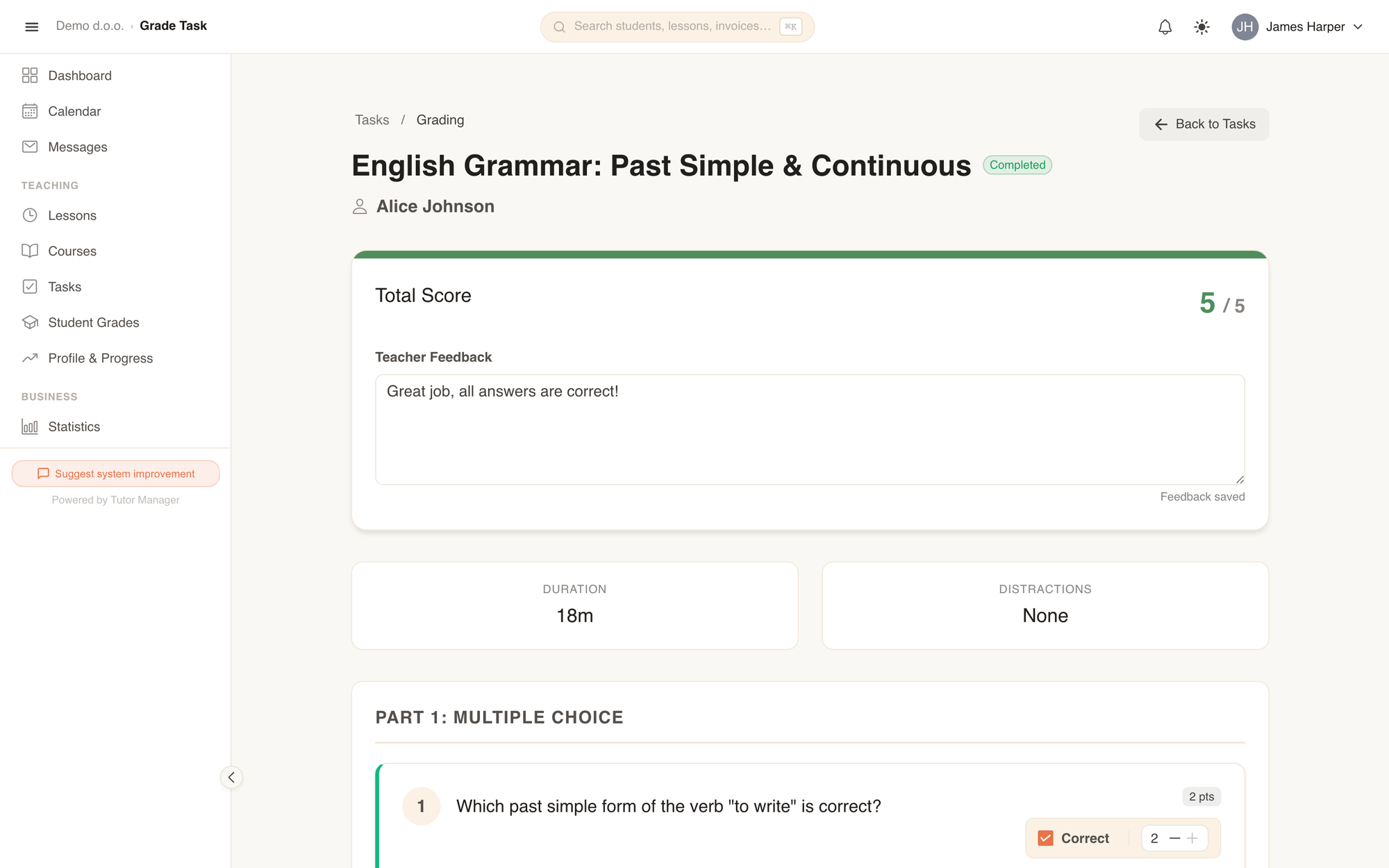
Grading features
| Section | What you can do |
|---|---|
| Total Score | Displays the auto-calculated points. Teachers can override any question's score or toggle the Correct checkbox. |
| Teacher Feedback | Enter personalized feedback and guidance. Notes are saved automatically when you leave the input field. |
| Duration & Distractions | View the total active time spent on the task (Duration) and the number of times the student switched tabs (Distractions). |
| Side-by-side comparison | Compare the student's submitted answer directly against the configured Correct Answer. |
| Submitted Files | For file-based tasks, download student files, award total points, and provide written feedback. |
Once reviewed, the assignment status updates to Graded.
What students and parents see
Once an assignment is completed and graded:
- Students can open the task runner in review mode to see their score percentage, circular progress gauge, question-by-question breakdown, and written feedback from the teacher.
- Parents can see their children's homework statuses, completion dates, and grades directly in the student progress timeline and family dashboards.