
Holidays
Configure public holidays and school break periods so your team never accidentally schedules classes on days when your center is closed. TutorManager uses these dates to provide scheduling warnings and to automatically skip lessons when generating recurring schedules.
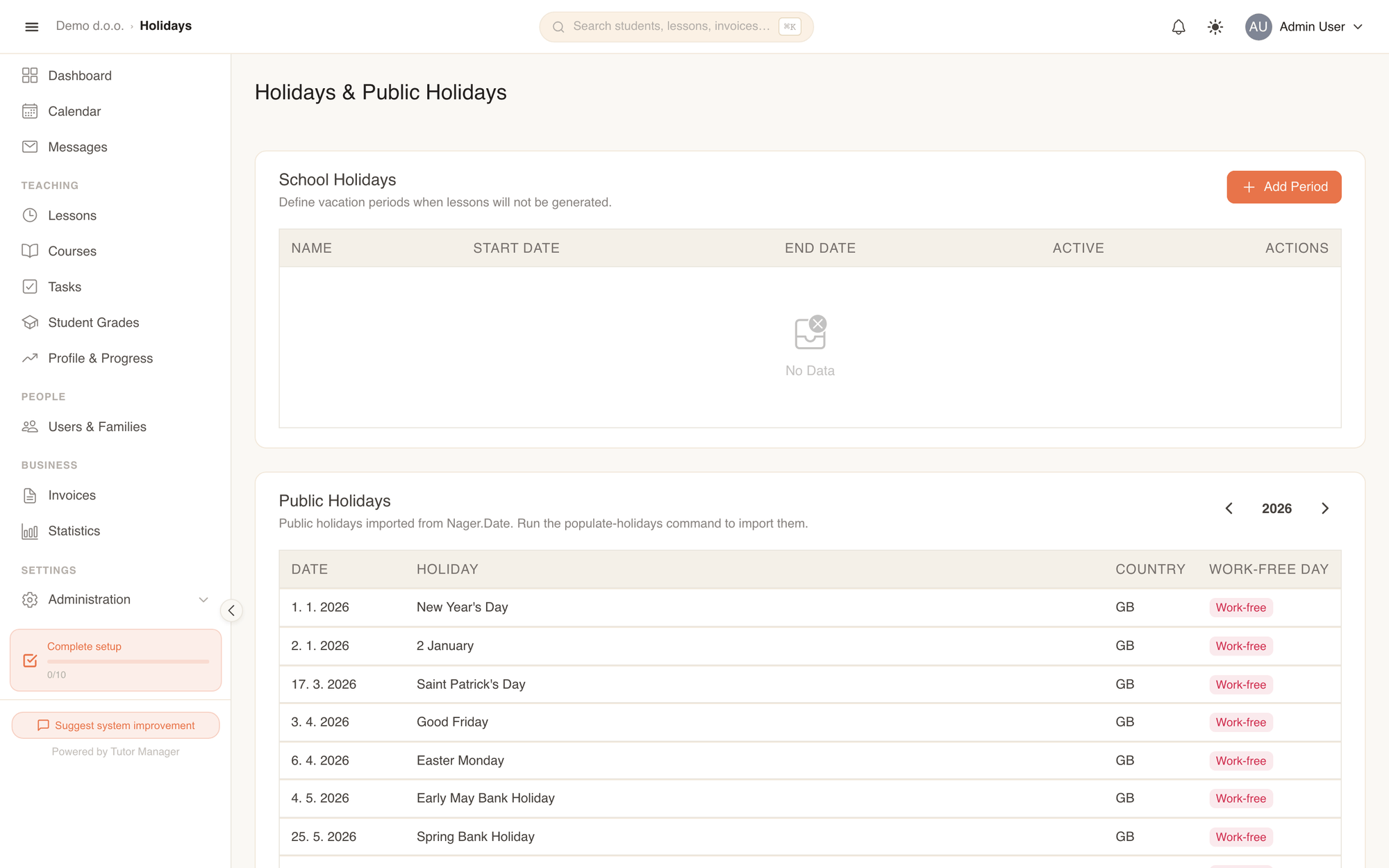
The Holidays page combines two distinct types of non-working days:
- School holidays (breaks): Custom multi-day periods defined by your school (such as Autumn break, Christmas vacation, or Summer break).
- Public holidays: Statutory national holidays imported for your school's country.
School holiday periods
Define your school's annual vacation calendar and collective breaks.
- Open Administration from the sidebar and select Holidays (under Organization).
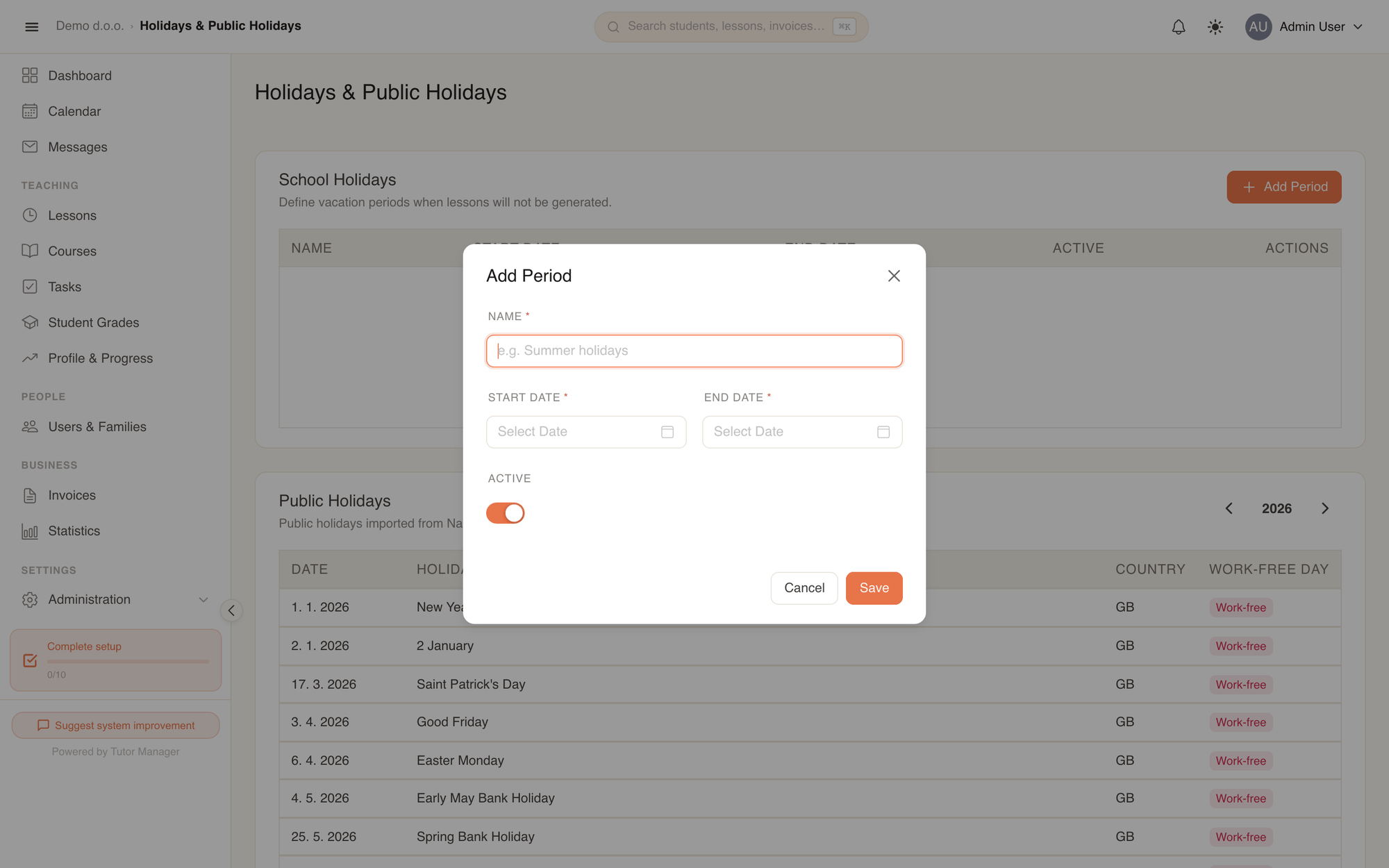
- Under School Holidays, click Add Period.
- Enter the Name of the holiday period (for example "Autumn school break" or "Winter holidays").
- Select the Start date and End date.
- Ensure the Active switch is turned on.
- Click Save. The period appears in the table and takes effect immediately.
Deactivating vs deleting a break
If your school decides to hold intensive review classes during a planned vacation, simply switch off Active for that period. You do not need to delete the entry, and you can re-enable it whenever needed.
Public holidays
Public holidays are pre-populated based on your school's country code (set in Company settings).
- Year navigation: Use the arrow buttons next to the year counter (
< 2026 >) to review past or upcoming statutory holidays. - Work-free status: Each holiday displays whether it is legally Work-free (national non-working days like New Year's Day, Labour Day, Christmas) or Observance (state commemorative days when schools typically remain open).
How holidays affect scheduling
1. Generating lessons from recurring schedules
When you generate lessons in bulk from weekly schedules or course schedules:
- On the Lessons page, open the Schedules tab and click Generate Lessons (or select several schedules and click Generate Selected).
- Choose your target date range (such as Next 3 months).
- Switch on Skip holidays and school breaks (recommended).
- Click Generate.
Automatic holiday suppression
With Skip holidays and school breaks turned on, TutorManager checks every calculated date against:
- All active School holiday periods.
- All official Public holidays marked as work-free.
Any lesson that would fall on one of those dates is automatically skipped, saving your staff from having to manually cancel individual sessions later.
2. Single lessons & calendar warnings
If a receptionist or teacher schedules or edits a single lesson on a date that coincides with a holiday:
- TutorManager displays a soft Holidays & Public Holidays alert right in the lesson form ("This day is a public holiday or falls within a holiday period.").
- The warning informs the user that the chosen date is a registered holiday, while still allowing staff to proceed if special holiday tutoring was intentionally planned.
Fields explained
| Field | Meaning |
|---|---|
| Period Name | The descriptive label of your vacation (e.g. "Spring Break"). |
| Start date / End date | Inclusive calendar boundary of the school break. |
| Active | When enabled, recurring lesson generators will skip dates falling within this range. |
| Work free | Indicates whether a public holiday is a statutory non-working day. |