
Subjects, course types & durations
Define what your school teaches, how long lessons last, and the structural formats of your courses. Together with your pricing tables, the catalog forms the core foundation for scheduling lessons, enrolling students, assigning homework, and issuing accurate invoices.
Subjects
Subjects represent the languages, academic disciplines, or skills taught at your institution (such as English, German, Mathematics, Physics, or Piano).
Where to find subjects
In the app, subjects are managed under Administration -> Offering -> Subjects.
Add a subject
- Open Administration from the sidebar, navigate to the Offering section, and click Subjects.
- Click New Subject.
- Enter the Subject Name (e.g. "Mathematics" or "Spanish B1").
- Enter a short Subject Code up to 5 characters (e.g.
MATorSPA). This code is used on compact calendar badges and exports. - Click Create Subject.
How subjects are used
- Scheduling: When creating any lesson or recurring schedule, selecting a subject determines what is being taught and allows specific pricing rules to apply.
- Homework & tasks: Teachers categorize exercises and AI-generated assignments by subject.
- Grades & timeline: Progress records and student grades are organized by subject.
Lesson durations
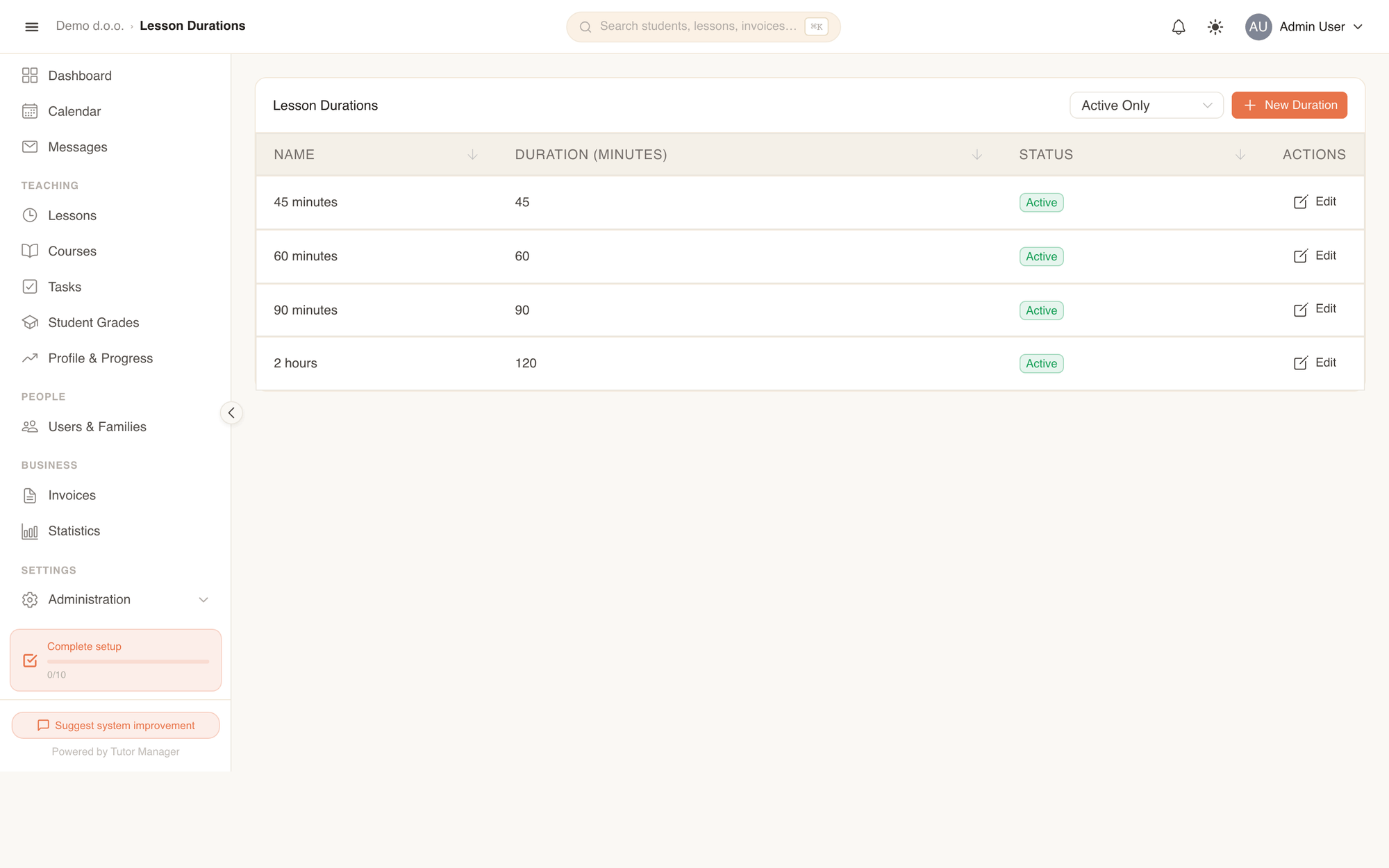
Lesson durations define the standard meeting lengths offered by your school (such as a 45-minute school period, a 60-minute standard hour, or a 90-minute double block).
Add a lesson duration
- Under Administration -> Offering, select Lesson durations.
- Click New Duration.
- Enter the Duration Name (for example "45 min (school hour)" or "60 min").
- Enter the length in Duration (minutes) (e.g.
45or60). - Click Create.
Automatic end time calculation
Whenever staff books a lesson or schedule, selecting a duration automatically calculates and sets the Calculated End Time based on the chosen start time, eliminating scheduling math and human error.
Course types & categories
Course types define the templates and capacity parameters for group classes and workshops.
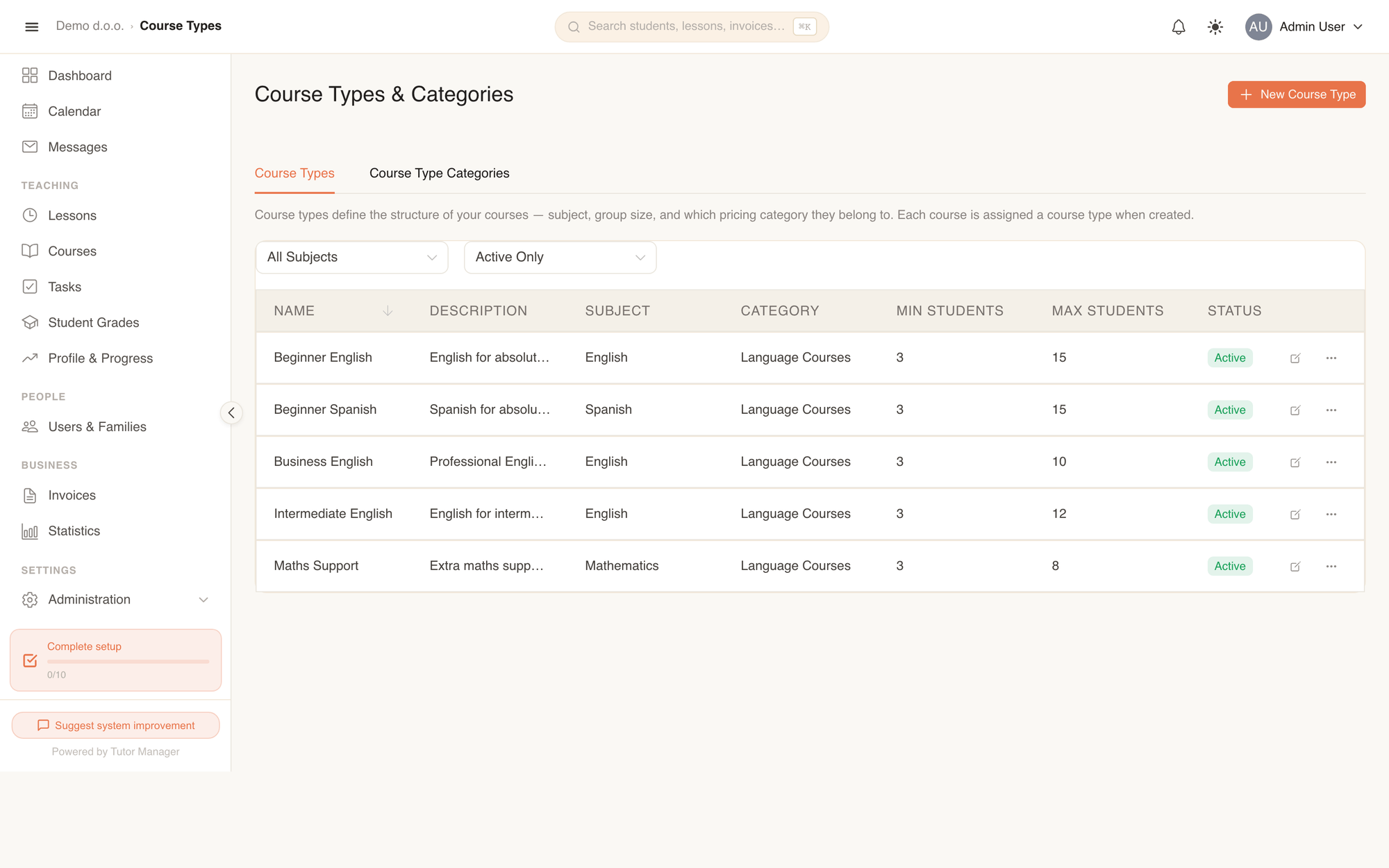
The Course types section has two tabs:
- Course Types: Specific class profiles (e.g. "Adult English Intermediate" or "High School Math Prep").
- Course Type Categories: Broad group classifications (e.g. "Group Courses", "Exam Preparation", or "Summer Camps").
Create a category
Categories are optional groupings that make it easy to filter courses and apply family discount rules to specific course programs.
- Navigate to Course types and switch to the Course Type Categories tab.
- Click New Category.
- Enter the Category Name and an optional Description.
- Click Create.
Create a course type
- On the Course Types tab, click New Course Type.
- Enter the Name and an optional Description of the course.
- Select the associated Subject.
- Set the Min Students and Max Students thresholds (for example, minimum
3and maximum10). - Optionally assign a Category.
- Click Create.
Fields explained
| Field | Meaning |
|---|---|
| Subject Name | The display title of the subject (e.g. "English"). |
| Subject Code | Short identifier up to 5 characters (e.g. ENG). |
| Duration (minutes) | Exact length of the lesson block in minutes (e.g. 60). |
| Min Students | Minimum number of student enrollments needed for a course to run. |
| Max Students | Maximum student capacity allowed in the course type. |
| Category | Classification grouping used for organization and targeted discount rules. |
| Active | Inactive items remain in past records but cannot be chosen for new lessons or courses. |