
Prices, discounts & tax rates
Configure how your school bills for individual lessons, travel mileage, group courses, and taxes. TutorManager uses a versioned pricing engine: when you change a rate, past lessons and historical invoices remain completely unaffected.
Individual lesson pricing
Individual lesson prices are determined by the combination of Lesson Duration and Subject.
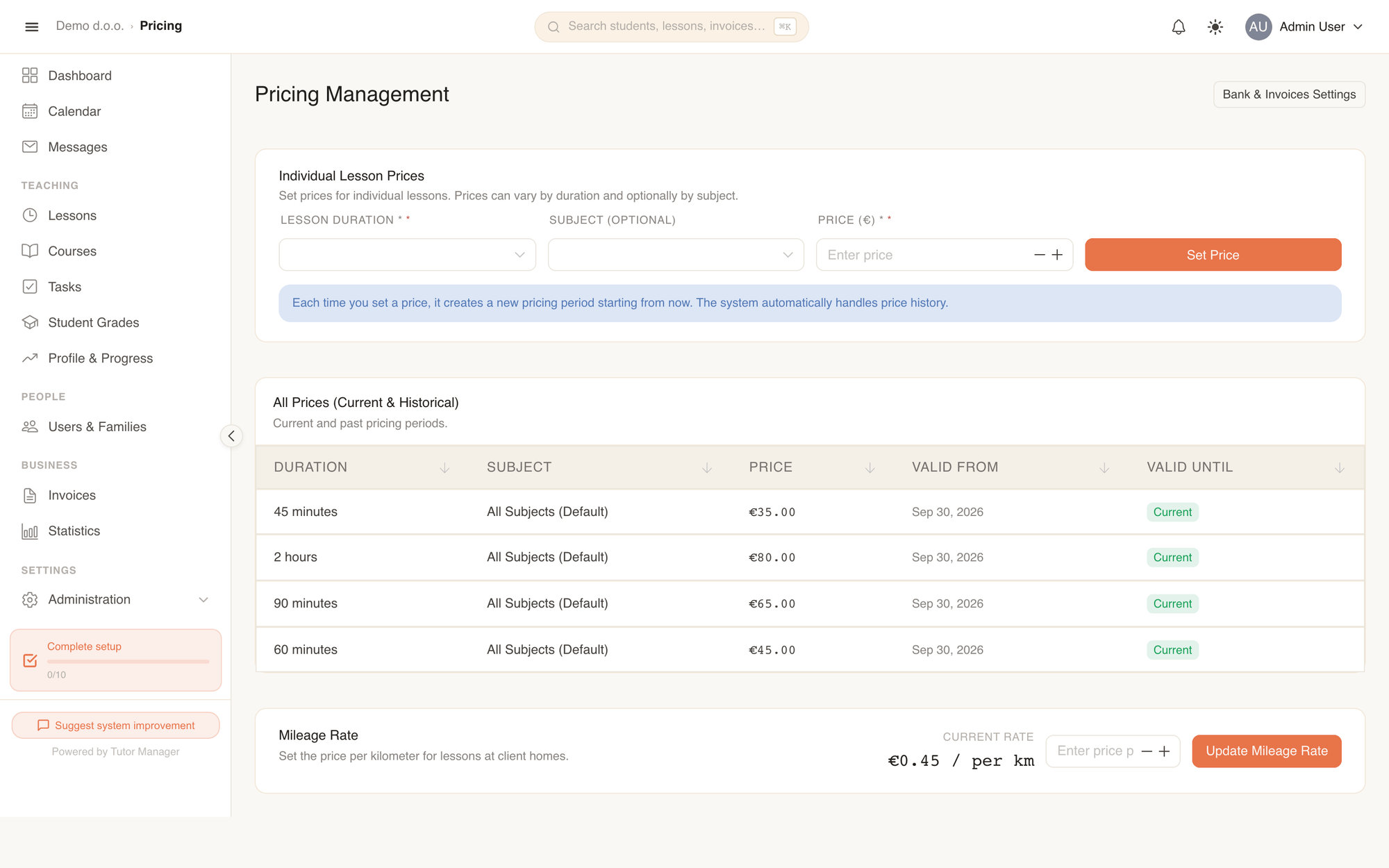
Set a lesson price
- Open Administration from the sidebar and select Price list (under Pricing & invoices).
- Under Individual Lesson Prices, select a Lesson Duration (e.g. "60 min").
- Select a Subject (Optional) (e.g. "Mathematics"), or leave it as All Subjects (Default) to establish a default price for that duration across any subject.
- Enter the Price (€) (e.g.
35.00). - Click Set Price.
Versioned prices & fallback logic
- Subject fallback: When calculating a lesson price for Subject X and Duration Y, TutorManager first looks for a price matching both
(Duration Y + Subject X). If none is configured, it falls back to the general price for(Duration Y + All subjects). - Historical versioning: Every price entry has a Valid from and Valid until timestamp. When you submit a new price, the previous rate is archived with an end date and marked as closed. Past completed lessons retain the exact price that was valid on the day they were scheduled.
Mileage (travel costs)
If your teachers travel to a student's residence for home tutoring, TutorManager calculates travel costs automatically based on distance.
- On the Pricing page, locate the Mileage Rate card at the bottom.
- Under Price per Kilometer (€), enter the rate (e.g.
0.43or0.50€/km). - Click Update Mileage Rate.
Mileage discounts & multi-student visits
- Student mileage discount: In any student's profile (or when scheduling a single lesson), you can set a Mileage Discount (%). For example, setting
100%waives travel costs completely (free travel), while50%charges half the distance cost. - Shared travel splitting: When a teacher visits a home or location to teach multiple students or siblings on the same trip, TutorManager automatically detects consecutive bookings and splits the round-trip mileage fairly across the family's invoice items.
Discount rules
Discount rules automate price reductions for families and course enrollments, such as sibling discounts.
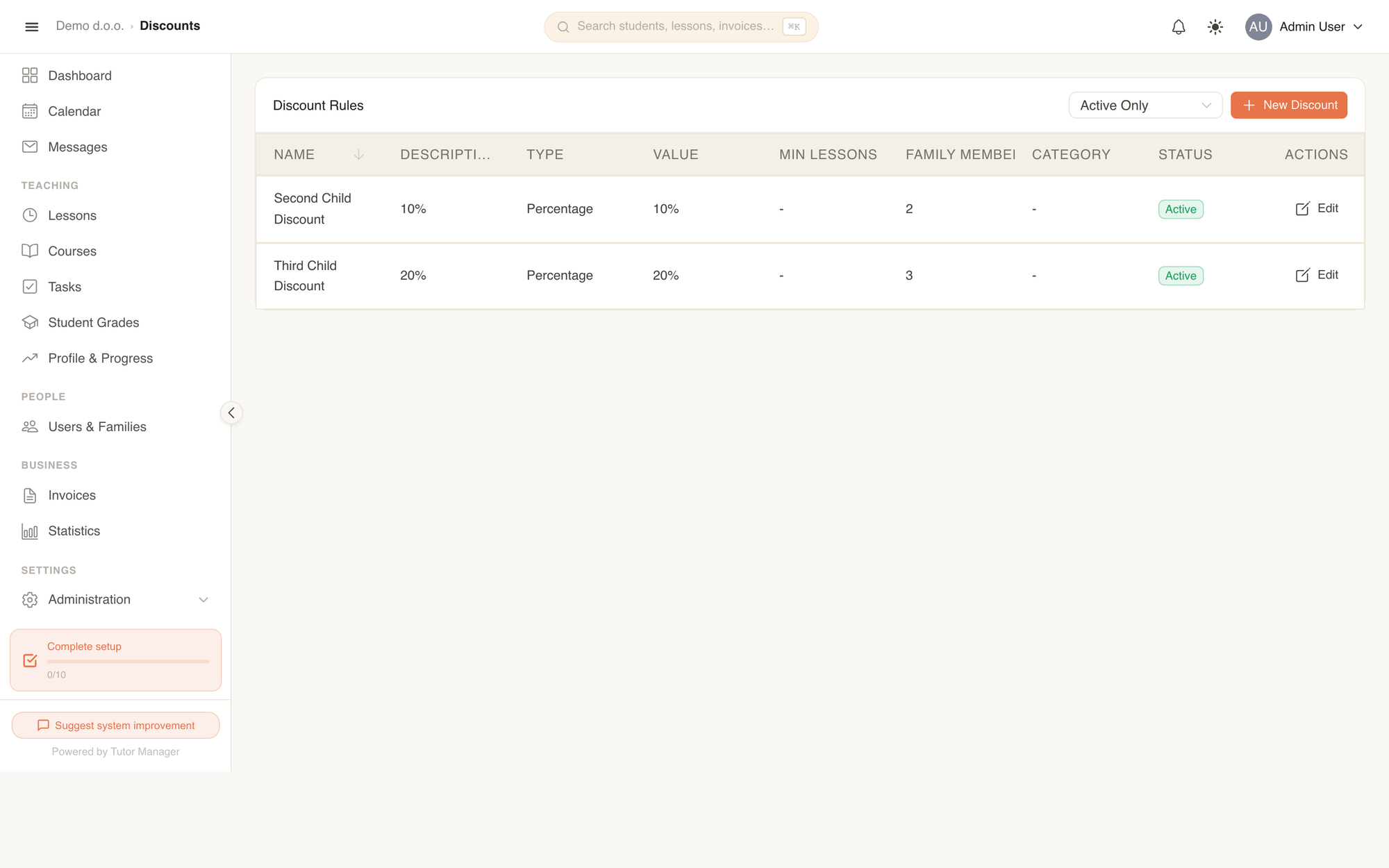
- Open Administration and select Discounts (under Pricing & invoices).
- Click New Discount.
- Enter the rule Name (e.g. "Second child 10% discount") and an optional description.
- Choose the Discount Type: Percentage (e.g.
10.00%) or Fixed Amount (e.g.15.00 €). - Specify the conditions:
- Family Member Position: Enter
2for the second child,3for the third child, etc. - Course Type Category: Target the discount to a specific course category (e.g. "Language Courses") or leave empty to apply across all categories.
- Minimum Lessons: Set a minimum number of attended lessons if this discount requires a volume threshold.
- Family Member Position: Enter
- Click Create.
Tax rates (VAT)
Configure national value-added tax rates applicable to your services.
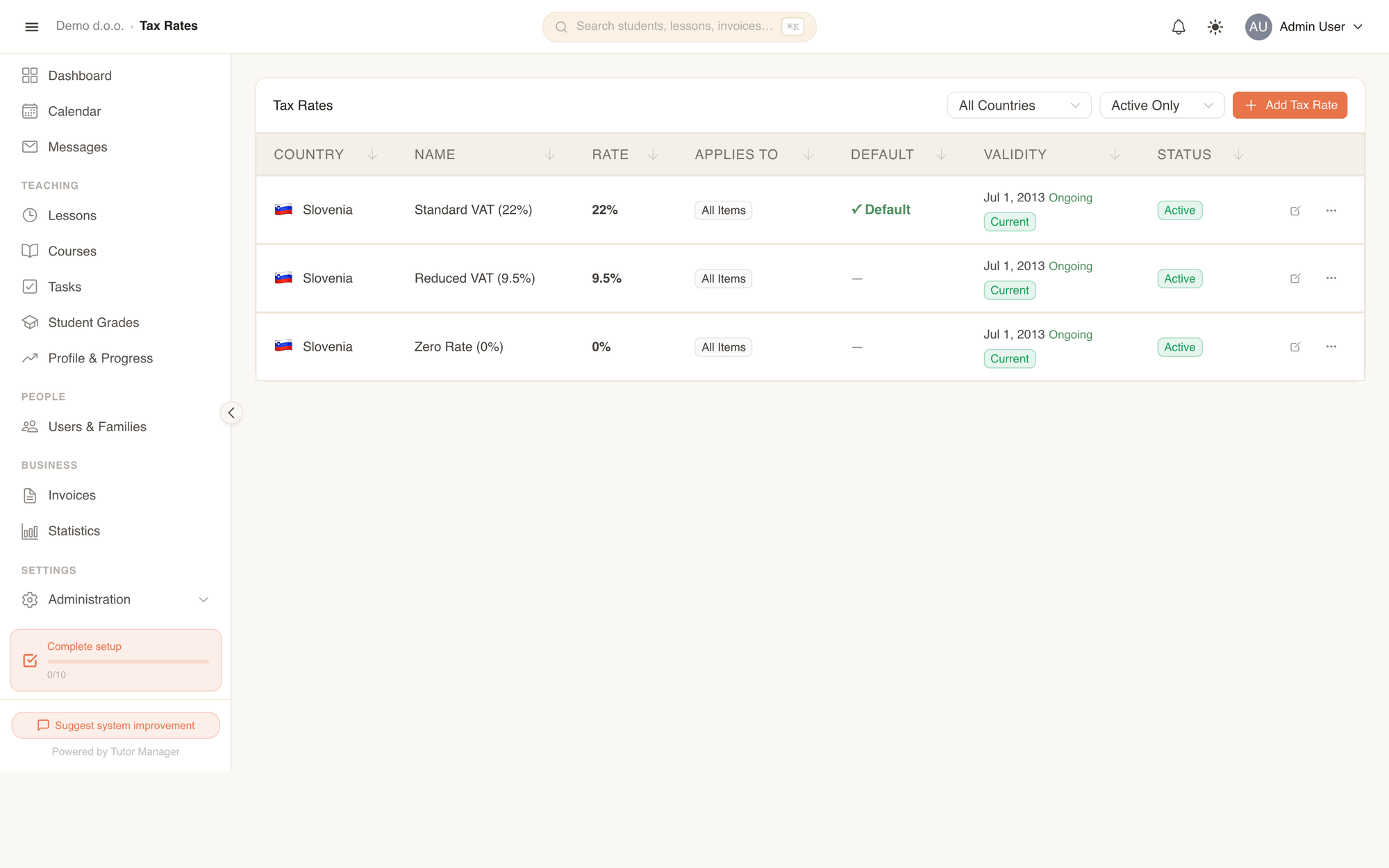
- Open Administration -> Tax Rates (under Pricing & invoices).
- Filter by country or click Add Tax Rate.
- Select the Country and enter the tax Name (e.g. "DDV 22%" or "Standard VAT 20%").
- Enter the Rate (%) (e.g.
22.0). - Choose what the tax Applies to:
- All Items: Applies across all invoice lines unless overridden.
- Lessons: Specifically applies to individual lessons.
- Courses: Specifically applies to course enrollments.
- Mileage: Specifically applies to travel distance charges.
- Other: Materials, books, or miscellaneous fees.
- Turn on Set as Default if this is your primary standard rate.
- Set the Valid From date and save.
VAT registered toggle
If your school is not VAT registered (VAT Registered: Off in Company settings), TutorManager automatically adds your statutory tax-exemption notice to every invoice.
How lesson prices are calculated
When a lesson is completed and invoiced, TutorManager computes the total through a clear, transparent formula:
Lesson Total = Base Lesson Price + Travel Cost + Applicable Tax- Base Lesson Price: Looked up from the current price table for that duration and subject (or all subjects).
- Travel Cost (if at client home):
Travel Cost = Distance (km) × Mileage Rate (€/km) × ((100 - Mileage Discount %) / 100) - Discounts: Any applicable family or volume discounts reduce the taxable subtotal.
- Tax Amount: Calculated by applying the matching tax rate to the net subtotal.
- Pricing snapshot: When a lesson is created and completed, the active price, mileage rate, discount, and tax rate are permanently snapshotted onto the lesson record. If you increase your tuition rates next month, past lessons are never modified.
Fields explained
| Field | Meaning |
|---|---|
| Duration | The lesson length bracket determining base price. |
| Subject | Specific discipline for this price rate. If omitted, applies as default for all subjects. |
| Price (€) | Base fee for the duration before travel costs and discounts. |
| Price per km | Standard travel reimbursement rate per kilometer. |
| Mileage Discount (%) | Percentage reduction applied to travel charges (100% = free travel). |
| Family Member Position | Order of sibling in the family group (e.g. 2 applies to the 2nd child). |
| Applies to (Tax) | Scope of items taxed by this rate (All, Lessons, Courses, Mileage). |