
For students
TutorManager gives you a personal student portal where you can stay on top of your learning schedule, join online classes with one click, complete homework exercises, and follow your grades.
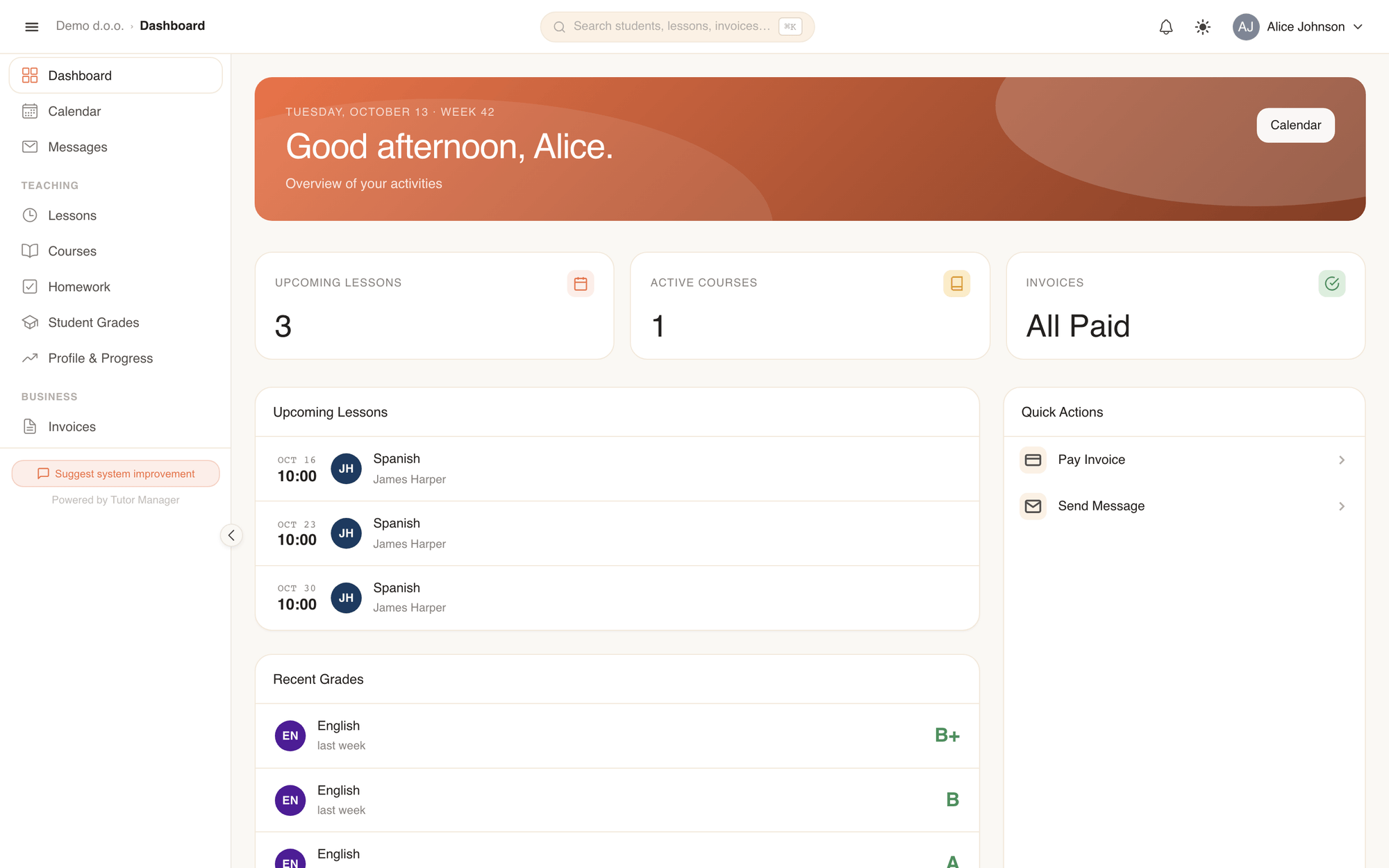
What you see after login
Your student dashboard displays everything you need for your studies:
- Upcoming lessons: Your next sessions with the date, time, subject, and teacher's name.
- Recent grades: Your latest test scores and homework evaluations, along with personal feedback from your teachers.
- Unpaid invoices: If you manage and pay for your own tuition directly, any outstanding invoices appear here with easy payment details.
1. Checking your schedule & lesson details
Keep track of when and where your lessons take place:
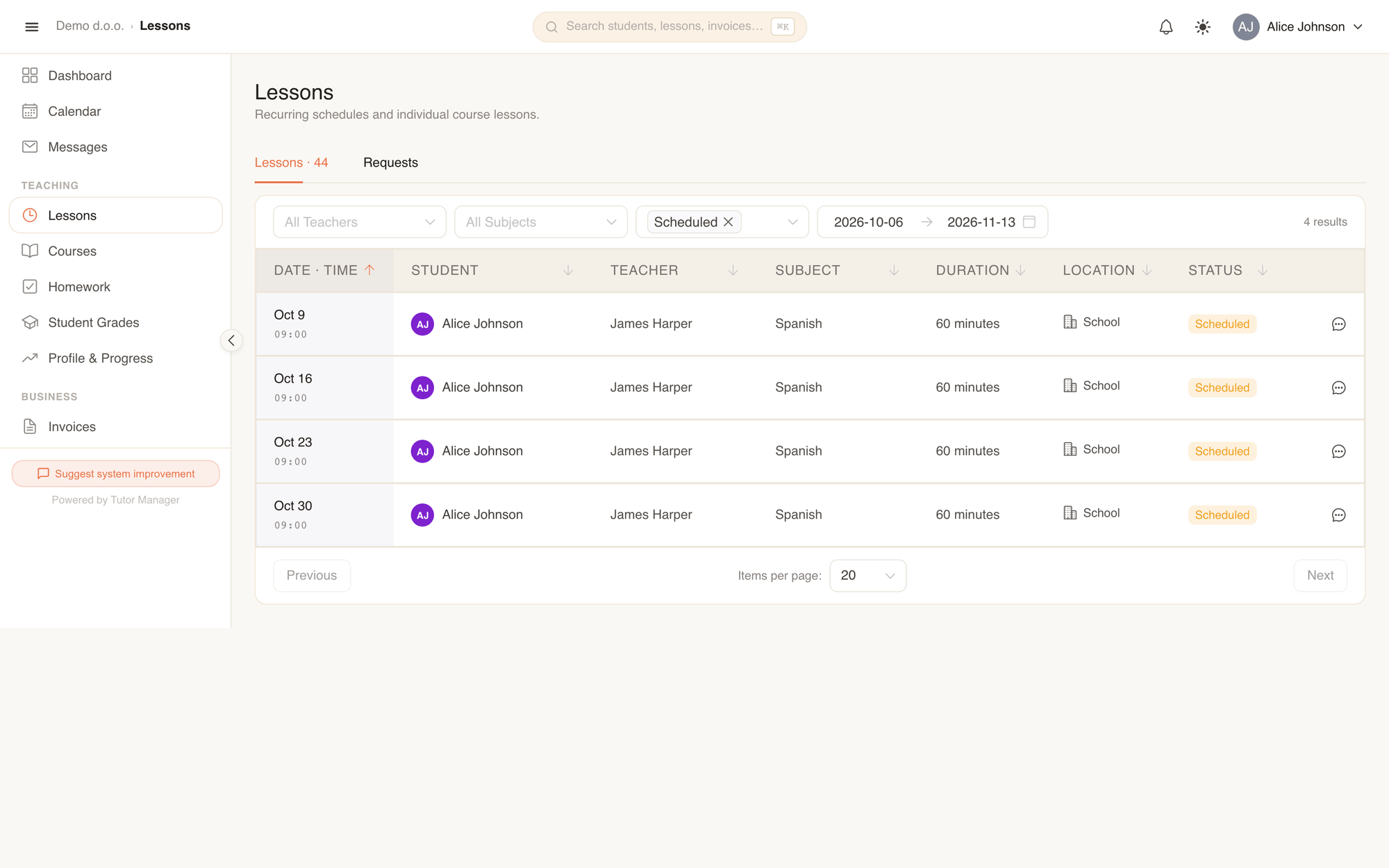
- Open Lessons or Calendar in the sidebar.
- In Calendar, switch between day, week, or month views to see your upcoming schedule.
- In Lessons, open any past session to review:
- What topics were covered in class.
- What the teacher recommended you practice.
- Any files, worksheets, or reading materials attached to the lesson.
2. Joining online lessons (Zoom)
If your lesson or course is held online via Zoom, you don't need to search through emails for links or meeting passwords:
- Open your scheduled lesson in Lessons or Calendar.
- Click the direct Zoom meeting link.
- The meeting opens directly in your browser or Zoom application.
3. Completing homework tasks (Task Runner)
Teachers assign homework directly through TutorManager. You can solve questions, submit your answers, and receive instant feedback:
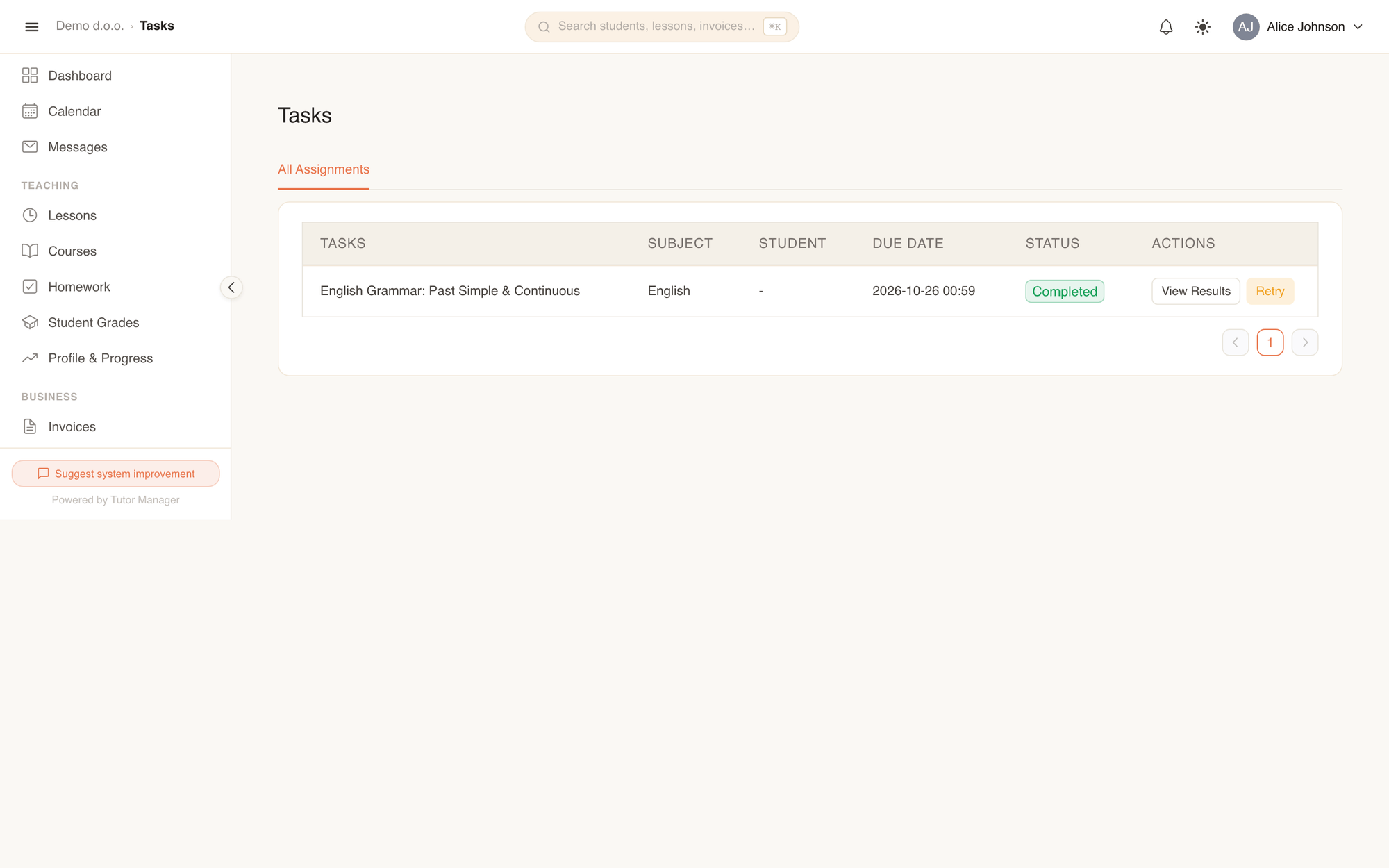
- Open Homework in the sidebar to view your pending assignments.
- Check the Due Date and click Start on the assignment you want to solve.
- The interactive Task Runner opens:
- Click Start Assignment to begin the exercises.
- Answer multiple-choice questions, fill in missing blanks, or type short answers.
- Use the navigation buttons to move between questions.
- When finished, review your answers and click Submit Assignment.
- Once your teacher grades the assignment, you can open it anytime to review corrections and personalized comments.
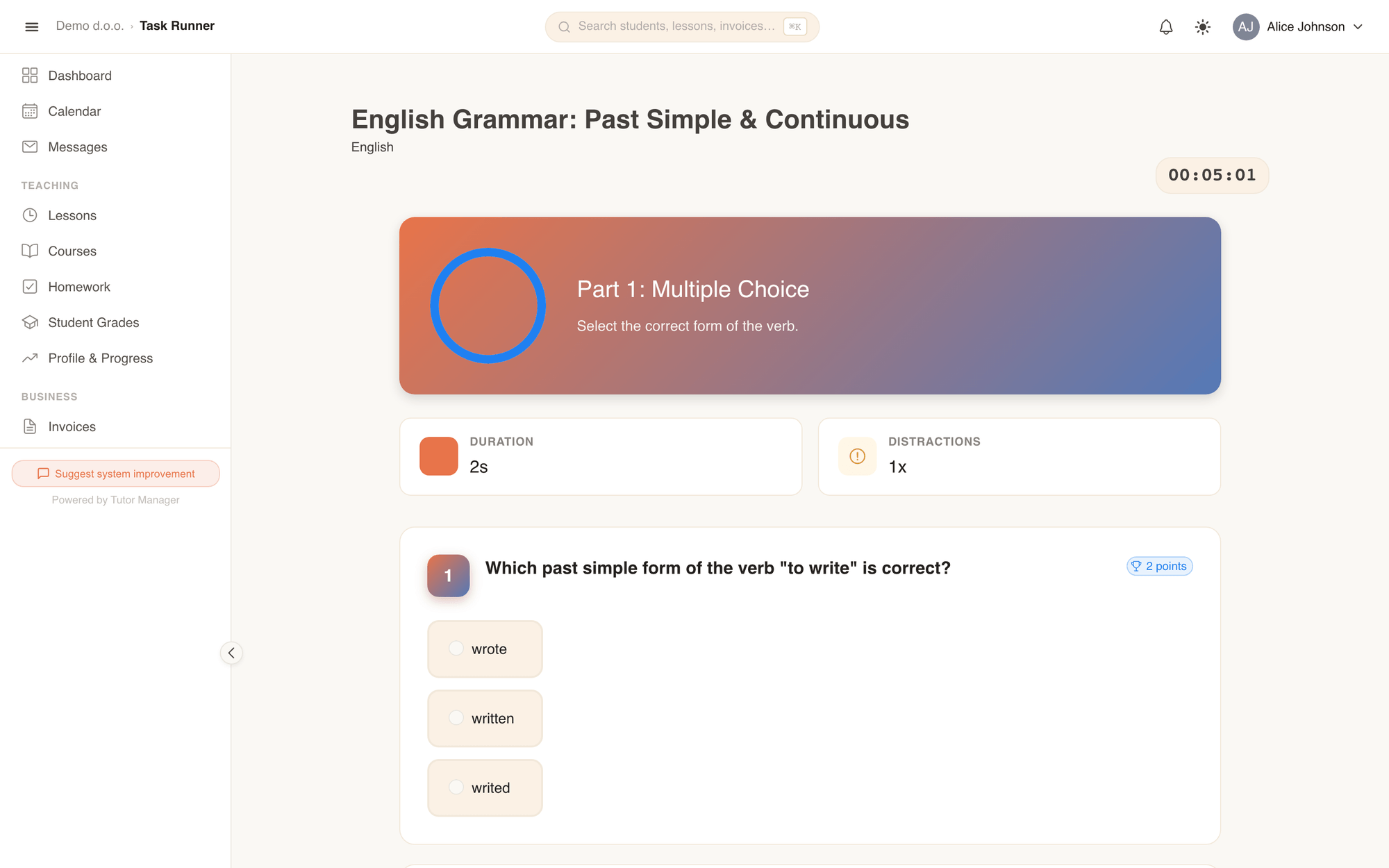
4. Tracking your grades & progress
Review your academic growth over the school year:
- Open Student Grades to see a full history of all your test scores, oral assessments, and assignment grades organized by subject.
- Open Profile & Progress to view your overall learning timeline.
5. Communicating with your teacher
Have a question about an upcoming exam or homework assignment?
- Open Messages in the sidebar.
- Click New Message and select your teacher or the school administration.
- Type your message and send it. You will receive an in-app notification when they reply.
Your privacy is protected
When you attend a group course, other students cannot see your personal email address, phone number, or last name. Your records and grades remain completely private between you, your teacher, and the school.