
Homework tasks
TutorManager lets teachers and administrators create structured homework tasks, ranging from multi-step interactive quizzes with automated grading to file-based worksheets. Tasks can be saved as reusable templates and assigned directly to students or attached to individual lessons.
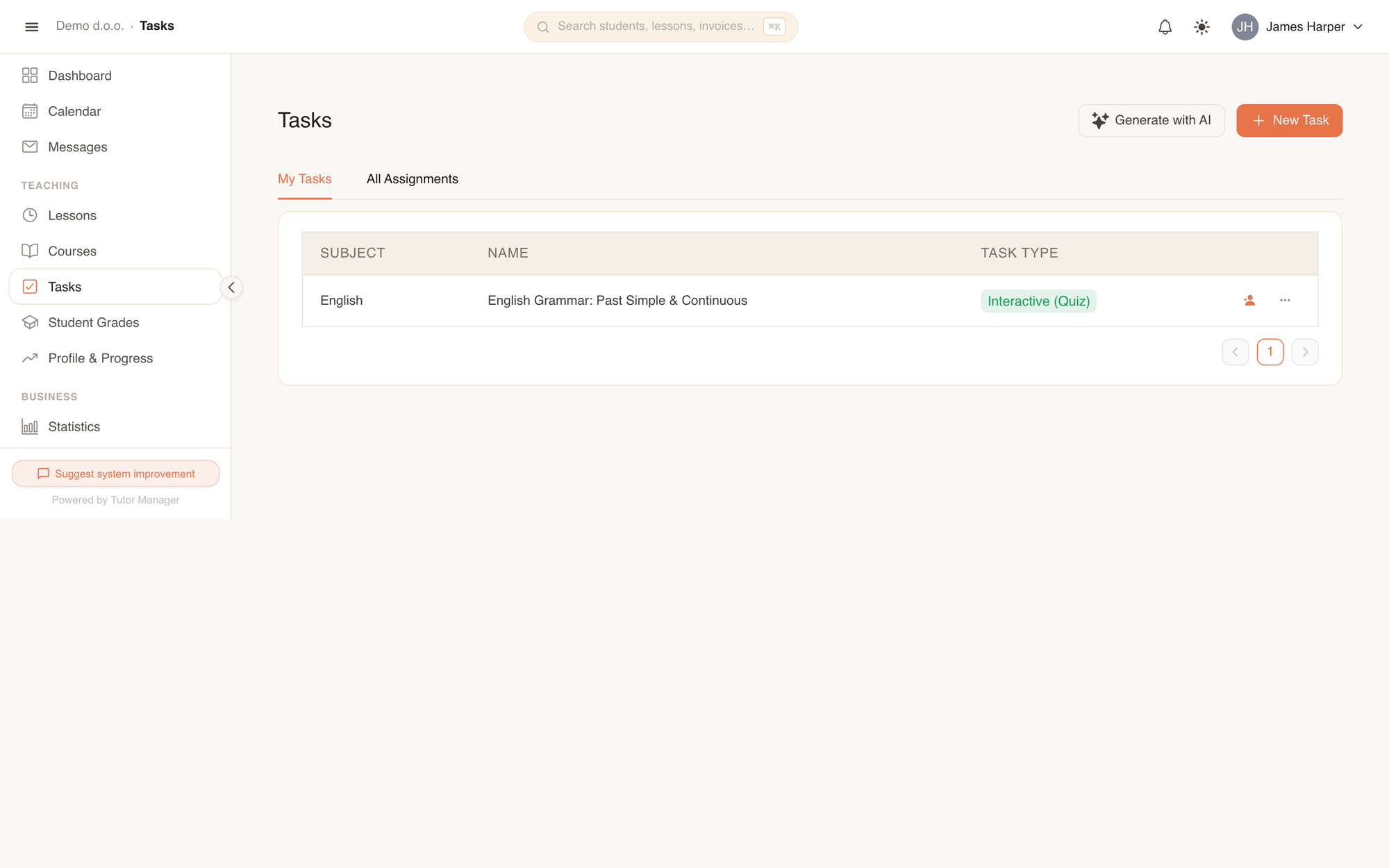
The Tasks page contains two primary tabs:
| Tab | What you find there |
|---|---|
| My Tasks | Task templates created by teachers and school administrators. You can create, edit, assign, or preview tasks here. |
| All Assignments | Real-time overview of all homework assigned to students, including due dates, completion statuses, scores, and grading actions. |
Student view
Students see this section as Homework in their sidebar, showing only the assignments assigned directly to them or their courses.
Create a new task
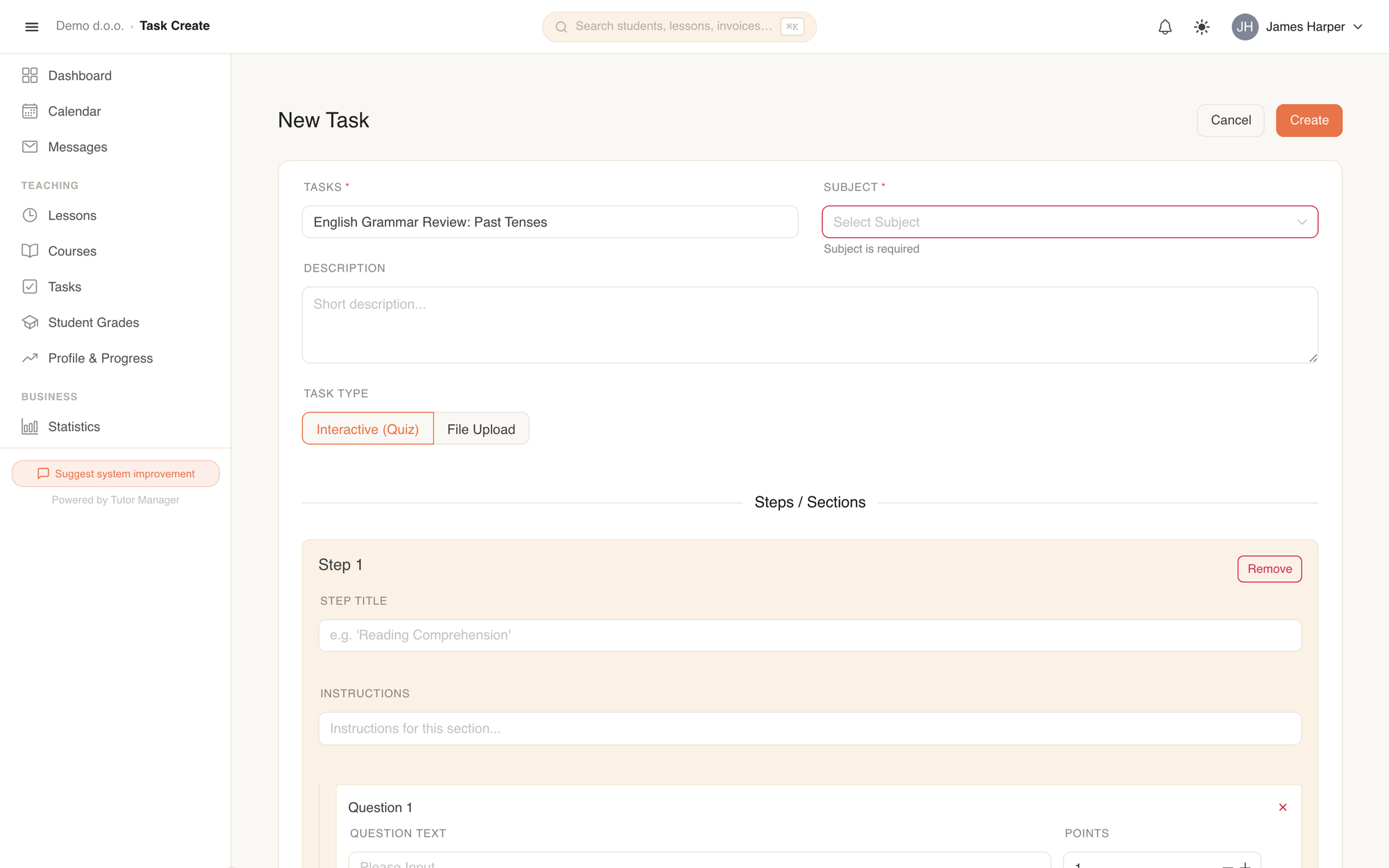
- Open Tasks in the sidebar and click New Task (or click Generate with AI to create one automatically).
- Enter the Title and select the Subject.
- If you are an administrator, you can optionally select the responsible Teacher or enable Make available as global template to share this task across all school teachers.
- Add an optional Description with general instructions or learning objectives.
- Choose the Task Type: Interactive (Quiz) or File Upload.
- Set up your questions or attach files, then click Create.
Task types explained
1. Interactive tasks
Interactive tasks guide students through one or more Steps containing questions. When students submit their answers, the system automatically evaluates objective questions, calculates points, and records completion metrics.
Each step can have:
- Step Title and Instructions explaining what the student should do in this section.
- One or more Questions with customizable Points.
Supported question types:
| Question type | Description | Correct answer setup |
|---|---|---|
| Single Choice | The student chooses one option among multiple radio buttons. | Select the radio button next to the correct option. |
| Multiple Choice | The student selects all applicable checkboxes. | Check each checkbox that represents a correct answer. |
| Dropdown | The student selects an answer from a compact dropdown menu. | Pick the correct item from the dropdown list. |
| Text Answer | Open-ended input where the student types their response. | Enter the expected sample answer for reference during manual grading. |
Use + Add Question to append more questions to a step, and + Add Step / Section to create a multi-part assignment.
2. File upload tasks
File upload tasks are ideal for printable worksheets, essay prompts, audio listening files, or reading assignments.
- Teachers upload study materials under Upload Files.
- Students download the attached files, complete the homework on their device or paper, and upload their finished work back to TutorManager.
Task details and template management
Click any task from the list to open its detail page.
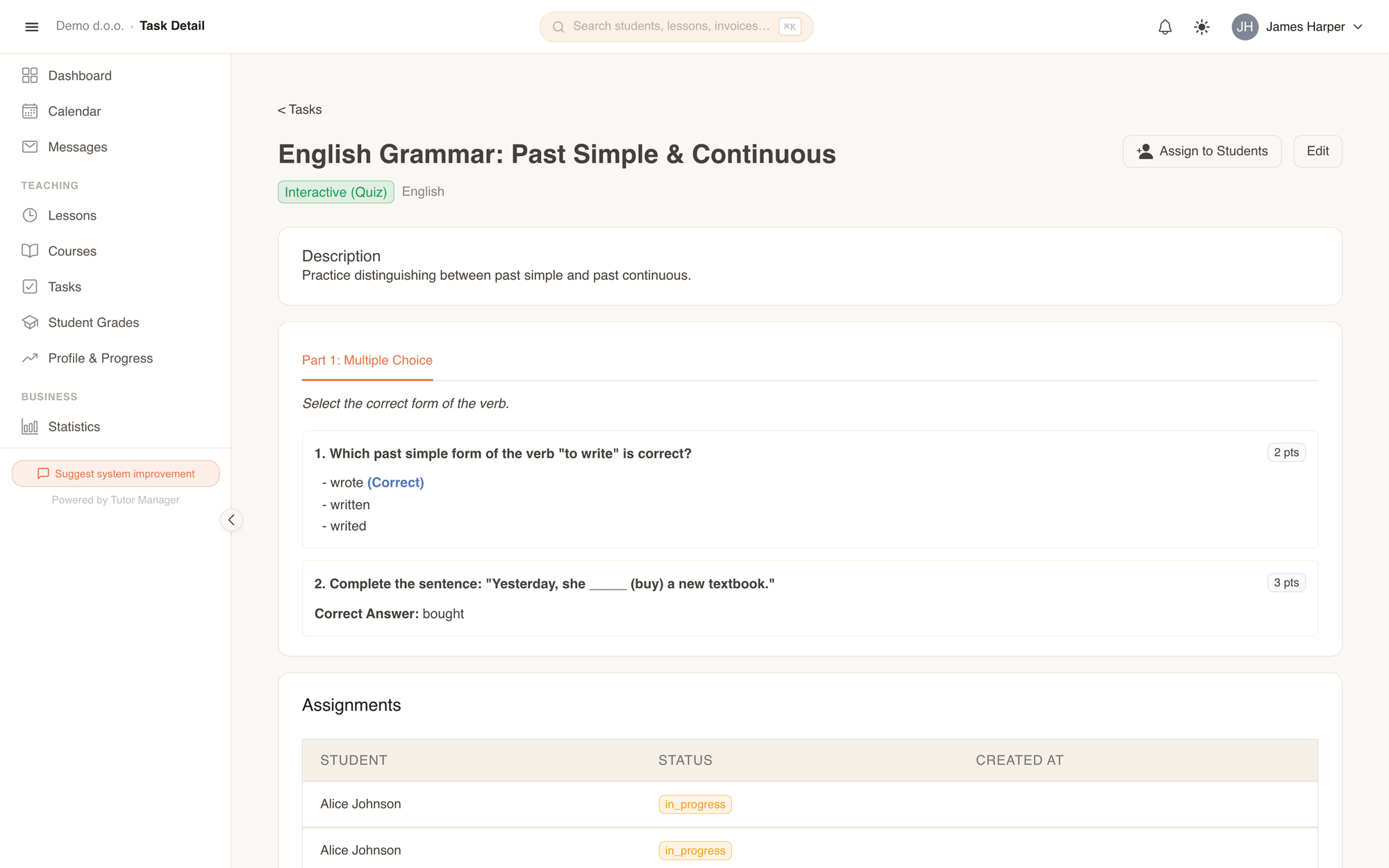
From the detail page, you can:
- Preview steps and questions: Check how the questions and points appear to students.
- Review correct answers: Verify the preset answer keys and scoring rules.
- Download attachments: Open or verify files attached to file-based tasks.
- Assign: Click Assign to Students to assign this task to one or more students immediately.
- Edit: Click Edit to update questions, modify descriptions, or adjust points.
- Delete: Remove obsolete task templates from the action menu in the task list.
Reusable templates
Tasks serve as reusable master templates. Once you build a task for a grammar topic or math unit, you can assign it to multiple students throughout the school year without re-entering questions.