
Company settings
Configure your school's official business profile, contact details, payment information, and operational rules. The information you enter here appears directly on invoices and proformas sent to students and parents, and controls how lessons and automated reminders run across your center.
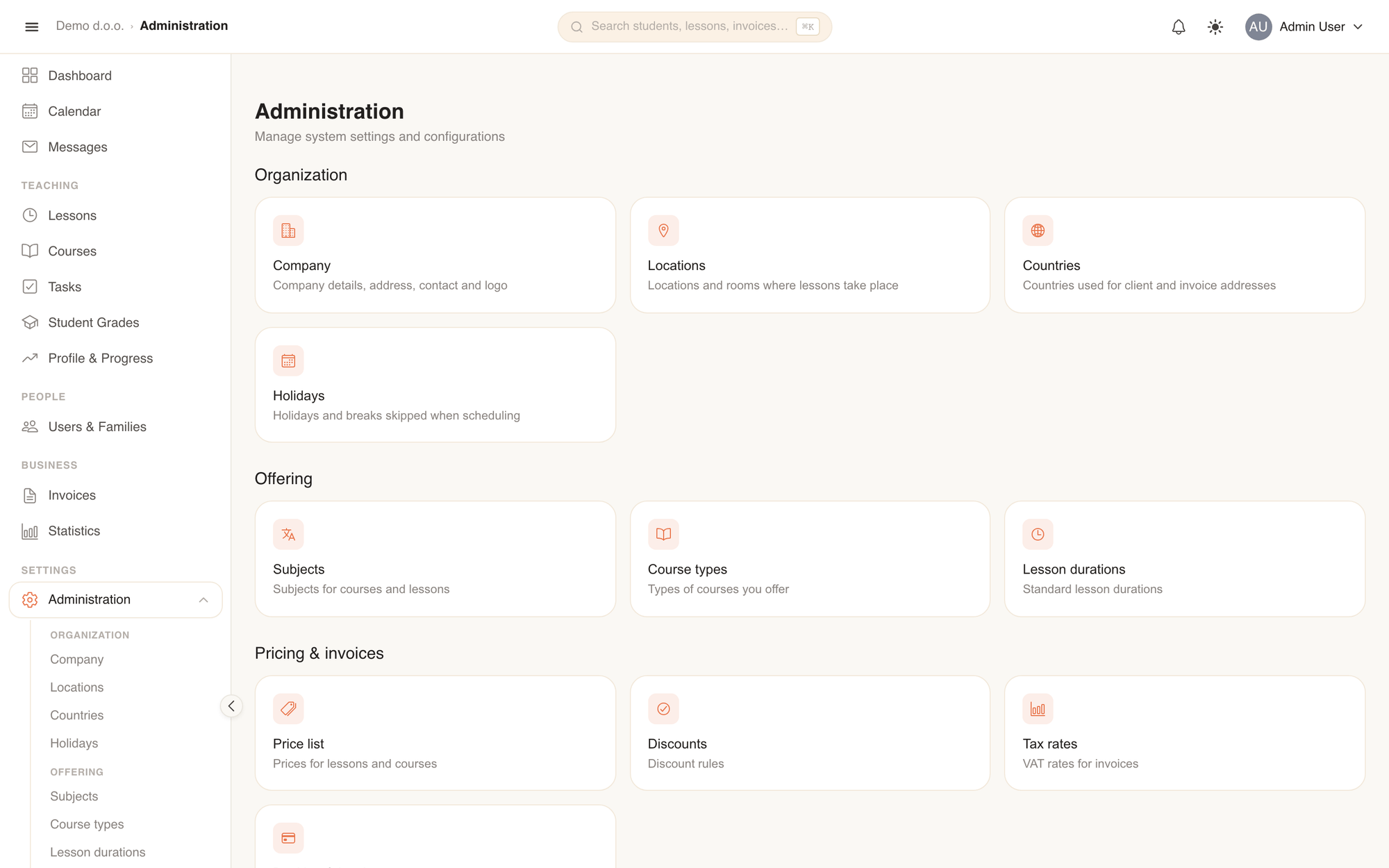
In TutorManager, system settings are organized under Administration in four main groups:
- Organization: Company profile, locations, supported countries, and holidays.
- Offering: Subjects, course types, and lesson durations.
- Pricing & invoices: Lesson pricing, discount rules, tax rates, and banking.
- System: Localization, scheduling hours, notifications, integrations, files, and audit logs.
Company details & branding
Your company information is printed on every generated invoice and proforma document.
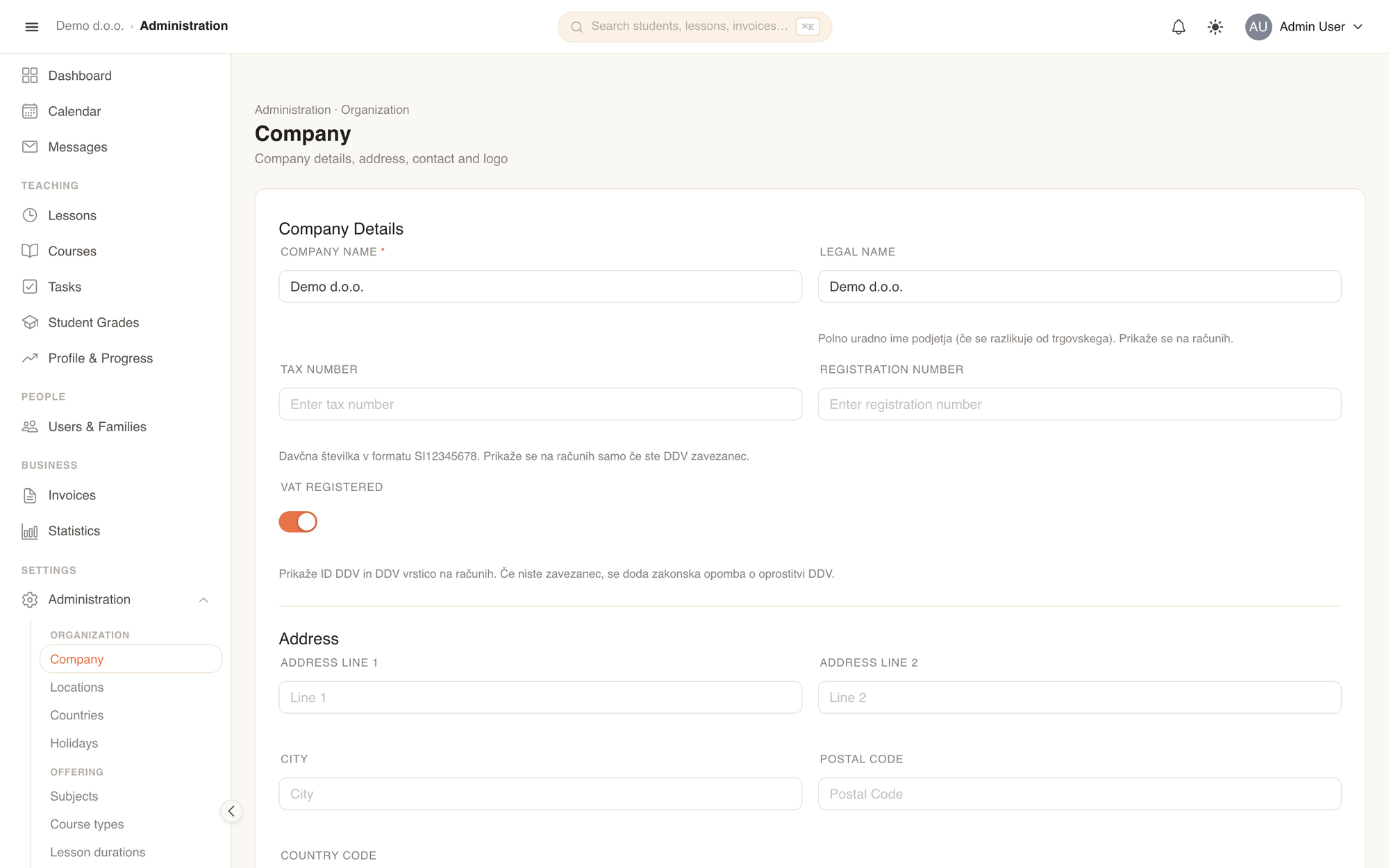
- Open Administration from the sidebar and select Company (or navigate to Settings).
- Under Company, enter your Company Name, Legal Name, Tax Number, and Registration Number.
- If your school is registered for VAT, switch on VAT Registered. If switched off, invoices will automatically include the required statutory tax-exemption notice.
- Under Address, fill in your street address, city, postal code, and country.
- Under Contact, enter your public school email, phone number, and website.
- Under Logo, click Upload Logo to upload your school's emblem (recommended: PNG or JPG, at least 300×100 px).
- Click Save Changes in the bottom bar to confirm your edits.
Logo on invoices
Once uploaded, you can choose under the Bank & Invoices tab whether to display the logo on invoices, and whether to hide the company text name if it is already part of your graphic logo.
Banking & invoice configuration
Set up the bank account where students and parents should send payments, along with invoice numbering rules and payment QR codes.
- In Settings, open the Bank & Invoices tab (or select Banking & invoices in Administration).
- Under Bank Details, enter your Bank Name, Account Number (IBAN), and SWIFT/BIC.
- Under Payment Settings, choose your Issuing Country and Payment Reference Type (e.g. Slovenian
SI00, CroatianHR00, or internationalRFSEPA format). - Select your preferred QR Code on Invoices mode:
- Automatic: Uses standard UPN QR for Slovenian bank accounts and EPC QR for international accounts.
- UPN only: Slovenian payment slip code for domestic payments.
- EPC only: European SEPA payment QR code for international clients.
- UPN + EPC: Prints both codes side-by-side for schools with both local and foreign students.
- No QR code: Omits QR codes from invoices.
- Under Invoice Numbering, set your Invoice Prefix (e.g.
2026) and Invoice Number Padding (e.g.4produces2026-0001). - Turn on Reset invoice numbering yearly to restart invoice numbers from
1each January. - Under Proforma Invoices, set your prefix (default
PF), padding, and decide whether to enable Automatically convert to invoice on full payment. - Save your changes.
Operating hours & scheduling policies
TutorManager uses your operating schedule to validate lesson booking and avoid planning outside open hours.
- Switch to the Scheduling tab.
- Under Business Hours, check the active days of the week when your school is open and set the opening and closing hours for each day.
- In General settings, set the Cancellation Deadline (hours): the number of hours before a lesson start time (default
24) within which cancellations may incur billing rules.
Automated reminders & notifications
Send automated lesson reminders and weekly schedule digests to students and parents.
- Open the Notifications tab.
- Under Lesson Reminders, turn on Send email reminders or Send SMS reminders.
- Set Hours before lesson (reminder): how many hours before the scheduled session the reminder is sent (default is 24 hours).
- Under Weekly Schedule, turn on Send weekly schedule to email students a summary of their upcoming classes for the following week. Choose the day of the week and sending time.
Integrations (Zoom)
If your school offers online distance tutoring, configure Zoom to automatically create meeting links for remote lessons.
- Open the Integrations tab.
- Switch on Enable Zoom integration.
- Enter your Zoom Server-to-Server OAuth credentials: Zoom Account ID, Zoom Client ID, and Zoom Client Secret.
- Save your changes. Once active, teachers and staff can turn on Zoom when creating lessons to generate instant meeting links.
Countries & languages
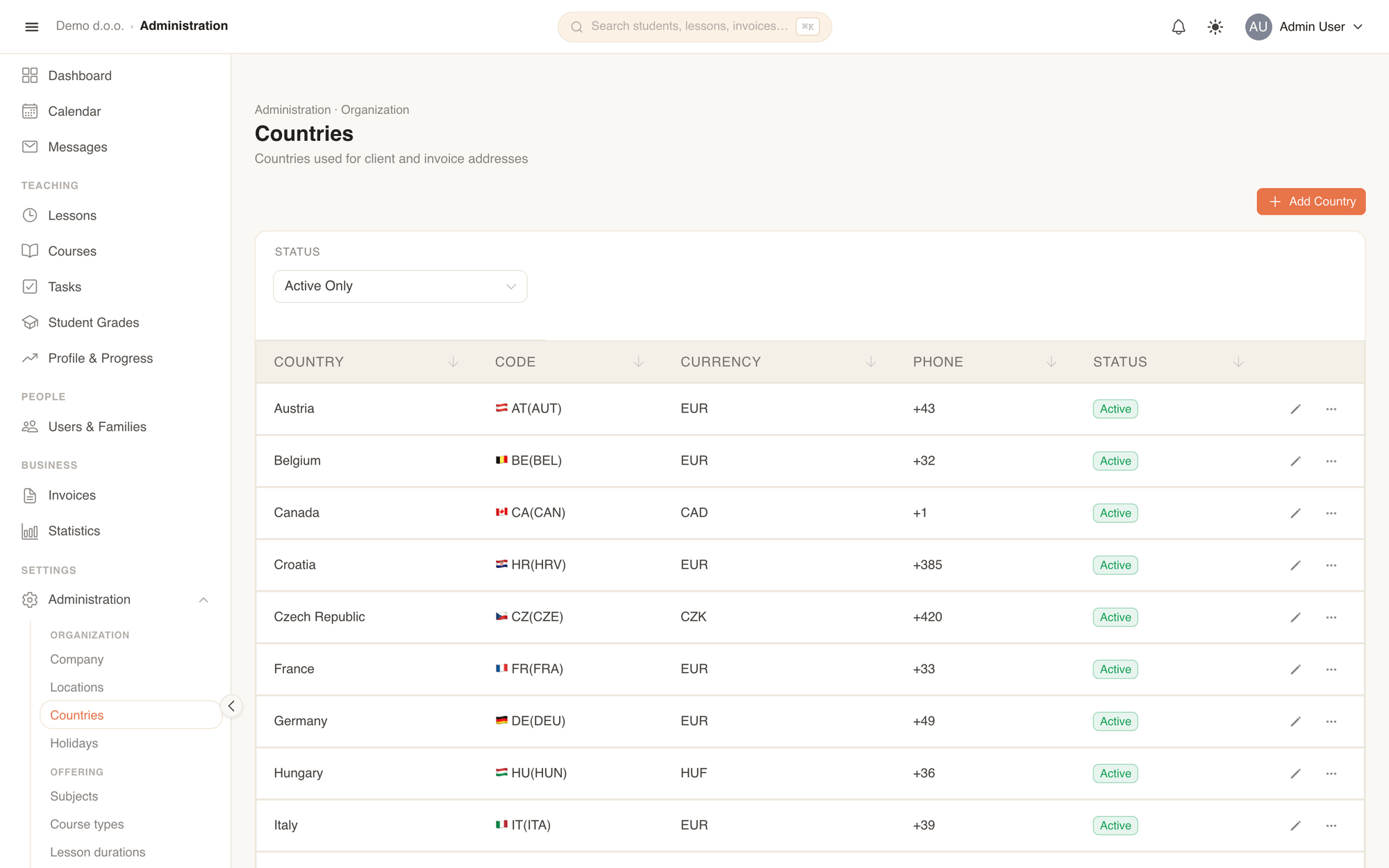
- Countries: View and add countries your school operates in. Each country defines a country code, flag, phone prefix, and primary currency, and connects to Tax rates.
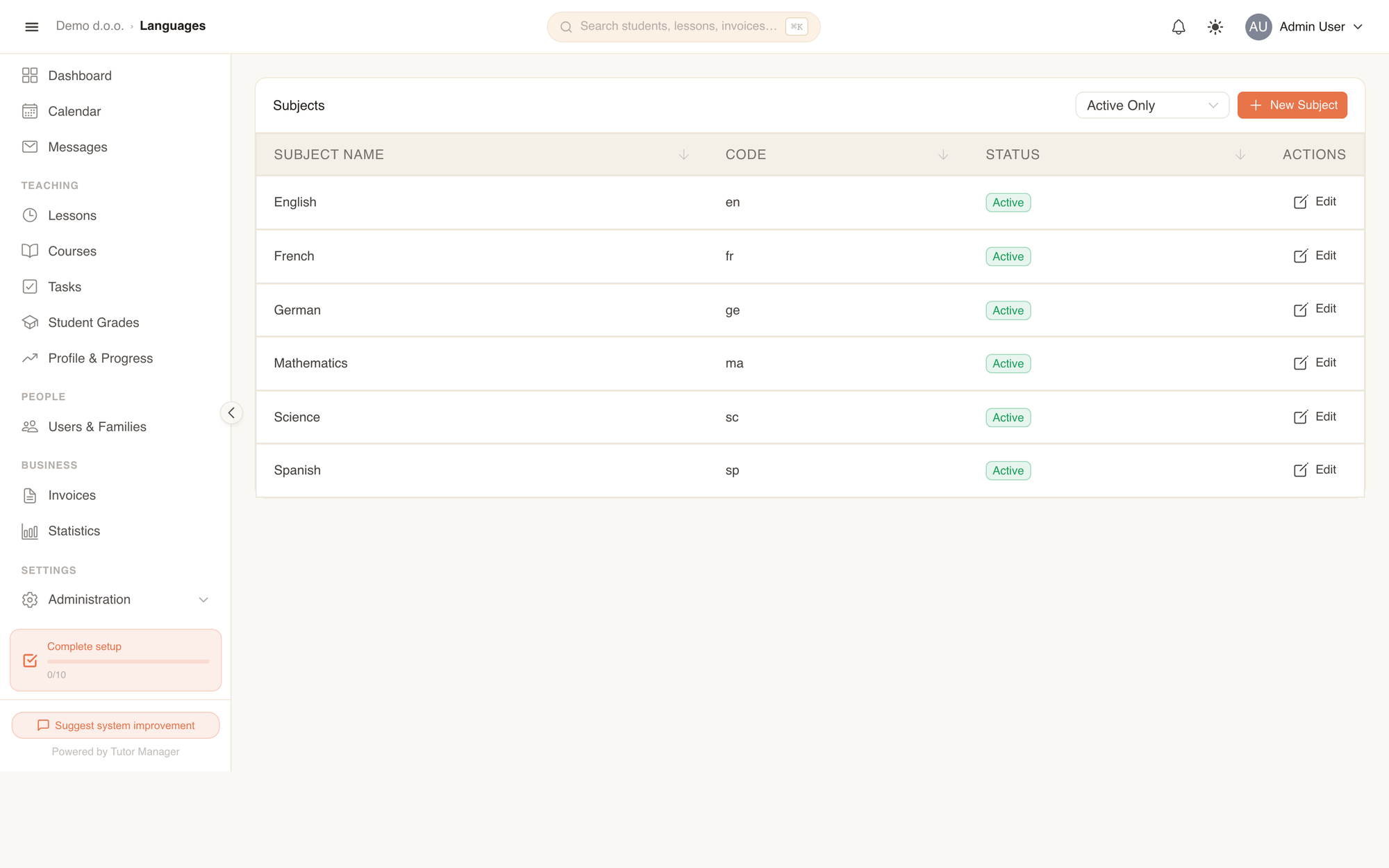
- Languages & subjects: Accessible from Administration -> Offering -> Subjects to manage the curriculum taught at your school — see Subjects, course types & durations.
Fields explained
| Field | Meaning |
|---|---|
| Company Name | The public trading name of your school displayed in the app and on notifications. |
| Legal Name | The registered legal entity name printed on official invoices if different from your brand name. |
| Tax Number | Your official tax identification (e.g. SI12345678). |
| VAT Registered | When active, VAT lines and percentages appear on invoices. When disabled, statutory tax-exemption text is added automatically. |
| Account Number (IBAN) | The IBAN where client bank transfers should be remitted. Determines default QR code generation. |
| SWIFT/BIC | Bank identification code, essential for European EPC QR codes and cross-border bank transfers. |
| Invoice Prefix | String prepended to sequential numbers (e.g. 2026 creates 2026-0001). |
| Auto-convert Proforma | When a proforma invoice receives full payment, TutorManager automatically issues an official invoice. |
| Cancellation Deadline | Minimum advance notice in hours required for students to cancel a lesson without penalty. |