
AI task generator
The AI task generator helps teachers prepare custom homework assignments in seconds. Instead of writing questions, options, and distractors manually, you specify the subject, topic, and difficulty level, and TutorManager generates a ready-to-use interactive quiz.
Subscription package availability
AI task generation is available on subscription packages that include the AI tasks feature. If your school's package does not include AI capabilities, the Generate with AI button will not be visible.
How to generate a task with AI
- Navigate to Tasks in the main sidebar.
- Click Generate with AI next to the New Task button in the top right corner.
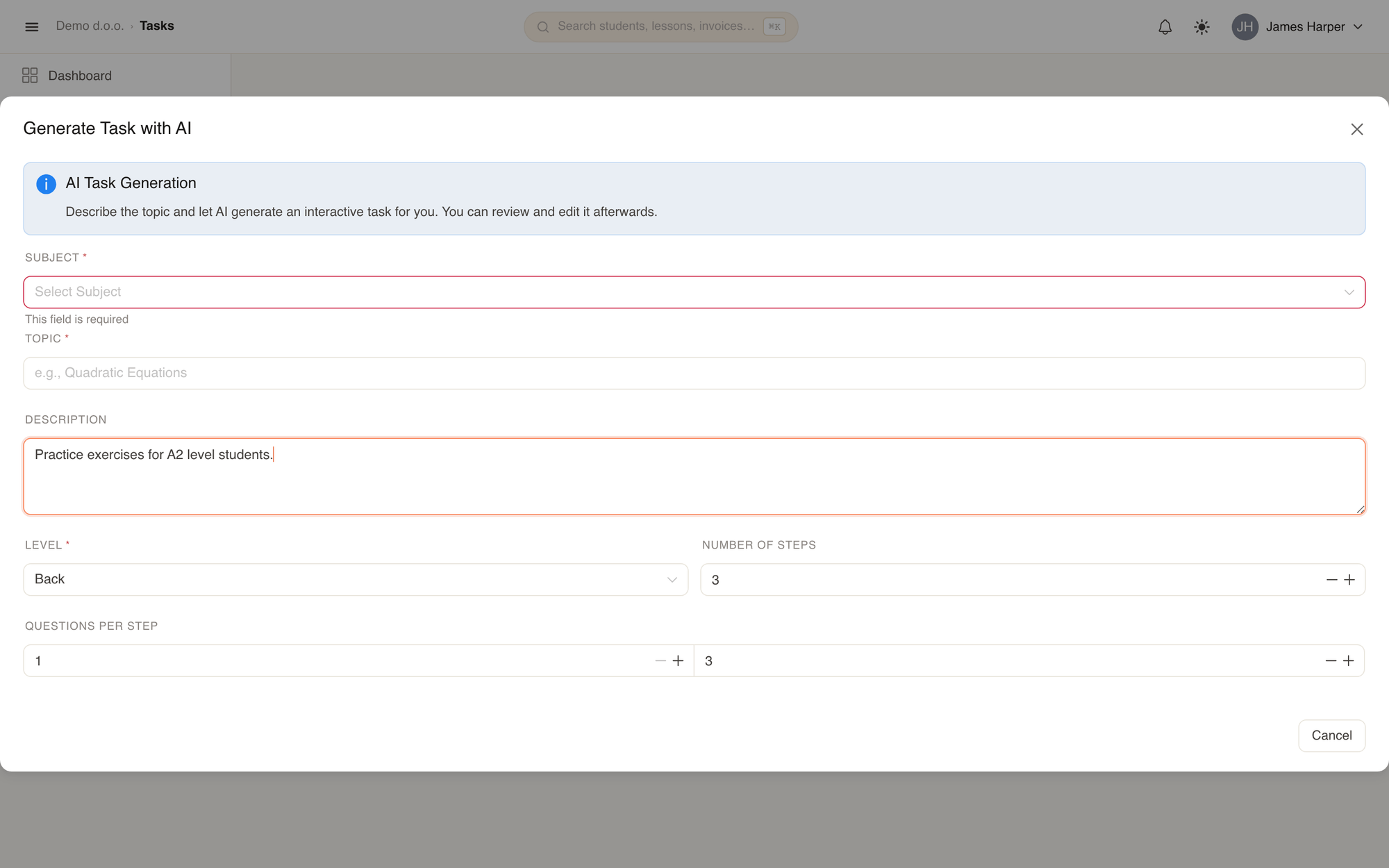
- In the modal, fill in the generation parameters:
- Subject: Choose one of your school's active subjects.
- Topic: Enter the specific subject topic (for example, "Present Perfect vs. Past Simple" or "Linear Equations").
- Description: Add optional context or constraints (for example, "Include negative forms and short answers").
- Level: Select the target difficulty: Beginner, Intermediate, or Advanced.
- Number of Steps: Set how many distinct parts or stages the assignment should have (from 1 to 10).
- Questions per Step: Choose the minimum and maximum number of questions generated per step.
- Click Generate Task.
- Once generation finishes, TutorManager automatically redirects you to the newly created task's detail page.
Input fields explained
| Field | Description | Example |
|---|---|---|
| Subject | The academic subject this assignment belongs to. | English, Mathematics |
| Topic | The core subject matter or grammar rule to practice. | Pythagorean theorem |
| Description | Optional pedagogical guidelines or specific instructions for the AI prompt. | Focus on word problems with real-world scenarios |
| Level | Target student skill level: Beginner, Intermediate, or Advanced. | Intermediate |
| Number of Steps | Number of sequential stages dividing the task. | 3 |
| Questions per Step | Range of questions per step (minimum and maximum). | Min: 2, Max: 4 |
Reviewing and editing before assigning
AI-generated tasks are saved as drafts in your task library, giving you complete pedagogical control before any student sees them:
- Verify questions and options: Check that the generated questions, answer options, and distractors are accurate and appropriate for your curriculum.
- Review correct answers: Ensure that the pre-selected correct answers match your teaching standards.
- Adjust points: Modify the point value assigned to each question as desired.
- Edit wording: Click Edit to refine question phrasing, add extra explanations, or remove any question that does not fit your lesson plan.
- Assign: Once you are satisfied with the task, click Assign to Students to distribute it to students.
AI token limits
Each school has an allocated monthly AI token quota based on its subscription plan. All prompt inputs and generated outputs count towards this quota. If your school reaches its limit, the system will notify you with an alert and task generation will be temporarily paused until your next billing period or quota upgrade.