
Families & parents
Group siblings and their guardians into structured family households. Families simplify parent communication, enable consolidated family invoicing, unlock multi-child discounts, and let parents oversee all their children from a single login.
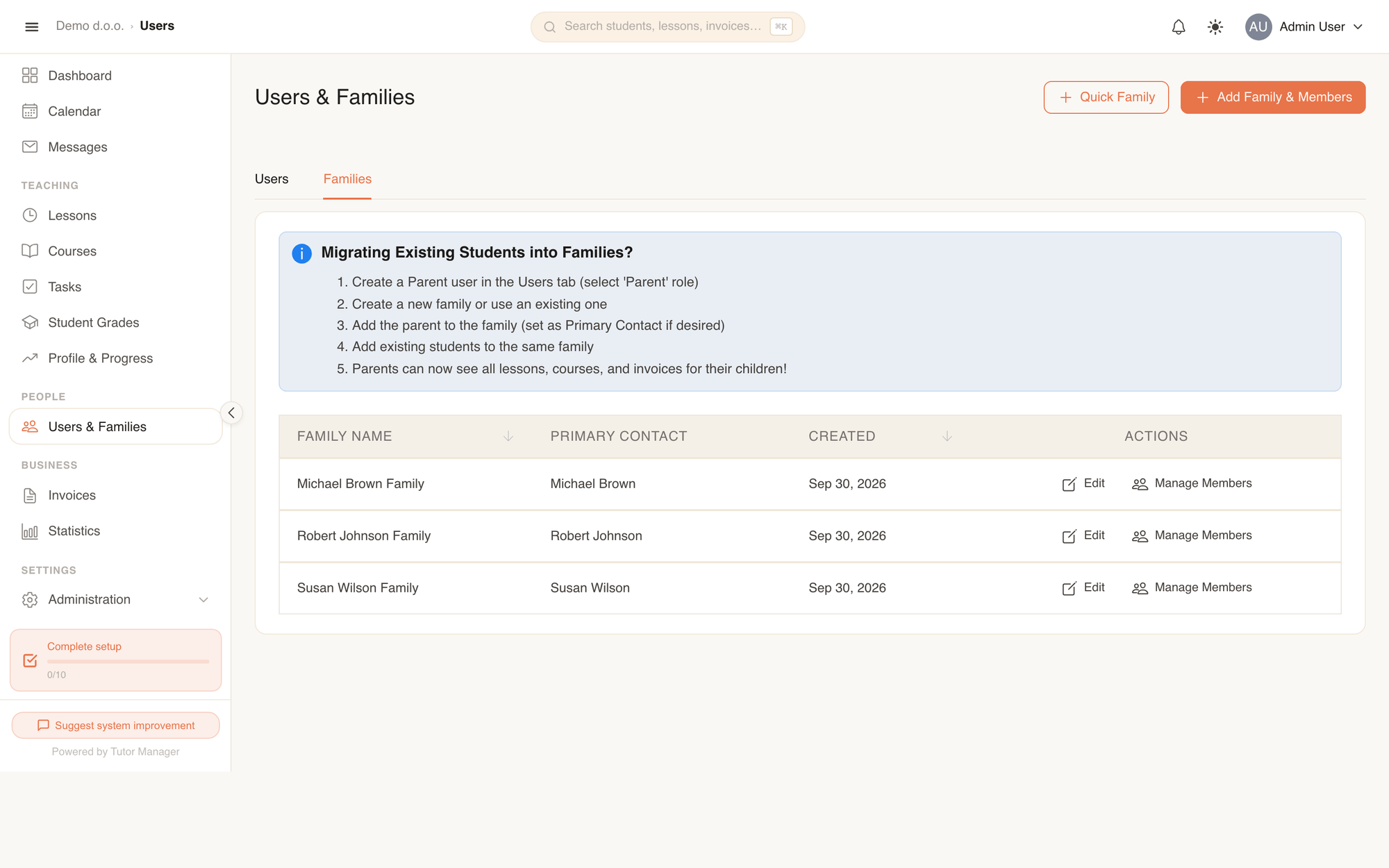
In TutorManager, families bridge the gap between individual students and paying parents:
- Primary contact (Parent): The guardian responsible for communication and billing. All invoices and payment links for the children are addressed to this person.
- Family members (Children / Students): The students attending lessons and courses.
Why families matter
- One parent login for all children: Parents log into the Parent portal with a single account and instantly toggle between their children to check upcoming lessons, calendars, completed attendance, and teacher feedback.
- Consolidated family invoicing: Instead of sending separate bills for each child, TutorManager groups completed lessons and courses for all siblings onto one clear, consolidated invoice addressed to the primary contact.
- Multi-child sibling discounts: TutorManager automatically applies configured discount rules based on family member position (for instance, granting 10% off for the second child and 20% off for the third child).
- Fair travel cost sharing: When a tutor visits a family's home to teach two or more siblings consecutively, TutorManager coordinates the trip and splits the travel mileage fairly instead of billing duplicate travel fees.
Create a family with parent & student
The fastest way to register a new family is the unified creation workflow.
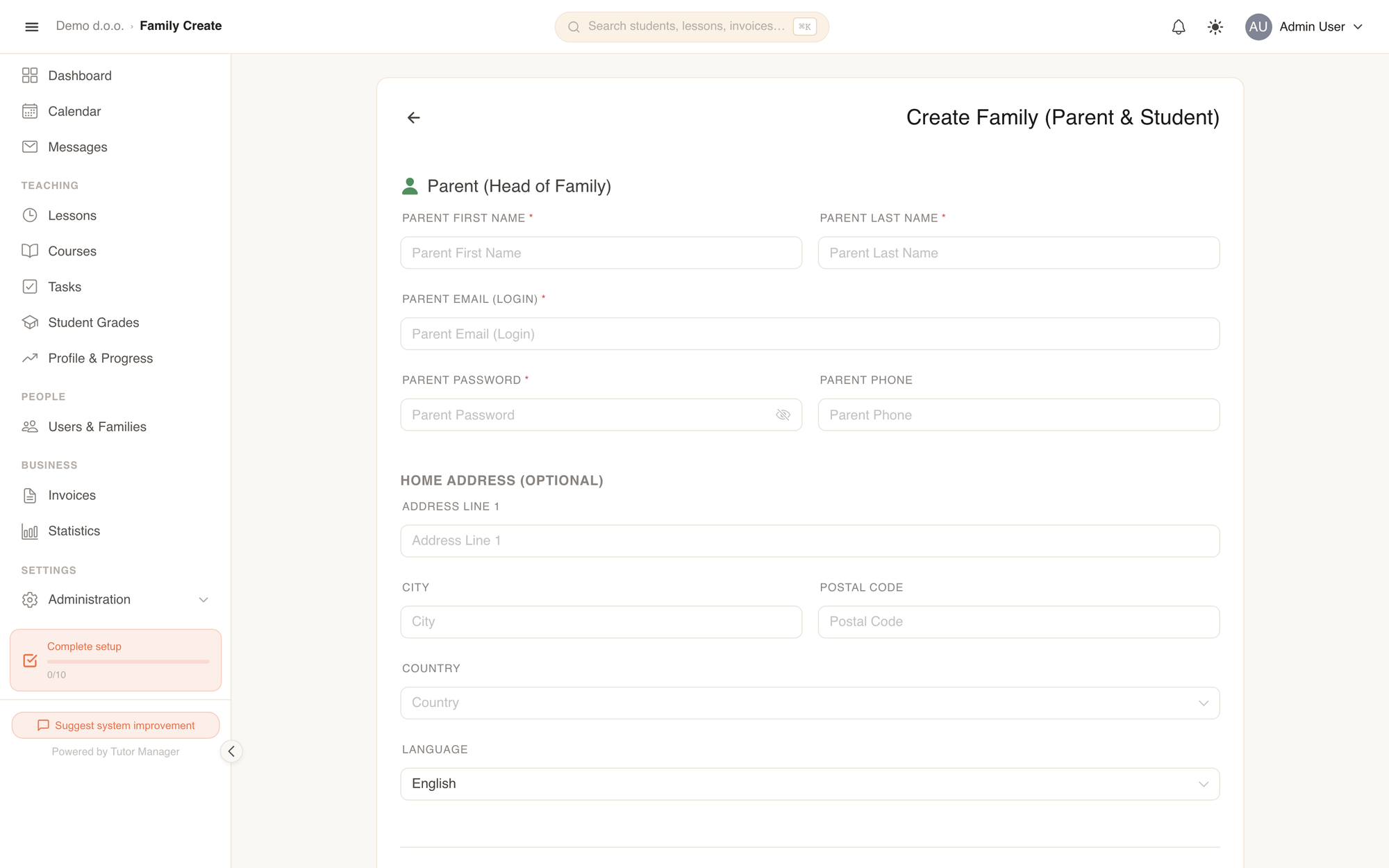
- Open Users in the sidebar and click Add Family & Members.
- Under Parent (Head of Family):
- Enter Parent First Name, Parent Last Name, Parent Email (Login), Parent Password, and Parent Phone.
- Fill in Home Address (Optional), Country, and Language.
- Under Student:
- Enter Student First Name and Student Last Name (leave blank to use Parent's).
- Set Can Student Login?:
- If turned on, provide Student Email and Student Password.
- If turned off, the child has a student profile without login credentials (ideal for younger learners whose parents handle everything).
- Under Family Settings, confirm or customize Family Name (Optional) (defaults automatically to "[Parent's Last Name] Family").
- Click Create Family.
Adding more siblings
To add a second or third child to the new family, open the family from the Families tab and click Manage Members (explained below), or create the student under Add User and assign them to the family.
Quick family & managing members
If the parent and students already exist in your system as individual users, group them using the Families tab.
Create a quick family
- On the Users page, switch to the Families tab.
- Click Quick Family.
- Enter the Family Name (e.g. "Novak Family").
- Select the Primary Contact from your existing parent users.
- Click Create.
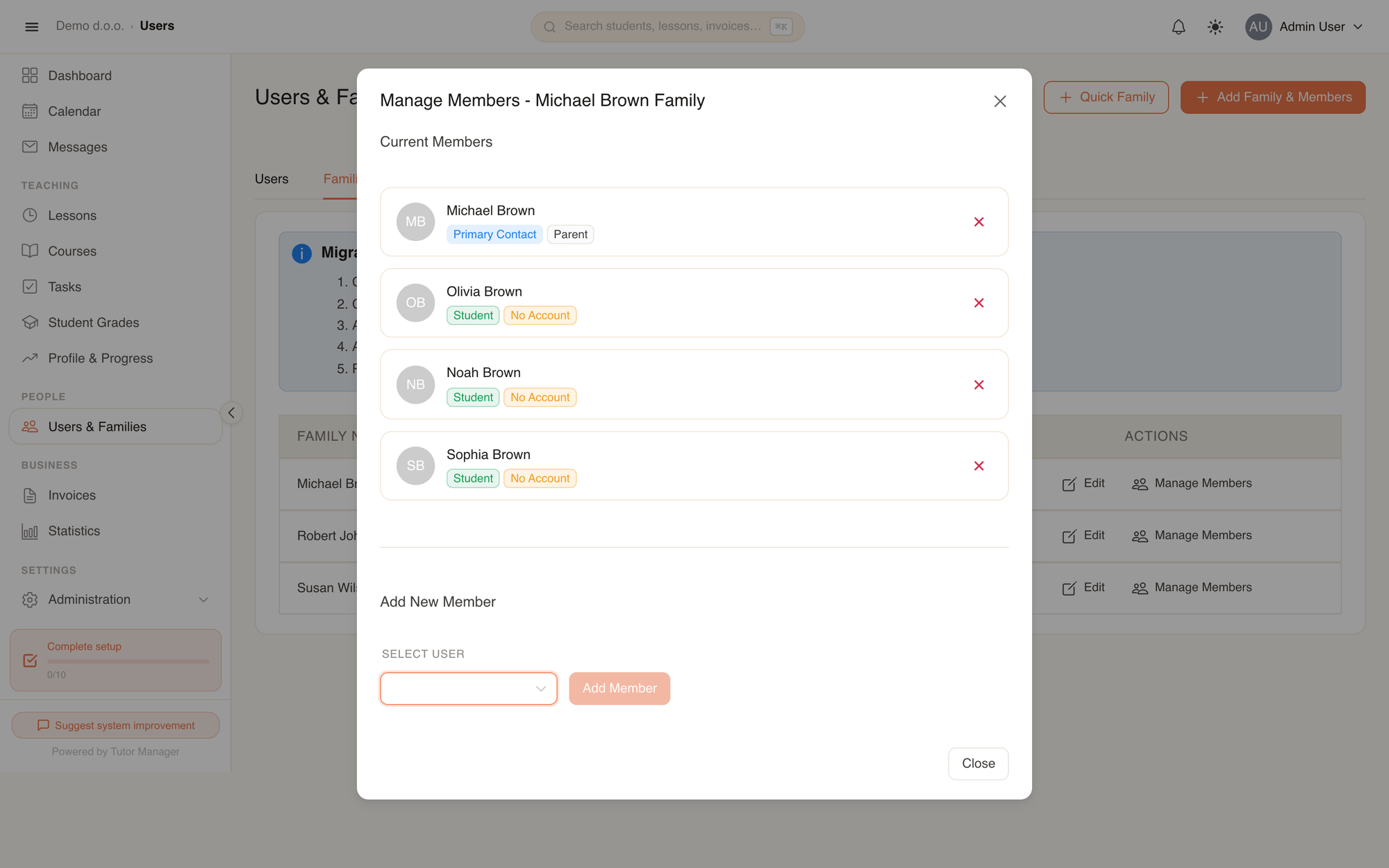
Manage family members
- On the Families tab, locate the family and click Manage Members.
- Review current members. The primary contact is highlighted with a Primary Contact badge.
- Under Add new member, select a user from the dropdown and click Add Member.
- To remove a member from the household, click the red remove icon next to their name.
Removing a primary contact
Every family must have a primary contact for billing purposes. If a parent changes, assign the new primary contact before removing the previous guardian.
Fields explained
| Field | Meaning |
|---|---|
| Family Name | The display title of the household (e.g. "Novak Family"). |
| Primary Contact | The parent user who receives all invoices, receipts, and official notifications for the household. |
| Can Student Login? | Toggles whether the student receives independent portal access or relies solely on the parent. |
| Family Member Position | The child's sequence in the family used by automated sibling discount rules. |