
Invoices
TutorManager streamlines your school's billing by automatically compiling completed lessons, course enrollments, travel mileage, and family discounts into professional invoices. Administrators and receptionists can generate monthly invoices in bulk, review drafts, record payments, and send PDF invoices to students and parents by email.
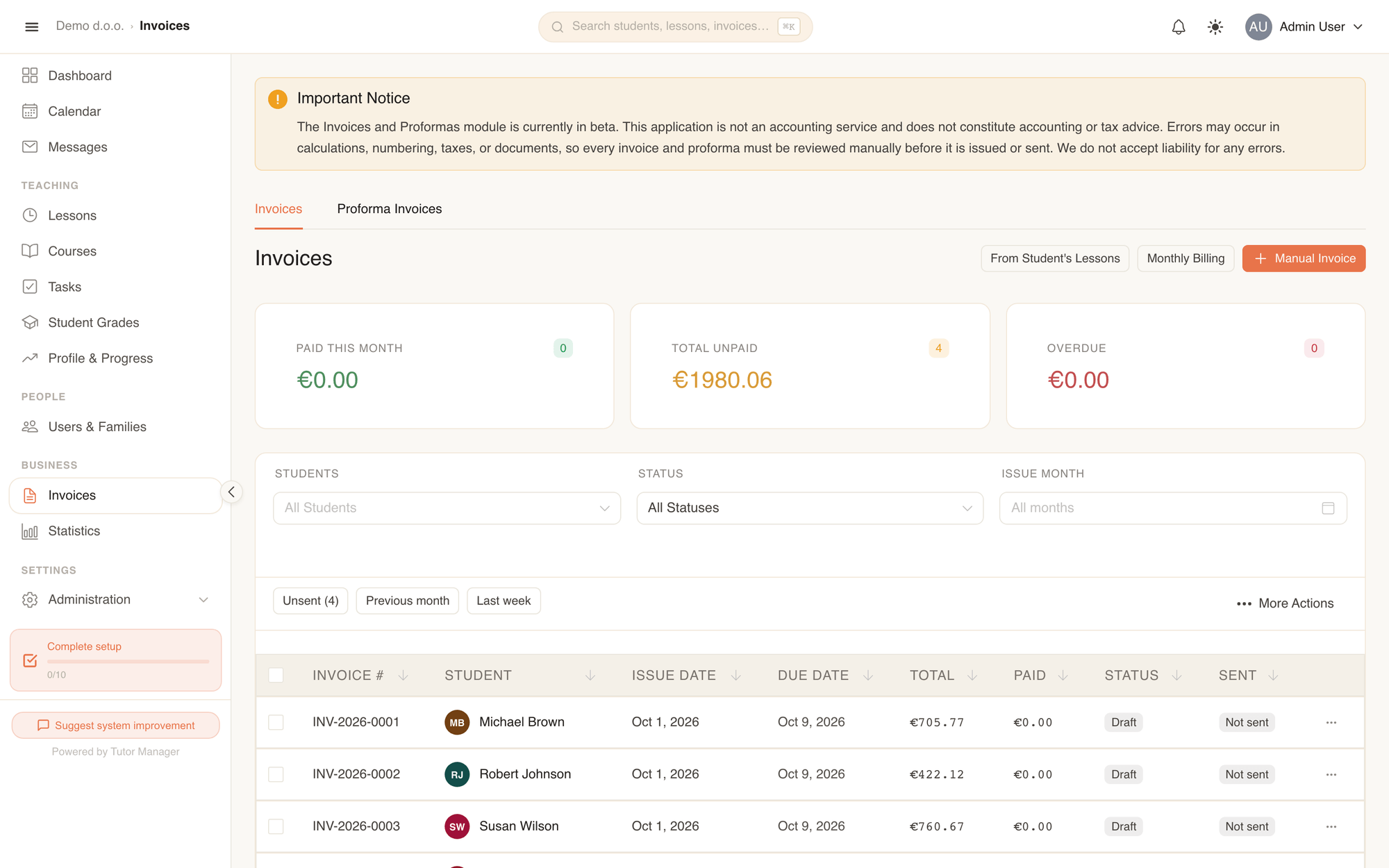
Beta disclaimer
The Invoices and Proformas module is currently in beta. TutorManager is management software, not a tax advisory service. Review calculations, tax rates, and customer details before issuing and sending documents.
How invoices are created
TutorManager offers three ways to create invoices:
1. Generating a single invoice for a period
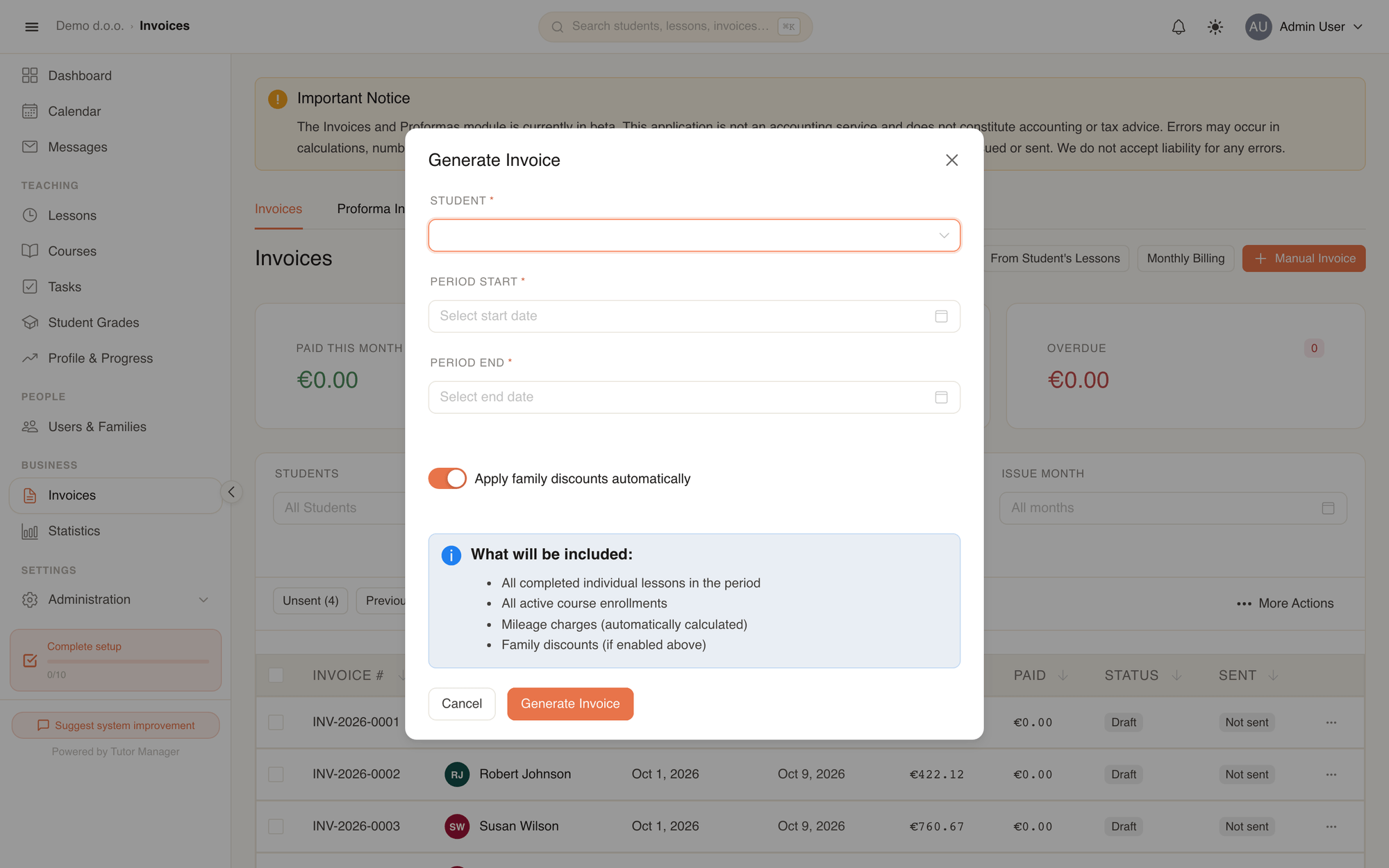
Click From Student's Lessons to aggregate billing items for a specific student over a defined date range:
- Includes all completed individual lessons in the period.
- Includes active course enrollments.
- Automatically calculates travel costs (mileage) for lessons held at client homes.
- Applies configured family discounts when Apply family discounts automatically is switched on.
2. Bulk monthly generation
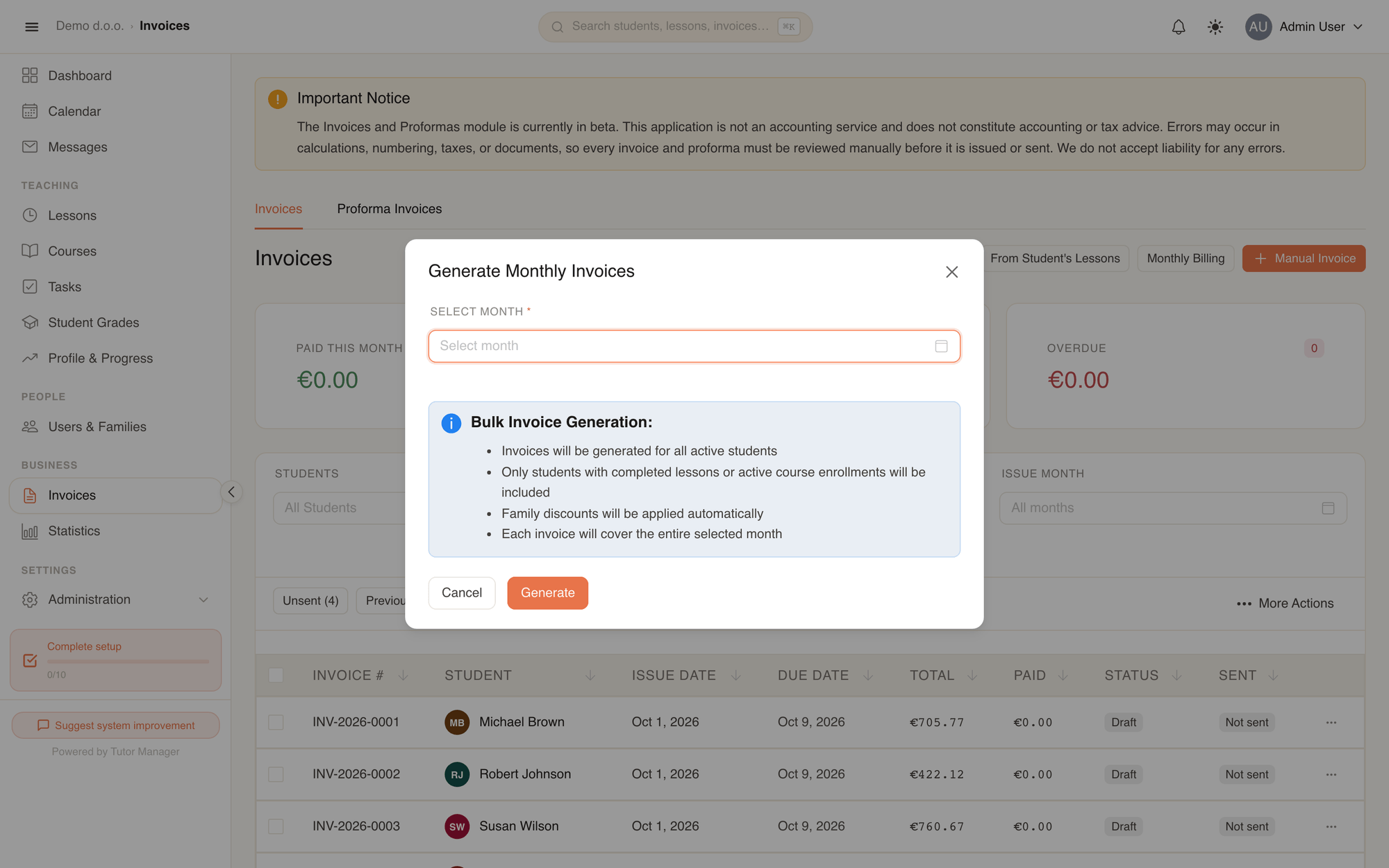
Click Monthly Billing to bill your entire school at the end of the month:
- Select the billing month.
- TutorManager previews the total number of billable students and the estimated billing total.
- Click Generate to create draft invoices for all active students simultaneously.
3. Manual invoice creation
Click Manual Invoice to issue one-off charges, such as textbooks, study materials, registration fees, or customized tuition adjustments.
Managing invoices and bulk operations
The invoice list includes real-time KPI cards:
- Paid this Month: Total revenue collected during the current calendar month.
- Total Unpaid: Open balance awaiting payment across all issued invoices.
- Overdue: Outstanding invoices that have passed their due date.
Selection and batch actions
Use the toolbar buttons to process invoices quickly:
- Unsent: Automatically ticks all invoices that have not yet been emailed to clients.
- Previous month / Last week: Selects invoices issued during specific timeframes.
- Generate PDFs for drafts: Compiles PDF documents for selected draft invoices.
- Send selected: Dispatches selected invoices with PDF attachments to client email addresses in bulk.
Invoice details and line items
Click any invoice row to view the invoice detail page.
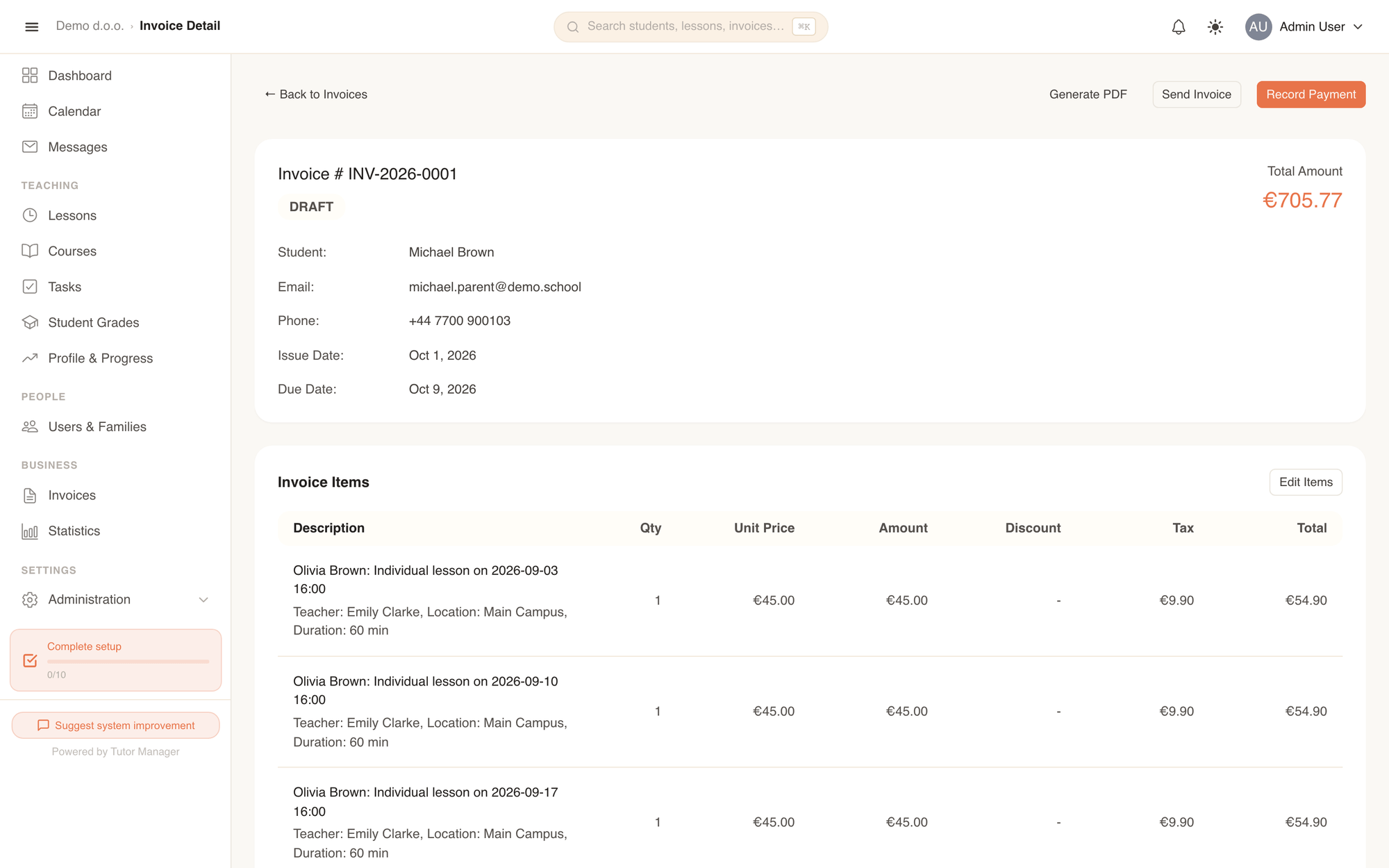
What an invoice contains:
- School company information: Header details, company registration, address, and bank payment details (IBAN, BIC/SWIFT) configured in Company settings.
- Client & student details: Recipient name, family group, address, email, and telephone.
- Itemized lines: Description, quantity/hours, unit price, gross amount, applied discounts, tax rate, and total line amount.
- Draft editing: While an invoice is in Draft status, staff can click Edit Items to modify lines, prices, or descriptions before finalizing.
- Source proforma link: If the invoice was converted from an advance proforma, a direct link to the original proforma number is displayed.
Invoice statuses
| Status | Meaning |
|---|---|
| Draft | Newly generated or manually created invoice. Line items can still be edited. |
| Unpaid | Issued and sent to the client, awaiting payment. |
| Partially Paid | A partial payment has been recorded, but an outstanding balance remains. |
| Paid | The total invoice amount has been fully received. |
| Overdue | The payment due date has passed without full payment. |
| Cancelled | The invoice has been voided. |
Recording payments
When a client pays via bank transfer, cash, or card:
- Open the invoice and click Record Payment.
- Enter the Amount received.
- Select the Payment Method (e.g. Bank Transfer, Cash, Card).
- Select the payment date and save. The invoice status updates automatically.
What students and parents see
Students and parents access invoices under Invoices in their sidebar:
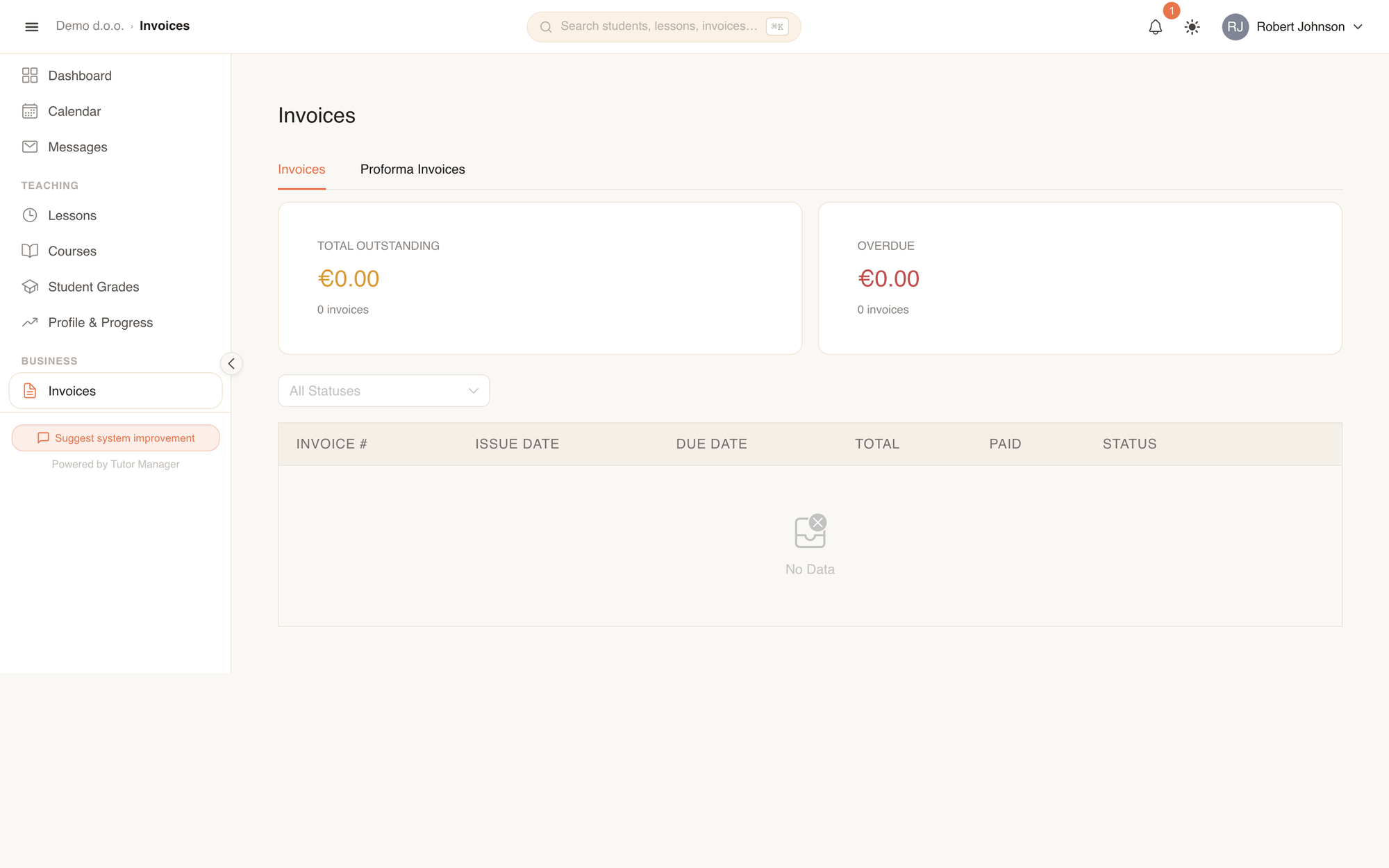
- Family grouping: Parents see invoices for all children in their family group in one place.
- Outstanding balances: Prominent warning badges highlight pending amounts and due dates.
- Download PDF: Clients can click Download PDF on any invoice to obtain the official document with payment instructions.