
Completing a lesson
Marking a lesson as completed confirms that the teaching session took place. It records attendance, saves lesson notes for students and staff, locks in travel mileage costs, and prepares the lesson for invoicing.
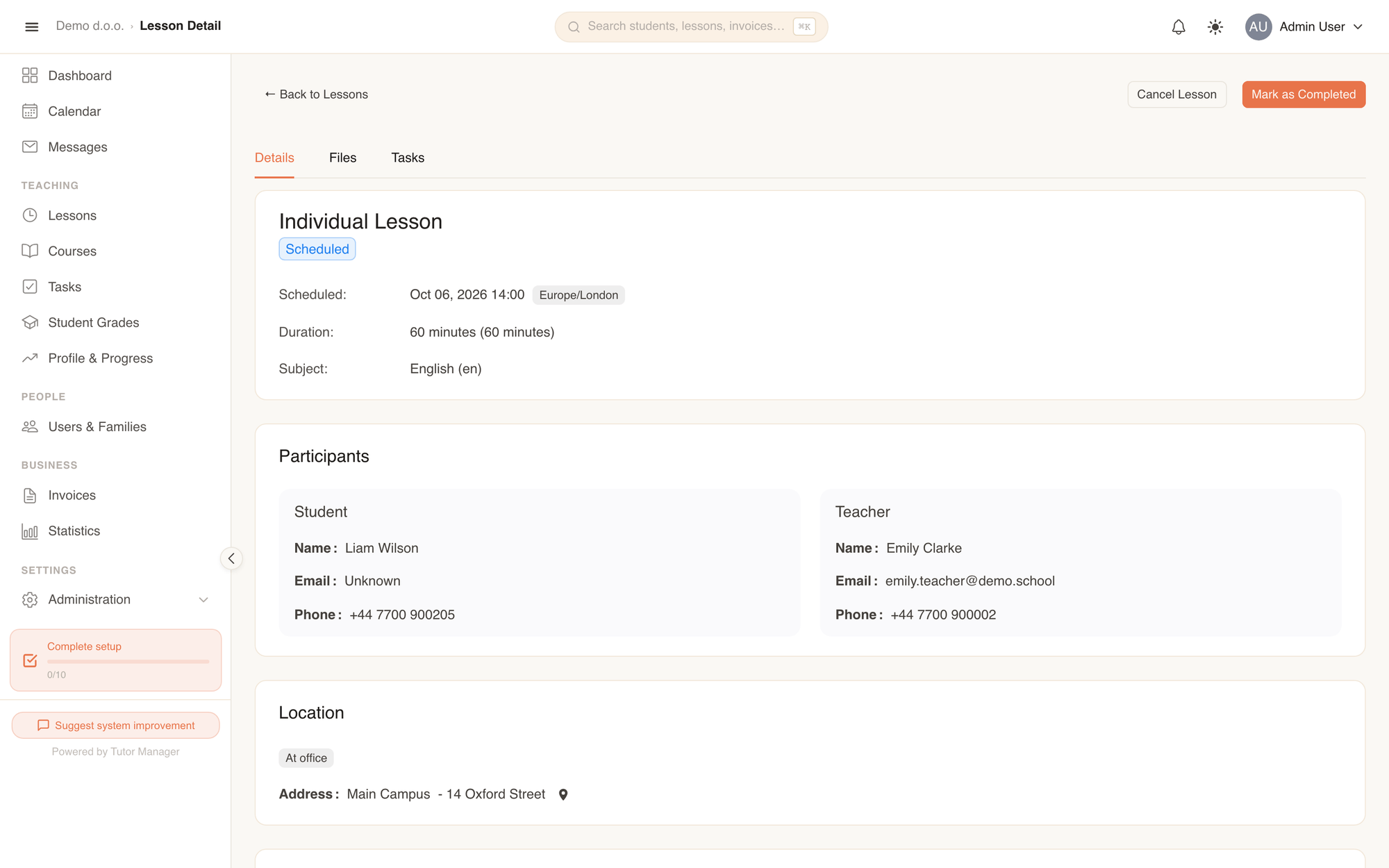
Complete an individual lesson
Teachers and administrative staff can complete a lesson from its detail page or directly from the calendar.
- Open Lessons in the sidebar (or click the session in the Calendar) and select the lesson.
- Click Mark as Completed in the top action bar.
- In the Complete Lesson modal, enter public Notes. These are visible to the student and their parents in their portal.
- If the AI assistant is enabled for your school, click the AI icon (AI Summarize Notes) to automatically polish your bullet points into clear lesson feedback.
- Enter Private Notes if needed. These notes are visible only to teachers, receptionists, and administrators.
- If the lesson took place at the client's home, ensure the travel distance was set correctly on the lesson beforehand so mileage costs calculate accurately.
- Click Complete.
Fields explained
| Field | Description |
|---|---|
| Notes | Public notes on topics covered, vocabulary, and achievements. Visible to the student and parents. |
| Private Notes | Internal pedagogical or administrative remarks. Hidden from students and parents. |
What happens after completion
When a lesson is marked as Completed, several automated processes take place:
- Status update: The status transitions to Completed.
- Pricing snapshot: TutorManager permanently records the exact base price, mileage rate, discounts, and tax rate active at that moment. If you change your school's price catalog later, existing completed lessons and historical invoices will never change.
- Invoicing readiness: The lesson becomes eligible for billing and will appear automatically in the next billing run under Invoices.
- Audit protection: Completed lessons cannot be deleted from the system. If a lesson was completed by mistake, edit the lesson to revert its status back to Scheduled.
Record attendance for course lessons
Because courses have multiple enrolled students, attendance is recorded per student rather than for the entire class at once.
- Open Courses in the sidebar and select the course.
- On the Lessons tab, click on the specific session to open its detail page.
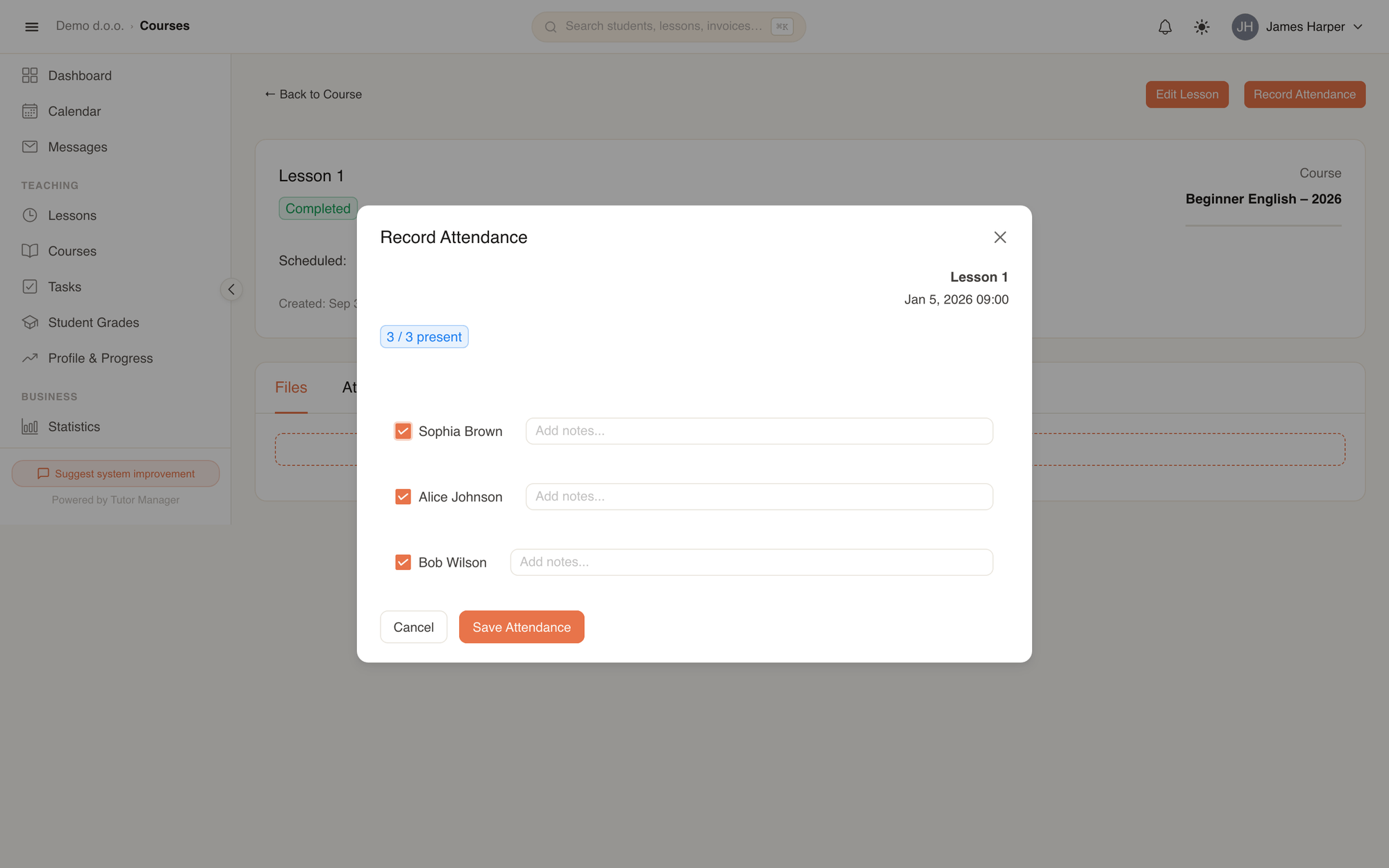
- Click Record Attendance.
- In the modal, check the box next to each student who attended to mark them Present, or leave it unchecked for Absent.
- Optionally type a note next to any student (such as an excuse reason, illness note, or late arrival time).
- Click Save Attendance.
The session card updates immediately with an attendance counter (for example, "5 / 6 present"). Enrolled students and their parents can log into their portal to view whether their attendance was recorded.
Cancellation deadline and No Show rules
TutorManager protects tutors and schools from late cancellations with automated policy enforcement:
Cancellation deadline
Schools can set a Cancellation deadline (for example, 24 hours) in Company settings.
When a student or parent attempts to cancel an upcoming session within that cutoff window:
- TutorManager prevents the cancellation.
- The user sees a notice: Cancellation Deadline Passed ("It is too late to cancel this lesson automatically. Please contact your teacher via phone or email to discuss cancellation.").
- Staff members can still cancel or reschedule the lesson manually if an exception is warranted.
No Show
If a student does not attend a scheduled session and failed to cancel in advance, staff can set the lesson status to No Show:
| Status | Billing & Attendance Impact |
|---|---|
| Scheduled | Planned, pending attendance recording. |
| Completed | Held successfully; attendance recorded; included on the invoice. |
| Cancelled | Cancelled in time; not charged to the student. |
| No Show | Student missed without valid cancellation; retained for attendance records and billing policy enforcement. |