
Proforma invoices
Proforma invoices (predračuni) are advance payment requests issued before lessons or courses commence. While regular invoices document completed teaching services for accounting purposes, proformas are used to secure course registrations, collect upfront term deposits, or confirm tuition packages in advance.
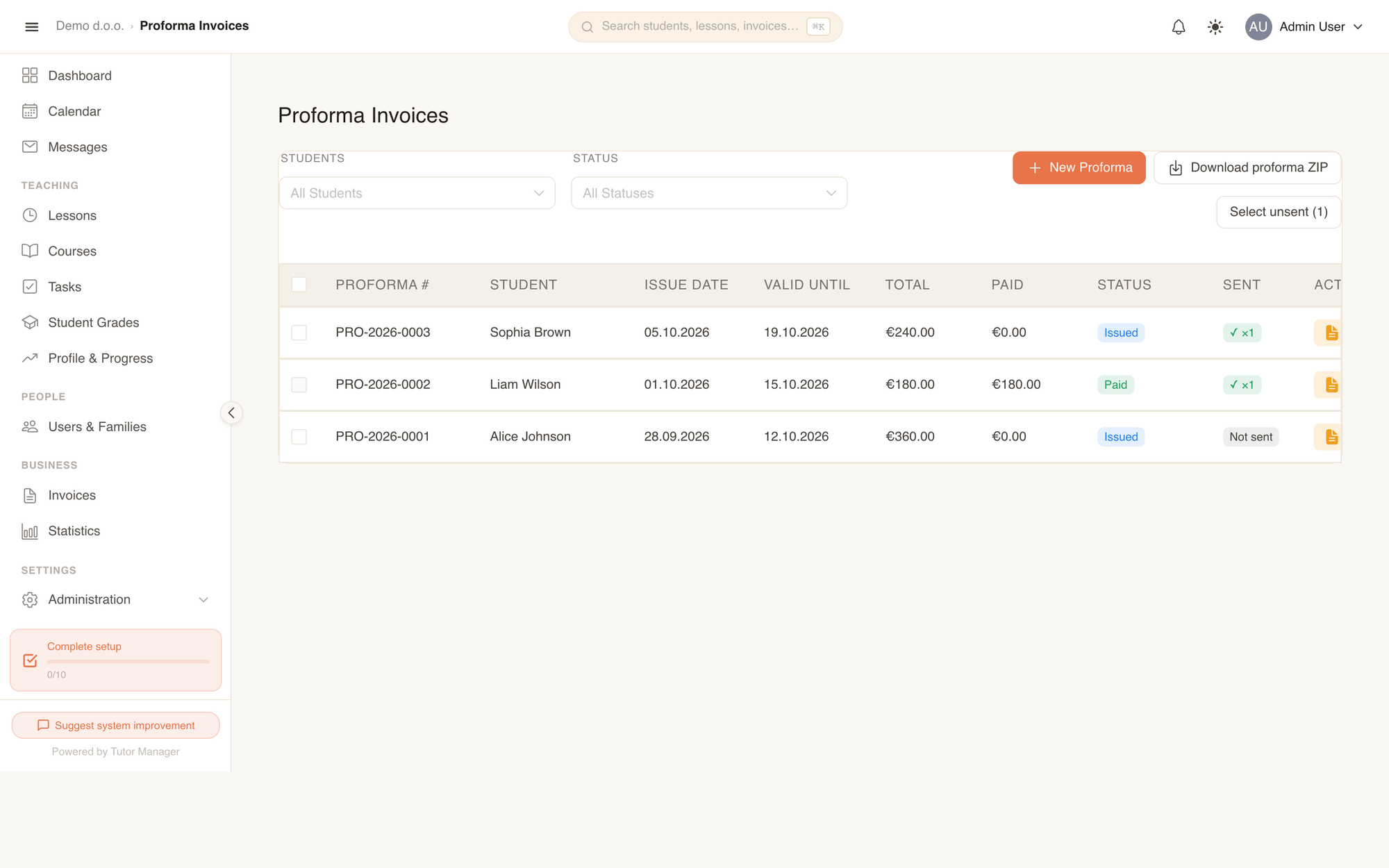
When to use proforma invoices
Use proformas whenever payment is expected before services are rendered:
- Course registrations: Requesting full tuition or deposits before a group course begins.
- Advance lesson packages: Billing for a bundle of 10 or 20 individual lessons upfront.
- Deposit payments: Requiring a percentage deposit (e.g. 20% or 50%) to guarantee a student's place in a timetable.
Create a proforma invoice
Open Proforma Invoices under Invoices (or switch to the Proforma Invoices tab) and click New Proforma.
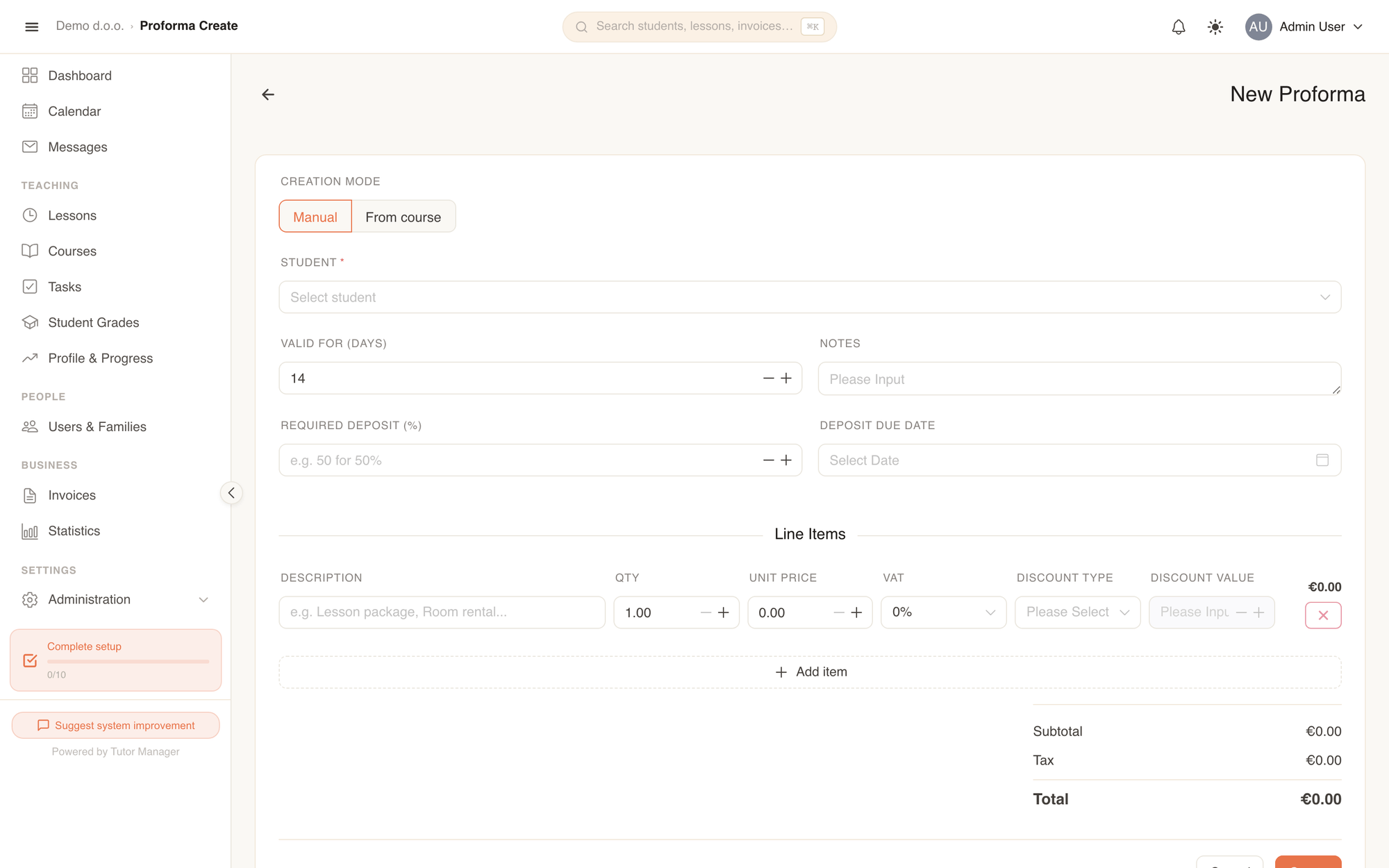
TutorManager supports two creation modes:
1. Manual mode
Ideal for individual students or customized upfront arrangements:
- Select Manual under Creation mode.
- Choose the Student.
- Set Valid for (days) (default is 14 days) and optional Notes.
- If collecting a partial advance, set the Required deposit (%) and Deposit due date.
- Add line items: enter the Description, Qty, Unit Price, VAT, and any applicable Discount.
- Click Create.
2. From course mode
Ideal for group language classes and semester workshops:
- Select From course under Creation mode.
- Select the target Course.
- TutorManager automatically detects all enrolled students in the course, applies the course tuition pricing, and displays any automated family discounts matching siblings.
- Set the validity period and deposit terms.
- Click Create to issue individual proformas for every enrolled student in bulk.
Proforma statuses and workflow
| Status | Meaning |
|---|---|
| Issued | Sent to the client, awaiting payment. |
| Paid | Fully paid by the client. Ready to be converted to an official invoice. |
| Expired | The validity date passed without payment. |
| Cancelled | Voided by the school. |
Converting a paid proforma into an invoice
Once a student or parent pays the proforma amount, convert it directly into an official accounting invoice:
- Open the proforma and click Mark as Paid.
- Enter the received amount, payment method (e.g. Bank Transfer), and payment date. The status changes to Paid.
- Click Convert to Invoice.
- TutorManager generates an official invoice, transfers all line items and payments, links the original proforma number to the new invoice, and opens the invoice detail page.
Full document traceability
When a proforma is converted, the resulting invoice displays a Source Proforma reference linking directly back to the proforma, and the proforma displays a permanent link to the generated invoice.
What students and parents see
Students and parents can review their proformas on the Proformas tab of their billing portal:
- Review the total amount and required deposit percentage.
- Check the payment due date and validity period.
- Click Download PDF to obtain the document with payment instructions, IBAN, and reference code.