
Student grades
The Student grades module helps tutoring centers and language schools track the official grades, test results, and exam papers that students receive in their regular school or academic courses. Recording these results enables teachers to monitor academic progress and evaluate tutoring effectiveness over time.
Available to:AdminReceptionistTeacherStudentParent
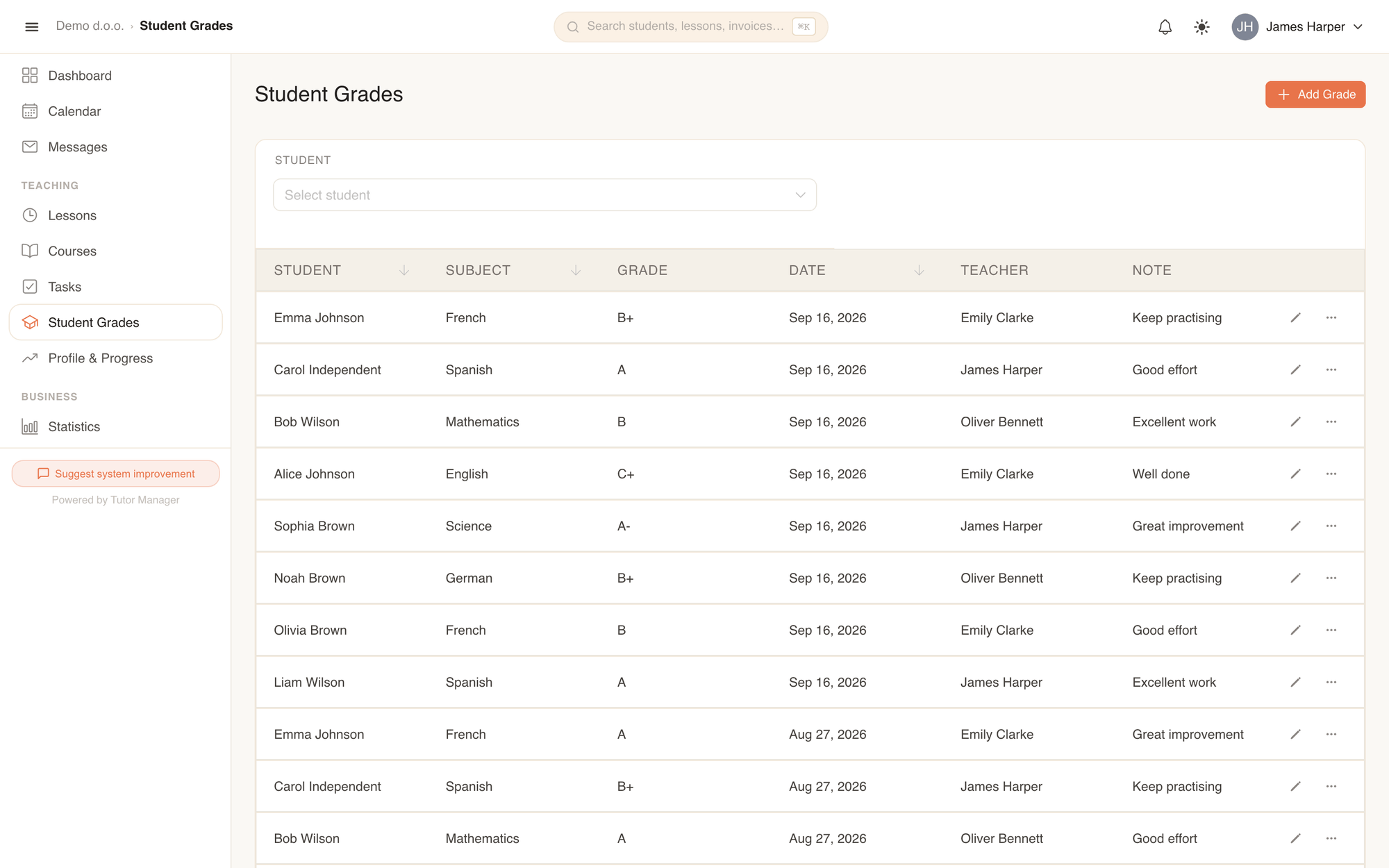
Recording a grade
Teachers, receptionists, and administrators can record new grades at any time:
- Open Student Grades in the sidebar.
- Click Add Grade.
- Fill in the grade information:
- Student: Select the student who received the grade.
- Teacher: If you are an administrator or receptionist, optionally select the teacher associated with this subject.
- Subject: Choose the relevant subject.
- Grade: Enter the grade or score (for example,
5,A, or92%). - Date: Select the date the test was taken or graded.
- Note: Enter optional observations, exam topics, or strengths and weaknesses.
- Click Save.
Grade fields explained
| Field | Description |
|---|---|
| Student | The student whose academic mark is being logged. |
| Subject | The academic subject (e.g. Mathematics, German, Chemistry). |
| Grade | The score or grade format used by the student's school (numerical or letter grade). |
| Date | The date of the assessment or exam. |
| Note | Qualitative observations, such as "Unit 4 test on Trigonometry — strong algebra, needs practice on word problems". |
Grade details and exam attachments
Clicking any grade row opens the grade detail page.
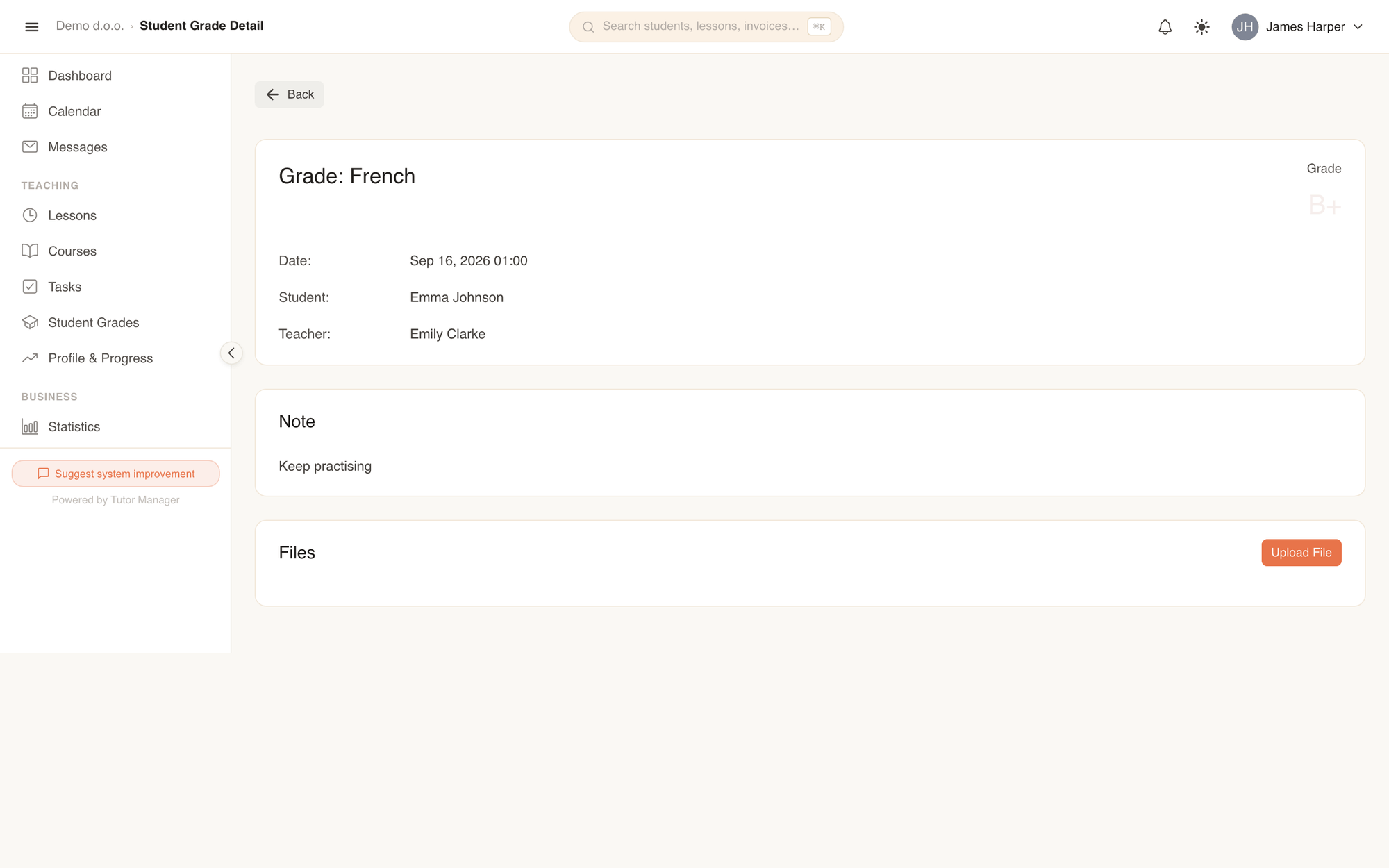
What you find on the detail page:
- Score summary: Prominent display of the mark, subject, date, student, and teacher.
- Teacher observations: Full text of any notes and recommendations.
- Attached files: Staff can upload scans, photos, or PDF copies of the student's test paper using Upload File. Both teachers and parents can download these attachments at any time.
Permissions by role
- Administrators & Receptionists: Full access to view, filter, add, edit, and delete grades across all students.
- Teachers: Can view and log grades for their students, upload exam files, and leave feedback notes.
- Students & Parents: Can view their own (or their children's) recorded grades, notes, and download attached test papers, but cannot modify records.